Portable Jixipix Hallows Eve 1.19
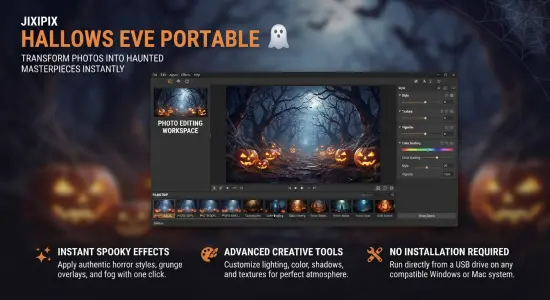
JixiPix Hallows Eve Portable is a Halloween-themed photo-editing app designed to turn ordinary pictures into atmospheric, spooky scenes. Its approach is playful rather than complicated: start with a photo, adjust its mood with color and weather effects, then decorate it with Halloween objects such as ghosts, skulls, tombstones, glowing eyes, and jack-o’-lanterns. The result can be subtle and eerie, boldly theatrical, or somewhere between the two.
For people looking for an easy way to make seasonal images, Hallows Eve focuses on a specific creative task: building Halloween-themed compositions from existing photographs. It is not a general-purpose image editor with a broad set of professional retouching tools. Instead, it brings together spooky color treatment, misty cloud and rain overlays, and movable decorative objects in a focused interface. These tools make it useful for Halloween invitations, social posts, themed portraits, greeting cards, or simply experimenting with a familiar photograph.
What Is JixiPix Hallows Eve Portable?
JixiPix Hallows Eve Portable is a photo-effects app for creating Halloween scenes by combining an image with atmospheric adjustments and themed graphic objects. The basic idea is simple: select a photo, change its overall tone, choose a cloud or rain effect, and add decorative elements wherever they work best in the frame. You can resize, rotate, reposition, blend, and layer objects to make them feel like part of the scene rather than stickers dropped on top.
That combination gives the app a more flexible feel than a single-effect filter. A preset can provide a starting point, but the image can also be adjusted element by element. You might darken a photograph, add mist, place a ghost near a doorway, and position glowing eyes in a distant window. Alternatively, a portrait could be tinted with a cool or warm color, then embellished with a pumpkin or skull to create a playful Halloween graphic.
The app is best understood as a themed creative tool. Its strength is the speed with which it helps you establish a Halloween mood, not the breadth of its image-editing capabilities. Users who want detailed retouching, elaborate masking, or extensive layer controls may prefer a full-featured editor. For users who want a quick, visual way to transform a photo into a spooky scene, Hallows Eve offers a more direct workflow.
Create a Halloween Mood with Photo Toning
The overall color and brightness of a photograph have a major effect on its mood. Hallows Eve includes photo-toning controls that let you shift the image toward a more eerie look. You can choose a tint color and adjust its strength, then refine the scene with controls for darkening and contrast. These settings help turn a bright daytime picture into something more mysterious, or give a night-time image a stronger, more cinematic appearance.
A cool tint can suggest moonlight, fog, or a chilly haunted-house atmosphere. A warmer tint may suit an autumnal scene, a candlelit interior, or a playful pumpkin-themed composition. The effect does not need to be pushed to its maximum. A restrained color treatment often keeps the underlying photograph recognizable while making its mood more distinctive.
The Darken Scene adjustment is useful when the original photo feels too bright or cheerful for the desired theme. Darkening can help foreground Halloween objects and make pale details stand out. Contrast can emphasize separation between the light and dark areas of an image, giving clouds, silhouettes, and decorations more visual impact. These controls work best when considered together: too much darkness may hide important details, while excessive contrast can make an image feel harsh.
Because the app allows the adjustments to be tuned, you can create different moods from the same source photo. A lightly tinted image may feel whimsical and suitable for a family invitation. A darker, higher-contrast treatment can feel more dramatic. This flexibility makes the app more useful than a one-click effect, particularly when you want the final image to fit a particular event or audience.
Add Clouds and Rain for an Eerie Atmosphere
Atmospheric effects can change how a photograph feels without changing its subject. Hallows Eve offers a selection of cloud and rain treatments, with a strength control for adjusting how prominent the overlay appears. The official app information describes cloud and rain choices, while a contemporary app overview reported 20 different cloud and rainy scenes.
A light cloud effect can add texture to an open sky or create a thin veil over a distant background. A heavier overlay can make a scene feel stormier and more dramatic. Rain can suggest a cold night, a haunted road, or a gloomy outdoor setting. Adjusting the effect’s strength helps prevent it from overwhelming the original photograph.
The best placement and intensity depend on the image. A sky with little detail may benefit from a stronger cloud texture, while a busy image may need only a subtle atmospheric layer. The goal is to support the photograph, not obscure the subject. If a cloud treatment makes the main subject difficult to see, lowering its strength can restore balance.
These effects are especially useful for photographs that already contain visual cues associated with Halloween: trees, old buildings, nighttime scenes, empty streets, or dramatic skies. They can also be used more creatively on everyday photos. A garden, doorway, or portrait may take on a different character once the lighting and atmosphere have been adjusted.
Decorate Photos with Halloween Objects
Hallows Eve includes a library of mix-and-match Halloween objects. Described examples include skulls, jack-o’-lanterns, ghosts, tombstones, glowing eyes, and ghoulish hands. Objects can be added to an image, then moved, rotated, and resized to fit the composition. The app also provides controls for bringing an object forward or sending it backward, so elements can overlap in a chosen order.
This object-based workflow gives you more control than applying a fixed frame or a single all-over filter. You can place a ghost in the background, position a tombstone near the bottom edge, or add glowing eyes to a dark area. A small object can act as a detail that rewards a closer look; a large one can become the main visual feature. Layer order is also important: a decoration that should appear behind a person or a foreground object can be moved backward, while another element can be brought forward.
The Object Blend control helps soften the appearance of added elements. Used carefully, blending can make a decoration feel less sharply pasted onto the photograph. It can also reduce the visual intensity of an object that competes with the subject. The right setting will vary depending on the object, the background, and the tone of the original photo.
A useful approach is to build the image gradually. Start with one or two objects, check how they interact with the subject, and add more only if the composition needs them. Since the app permits multiple objects, it is possible to create a busy scene, but more decorations do not always make a stronger image. Leaving open areas can help the main subject and the Halloween details remain easy to read.
Presets and Randomized Effects
Presets can help you start editing without adjusting every control from scratch. Hallows Eve includes preset styles, and its Randomize button produces a different combination of effects. Randomized results can be useful for inspiration: even when the first result is not quite right, it may suggest a color treatment, atmosphere, or arrangement you would not have chosen yourself.
A practical workflow is to try a preset or randomized effect, then refine the parts that do not suit the image. You might keep the cloud treatment but reduce its strength, change the tint, move a decoration, or remove an object that distracts from the subject. This combines the speed of an automatic starting point with the control of manual editing.
The app’s information also describes saving a custom preset. A saved preset can preserve an arrangement or combination of settings for future use, making it easier to repeat a look across several photographs. This can be helpful when preparing a set of themed images for one event, or when you have developed a color treatment you want to reuse.
Randomization is best treated as a creative prompt rather than a final decision. A randomly generated effect might be too dark, too busy, or simply unsuitable for the photograph. The value is in quickly exploring possibilities and then choosing the elements that work.
A Straightforward Editing Workflow
The app’s workflow is designed around selecting a photo and working through a compact set of creative controls. The interface includes options for loading an image, cropping, changing the visual treatment, choosing cloud or rain effects, adding Halloween objects, and saving or sharing the result. An Original viewing option allows a quick comparison with the unedited image.
A simple process for making a Halloween photo might look like this:
- Choose a photograph. Pick an image with a clear subject and enough visual space for the effects you want to add.
- Crop if needed. Remove empty or distracting areas and decide how much room the composition should leave for decorations.
- Set the mood. Adjust the tint, darkness, and contrast to suit the subject and the style you are aiming for.
- Add atmosphere. Choose a cloud or rain treatment, then adjust its strength so it supports rather than hides the photograph.
- Place decorations. Add Halloween objects and position them carefully. Resize and rotate them to suit the scene.
- Refine layering and blending. Bring objects forward or move them backward as needed, and adjust their blend so the composition feels coherent.
- Compare and save. Check the result against the original, make any final adjustments, and save or share the finished image.
This sequence is only a suggestion; creative editing does not require a fixed order. You may prefer to add objects before changing the overall tone, or to begin with a preset and work from there. The advantage of a clear sequence is that it helps prevent a common problem: adding decorations before deciding on the image’s overall mood.
Saving, Sharing, and Reusing Your Work
Hallows Eve provides options for saving an edited image and sending it to other apps or services. The app information also describes saving a custom preset and printing or sharing images, depending on the version and the options available on the device.
Before sharing an image, take a moment to check its edges and fine details. An object close to the edge may be partly cut off, and a dark treatment may hide a face or another important feature on a smaller screen. Viewing the original and edited versions in quick succession can help you judge whether the transformation is strong enough to be noticeable but not so strong that it loses the character of the photograph.
For a consistent series of posts or invitations, try to keep a few visual choices aligned across images. Similar tint colors, comparable cloud strength, or a repeated object style can make separate photos feel like part of the same collection. A saved preset may help maintain that consistency, although each photograph may still need individual adjustments.
If you plan to print or send the image to another service, check the output options on your particular device and app version. Image dimensions and sharing options can depend on the platform and the original photo. Starting with a good-quality image gives the editing process more detail to work with, especially if the finished result will be viewed at a larger size.
Who Should Use JixiPix Hallows Eve Portable?
JixiPix Hallows Eve Portable is a good fit for people who want to make Halloween-themed edits without assembling effects manually in a complex graphics program. Its controls are aimed at visual experimentation: choose a mood, add some atmosphere, decorate the image, and refine the composition. It can suit casual photographers, families preparing seasonal greetings, social-media users, and anyone who enjoys turning ordinary photos into playful spooky scenes.
It may also appeal to beginners because the effects are visible and easy to understand. Instead of starting with abstract technical adjustments, you can see the result of changing a tint, adding rain, or placing a ghost. Presets and randomization offer starting points, while object positioning and blending let you personalize the result.
The app may be less suited to people who need extensive photo correction or detailed compositing. Its Halloween-specific objects and effects are the central attraction, rather than broad tools for every photography task. If your goal is precise portrait retouching, professional color grading, complex selection work, or a general-purpose editing workflow, a more comprehensive editor will likely be a better match.
Tips for Making Better Halloween Edits
A compelling Halloween edit usually comes from a few deliberate choices rather than every effect being used at once. Begin by deciding whether the finished image should feel playful, mysterious, or dramatic. Then choose adjustments that reinforce that direction. A cheerful portrait may work well with a lighter tint and a small pumpkin decoration, while a dark outdoor photograph may call for stronger contrast and a restrained mist effect.
Keep the subject easy to recognize. If the image is intended as a greeting or invitation, people should be able to identify who or what it features. Place decorations in areas that do not cover important details, and make sure the strongest contrast remains near the subject. A single well-placed ghost can sometimes be more effective than a collection of objects competing for attention.
Pay attention to scale. A decoration that is too large can appear pasted on, especially when it has no clear relationship to the scene. Shrinking it, rotating it, or adjusting its position can help it fit. Similarly, consider the layer order: an object that belongs in the background should not appear in front of every other element.
Use the blend and atmosphere controls with care. A small adjustment can help objects sit more naturally in the scene, but excessive blending may make them hard to see. Strong clouds and heavy darkening can create a dramatic mood, yet may also conceal important parts of the photo. Compare the edited image with the original as you work, and make changes in small increments.
Final Thoughts on JixiPix Hallows Eve Portable
JixiPix Hallows Eve Portable is a focused Halloween photo-editing app built around atmospheric effects and themed decorations. Its combination of tinting, darkening, contrast, cloud and rain overlays, object placement, layering, blending, presets, and randomization offers several ways to transform an image without requiring a complicated workflow.
Its most useful quality is the ability to combine effects instead of relying on one fixed filter. A photograph can be darkened and tinted, given a stormy or misty atmosphere, and decorated with objects arranged to suit the subject. Presets and randomization make it easy to explore ideas, while manual adjustments make it possible to shape a more personal result.
The app’s purpose is specific, and that is part of its appeal. It is designed for spooky seasonal creativity, not as an all-purpose editing suite. If you want a straightforward way to create Halloween portraits, invitations, themed posts, and decorative images from your own photographs, Hallows Eve offers a simple set of tools for getting started. For the best results, choose a photo with a clear focal point, keep the effects balanced, and use each decoration to support the scene rather than overwhelm it.
Features at a Glance
- Halloween-themed photo effects and scene creation
- Adjustable image tint and tone
- Darken Scene and contrast controls
- Misty cloud and rain overlays
- Adjustable cloud and rain strength
- Mix-and-match Halloween objects, including ghosts, skulls, tombstones, glowing eyes, and jack-o’-lanterns
- Movable, resizable, and rotatable objects
- Object blending and front-to-back layering controls
- Presets and a Randomize option
- Ability to save custom presets
- Crop, save, and sharing options depending on the app version and device