Portable Transcribe! 9.60.4 (x64)
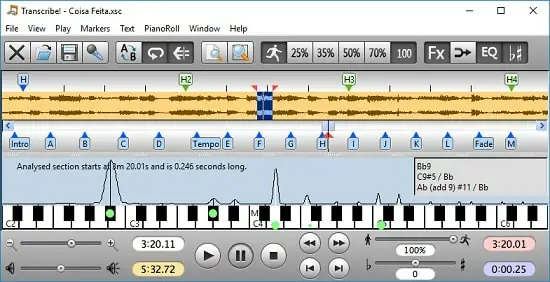
The Transcribe! Portable application is an assistant for people who want to work out a piece of music from a recording, in order to write it out, or play it themselves, or both. It doesn’t do the transcribing for you, but it is essentially a specialised player program which is optimised for the purpose of transcription. It has many transcription-specific features not found on conventional music players.
It is also used by many people for play-along practice. It can change pitch and speed instantly, and you can store and recall any number of named loops. So you can practice in all keys, and you can speed up as well as slow down. There is some advice about play-along practice in Transcribe! Portable’s help, under the heading “Various Topics”.
And it is also used for speech transcription. With its support for foot pedals and its superior slowed-down sound quality, it is an excellent choice for this purpose. There is some advice about speech transcription in Transcribe! Portable’s help, under the heading “Various Topics”.
Conventional music players are really designed for people who want to listen to whole tracks. They are very inconvenient for transcribing music as they are not designed for this purpose. If you copy the recording to your computer’s hard disk as a sound file then you can use Transcribe! Portable instead. Transcribe! Portable offers many features aimed at making the transcription job smoother and easier, including the ability to slow down music without changing its pitch, to analyse chords and show you what notes are present, and the capability of adding markers and textual annotations so you can easily navigate around the track. Transcribe! Portable also has a piano keyboard displayed on screen which you can click to play reference notes.
It is important to understand that Transcribe! Portable does not attempt to do the whole job, processing an audio file and outputting musical notation or midi – this would be nice, but is a currently unsolved research problem. The spectrum analysis feature is very useful for working out those hard-to-hear chords, but you must still use your ear and brain to decide which of the peaks in the spectrum are notes being played, which are merely harmonics, and which are just the result of noise and broad-spectrum instruments such as drums. If you have never worked out even a simple piece of music by ear then Transcribe! Portable will probably not help you, but if you do sometimes work out recorded music by ear then Transcribe! Portable can make the job a lot quicker and easier.
If you are working from a video file then Transcribe! Portable can usually display the video too.
Transcribe! Portable takes no interest in MIDI files – these already contain explicit information about what notes are to be played and when, and there are plenty of programs available which can display this information. Transcribe! Portable deals with audio sample data files.
Transcribe! Portable plays and records audio files but it is not an audio editor. It is capable of applying various effects to audio such as speed change, pitch change and EQ. You can save the modified audio to a new sound file if you want.
What’s Special About Transcribe! Portable
There are a lot of software applications and hardware devices out there whose stated purpose is to help you to transcribe music. Almost all of them are in fact tools for slowing down the music without changing the pitch.
Transcribe! Portable certainly does perform this trick but I have never regarded it as the main function of the program, and in fact version 1 of Transcribe! Portable didn’t even have this feature. I have done a lot of transcribing and I have always found that the most awkward and tedious part of the job is simply that of navigating around the track and controlling playback. On a conventional music player, the business of finding again the section you want to hear, of playing again the phrase you are working on, and generally knowing where you are, is a constant distraction from actually concentrating on the music.
Transcribe! Portable displays the track as a scrollable waveform from left to right. You can place markers for sections, measures and beats, and you can label them with descriptive names and add textual annotations if you want. The markers identify the various points in the track and you can click on any point to play instantly from that point. There is a rich collection of keyboard shortcuts for controlling playback, and you can also use pedals for hands-free playback control. You will soon find that this allows you to concentrate on the music instead of spending your time fiddling with the playback controls and wondering where you are. This may not sound very glamorous but if you actually do transcribe music then I think you will appreciate what I am saying.
Features
Transcribe! Portable reads audio from many different types of audio file and audio CD. It also has a “Record” facility for recording from analog sources such as cassette or vinyl. It displays the audio waveform and allows you to scroll around, place markers for sections, measures and beats, and easily play or loop from any point.
Transcribe! Portable can also display the video for most video files.
Loops and positions can be stored and recalled. There are many keyboard shortcuts and you can configure these as you like. You can configure Transcribe! Portable to respond to pedals of various types so as to keep your hands free : start and stop playback with your feet!
There is extensive and readable help accessible from within the program.
The “spectrum” feature displays the strength of the various pitches in any chord or note you select, in the form of a graph – a wavy line over a piano keyboard graphic. The heights of the various peaks in the graph indicate the strength of the note above which the peak appears. This is not a magic bullet for analysing chords but it can be a very useful source of information.
Transcribe! Portable will perform “note guessing” and “chord guessing” – that is, it will attempt to interpret the spectrum information for you, marking the notes being played on the piano keyboard, and attempting to name the chords (in standard form such as “Am”, “E7#9”, etc). Note guesses can be displayed in “piano roll” form, showing the guesses over time, aligned to the waveform view.
Transcribe! Portable supports Automation (or Scripting). You can run Transcribe! Portable automatically from commands in a file, perhaps to process a number of sound files, saving them at different altered speeds, or to instruct Transcribe! Portable to play various sound files with various effects.
Transcribe! Portable offers various audio processing effects (Slowdown, Pitch Change, EQ filtering etc) intended to help with transcribing. These effects all run in “real time”. This means there is no pre-processing or other waiting, the processing is performed on-the-fly while playing and you can instantly hear the effect of changes to EQ etc. For instance if you press the half-speed button while playing then playback simply continues, at half speed.
Mono/Karaoke
This effect allows you to mix the two channels of a stereo recording together in various ways including phase-reverse, commonly known as “karaoke” as it sometimes has the effect of removing the vocal (if the vocal is panned dead-centre).
EQ
A powerful EQ filter.
Tuning
Adjustment to playback pitch, in cents (hundredths of a semitone) for fine tuning and also larger shifts of up to three octaves, which can for instance be useful in hearing low, murky bass parts by raising them by an octave or two.
Transposition
Special handling for those of you who play a transposing instrument such as trumpet or saxophone.
Speed
Speed variable from one twentieth to double speed.
Release Notes:
- We now support media files that have multiple sound tracks (e.g. Stem files or a film with sound tracks in different languages). Transcribe! will load all the sound tracks and you can select which one you want on the View menu. It has always been possible to have multiple views of a sound file by using the Split command on the View menu and this now becomes especially useful as you can have multiple views with each view showing a different sound track.
- When you save a transcription (xsc) file, we now save the state of all your views (if you have used the Split command and have multiple views) instead of just the currently active one.
- The “Reload last transcription at launch” Preferences option is now called “Reload open windows at launch” because that’s what it now does. It loads all of the transcriptions that were open when you last shut down the app, instead of just the most recent one. On the Mac this also applies to when you shut down the computer and it asks whether to re-open windows when logging back in.
- We now save the window size when you save a transcription file. I don’t know why we didn’t always do this.
- With GStreamer we can now read various media files that didn’t work before, particularly webm files.
- On videos we can now display subtitles in the usual way, overlaid on the video. This applies to “integral” subtitle tracks from within the video, and also external subtitle files (e.g. srt files). This may not be very relevant to musical transcription, but not everyone is using Transcribe! solely for music. This feature is accessed via the View menu of the Video Viewer.
- On Windows if you open a track on an audio CD then it will now copy the track to a temporary file, which works much better than playing it directly from the CD as we used to. We’ve also removed the “Copy sound file” command which was mainly for copying tracks from CD. If you want to use Transcribe! to copy a track from a CD then you can load the track and “Export sound file”.
- – A new option in Preferences: “Paused playback point follows selection” meaning that if you are paused and you adjust the selection or current point in any way then the paused playback point will be moved to the start of the selection. This is useful for people who want to use the paused point as their “current point”.
- New commands for adjusting selection by 500ms and 30ms. You would need to program a keyboard shortcut to use them. The idea about 30ms is that with a video this is more or less frame-forwards and frame-backwards, depending on the exact frame rate of the video.
- Various other minor improvements and bugfixes.