Portable Asoftis PC Cleaner 1.3
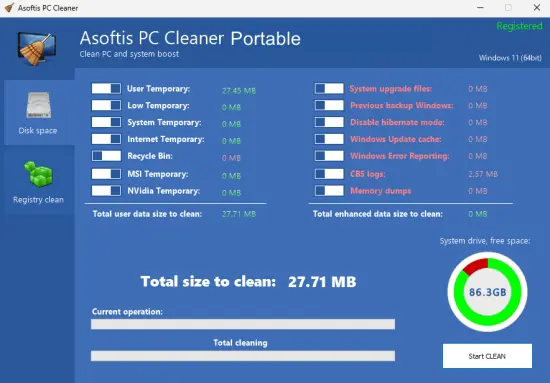
Asoftis PC Cleaner Portable is a Windows utility intended to help users review and remove unnecessary files and manage everyday system maintenance tasks. Its purpose is straightforward: bring several cleanup and optimization tools together so users can inspect common sources of clutter without searching through multiple Windows settings pages.
The name “Portable” in this description is a requested naming suffix; it should not be taken as confirmation that an official portable edition exists. Available product information describes Asoftis PC Cleaner as Windows software, but does not establish that it can run from a USB drive without installation. Before using any download described as portable, check that it comes from a trustworthy source and confirm the file’s origin and behavior.
Asoftis PC Cleaner Portable may appeal to people who want a single interface for tasks such as identifying temporary files, reviewing browser data, and controlling programs that launch at startup. It is best approached as a maintenance aid, not as a guaranteed speed booster or a substitute for Windows security and backup tools. The practical value of any cleanup depends on what the scan finds, what the user chooses to remove, and the condition of the computer. Product descriptions identify cleanup and startup-management functions among its intended uses; reported feature sets can vary by version and listing.
What Is Asoftis PC Cleaner Portable?
Asoftis PC Cleaner Portable is presented as a system utility for Windows PCs. It is designed to find data that may be unnecessary for routine use and provide controls for certain maintenance operations. That can include temporary items, cached browser content, old logs, and startup applications. Instead of manually hunting through folders or settings, users can use the program to review categories of items in one place.
“Cleaner” software is often described as a way to make a computer faster. That description needs context. Removing unneeded files can recover storage space, which is useful when a drive is nearly full. Reducing the number of programs that start automatically may also make the startup process feel less crowded. But deleting a cache or an outdated file does not necessarily make a computer noticeably faster. Performance can depend on many other things, including hardware, available memory, background workloads, software updates, and the health of the storage device.
For that reason, Asoftis PC Cleaner Portable is most useful when treated as a tool for informed, selective housekeeping. Review the scan results, understand what a category means, and avoid assuming that every flagged item must be removed. A cleaning program can help organize maintenance, but it cannot reliably diagnose every cause of a slow or unstable PC.
Asoftis PC Cleaner Portable Features
Temporary and Unnecessary File Cleanup
A central purpose of Asoftis PC Cleaner Portable is to identify files that may no longer be needed for ordinary operation. Temporary files and caches can accumulate as Windows and applications run. Old logs and leftover data may also take up space, although the amount and usefulness of removing them will differ from computer to computer.
A scan can make this kind of cleanup easier to review by grouping findings rather than asking the user to locate every file individually. Before cleaning, take time to inspect the categories and the proposed action. If the program provides a choice between scanning and deleting, use the scan or review stage first. That makes it easier to catch anything that could be useful, such as a file you still need or data connected to an application currently in use.
The main potential benefit is storage recovery. If a computer has little free disk space, removing suitable temporary items may help create room for downloads, updates, or documents. The effect on speed is less predictable. Freeing a modest amount of space from a drive that already has plenty available may not produce an obvious change in everyday performance.
Browser Cache and Stored Data
Browser cleanup tools may offer to remove items such as cached files, cookies, or browsing history. These types of data serve different purposes. A cache stores copies of web content to help pages load efficiently; cookies can retain site preferences and sign-in sessions; history records pages visited. Clearing them can reduce stored data, but it can also change how websites behave.
For example, removing cookies may sign you out of websites or reset preferences. Clearing a cache may cause pages to load more slowly the next time you visit them while fresh copies are downloaded. Before using browser-cleaning options in Asoftis PC Cleaner Portable, consider whether you want to retain saved sessions, site settings, or other browser information. When in doubt, leave a category untouched until you understand its effect.
Browser data cleanup is a user-choice feature, not a substitute for careful account security. It does not make an account secure by itself, nor does it remove information that a website has already stored on its own systems.
Startup Program Management
Asoftis PC Cleaner Portable is also associated with startup-management features. Many applications offer to launch when Windows starts, which can be convenient for tools used every day. If numerous programs do this, however, startup may take longer and the system may have more background activity after sign-in.
A startup manager can help users review these entries and decide which applications should launch automatically. The safest approach is to make changes one at a time. Keep essential drivers, security software, and familiar services enabled unless you understand their role. If you are unsure what an entry does, research it before disabling it rather than relying on an unfamiliar label or assuming that anything optional is unnecessary.
Disabling an application’s automatic startup does not usually uninstall it. It simply changes whether it launches on its own when Windows starts. You can generally open the application manually when needed, and you may be able to restore its startup behavior later.
Registry-Related Tools
Some descriptions of Asoftis PC Cleaner Portable mention registry cleanup. The Windows registry stores settings used by the operating system and installed applications. A registry-cleaning function may identify entries it considers invalid or obsolete, but a cleaner’s assessment should not automatically be treated as proof that an entry is harmful or slowing the computer.
Changes to the registry can have unintended effects if important information is removed. Registry cleanup is not a routine requirement for every PC, and deleting entries does not guarantee improved performance. If you decide to use a registry-related feature, read the program’s explanation carefully and use any backup or restore option it provides. Avoid making broad changes simply to increase a reported “health” score.
For most users, the safest principle is to prioritize clear, low-risk maintenance tasks—such as reviewing temporary files—before considering changes to system configuration data.
Application Removal
Product listings also associate Asoftis PC Cleaner Portable with an application-uninstalling function. A dedicated uninstaller interface can be convenient when you want to review installed programs and remove ones you no longer use. Uninstalling applications may recover more disk space than clearing small caches, especially when the software includes large files or components.
Before removing a program, check its name and purpose. Some items are support components, drivers, or shared tools that other software depends on. If you do not recognize an application, search for its publisher or check Windows’ installed-app information before making a decision. For programs you know you want to remove, use the normal uninstall process and follow any prompts from the application.
An uninstaller may also look for leftover files, but users should inspect proposed removals when the option is available. Personal files, saved projects, and application settings may be stored in locations that are not obvious from the program’s name.
Using Asoftis PC Cleaner Portable Carefully
The most useful way to approach a PC-cleaning utility is to treat it as a review tool rather than a one-click solution. A measured process helps reduce the chance of removing data you intended to keep.
- Confirm the download and version. Use a reputable distribution source and check that the file matches the software you intended to obtain. Do not assume that a download labeled “Portable” is an official, installation-free release.
- Close applications that are actively being used. This can prevent conflicts when a cleaner examines temporary or browser-related data.
- Run a scan before cleaning. Give yourself a chance to see what the software identifies before it deletes anything.
- Review the categories. Pay particular attention to browser information, startup entries, registry items, and anything described vaguely.
- Make conservative selections. If you cannot tell what an item does, leave it alone until you can check.
- Keep a backup for important data. A cleaner is not a backup program. Save important documents separately before carrying out system changes.
- Restart and check the result. After maintenance, see whether the issue you were trying to address has actually changed. If something behaves unexpectedly, undo the recent change where possible.
This approach is especially important when using a program that offers several different types of optimization. Cleaning temporary files is not the same as changing startup behavior, uninstalling applications, or editing registry data. Each operation has different consequences and deserves its own review.
Does Asoftis PC Cleaner Portable Make a PC Faster?
It may help in specific situations, but a speed improvement is not assured. If a drive is nearly full, removing suitable files may provide useful breathing room. If several unnecessary programs launch with Windows, turning off their automatic startup may reduce startup activity. Those are practical outcomes users can assess.
If a computer is slow because it has limited memory, an aging storage drive, a demanding application, malware, overheating, or a failing component, deleting temporary files may not address the underlying cause. A cleaner can also identify items that are not responsible for a performance problem. It is better to connect a maintenance action to a specific symptom than to expect one scan to fix every issue.
A useful evaluation is simple: note the problem before cleanup, make one or two carefully chosen changes, and then see whether the same task improves. For example, compare how long startup takes or check whether a nearly full drive has gained usable space. Avoid relying only on a score or a large number of “issues found”; that number does not necessarily measure actual computer performance.
Windows Compatibility and Version Considerations
Asoftis PC Cleaner has been listed as Windows software, with older listings naming Windows 7, Windows 8, and Windows 10. Compatibility details can depend on the specific release, installer, and current Windows version. Check the requirements for the exact version you plan to use before installing it, especially if your PC runs a newer edition of Windows. CNET
The same caution applies to updates and licensing. Some listings describe a trial version, but availability and included features may differ by source or release. Check the terms shown by the distributor before installing or purchasing anything. Do not assume a feature mentioned in a general description is included in every edition.
Who Might Consider Asoftis PC Cleaner Portable?
The utility may suit Windows users who want a single place to review common maintenance tasks and who are comfortable making deliberate choices about what to remove. It could be helpful for someone trying to recover storage from appropriate temporary data or to reduce unnecessary programs launching at startup.
It is less suitable as a set-and-forget tool for people who plan to approve every recommendation without reading it. Users who depend on specialized software, rely on browser sessions, or are unfamiliar with system settings should be especially cautious with broad cleanup options. In those cases, using built-in Windows controls for storage and startup management may feel more transparent.
Asoftis PC Cleaner Portable should not be considered an antivirus program, a data-recovery solution, or a replacement for backups. Its role is system housekeeping. Keeping Windows and applications updated, maintaining backups, and investigating recurring errors remain separate responsibilities.
Advantages and Limitations
A single interface can make routine cleanup easier to navigate, particularly for users who would rather review several maintenance categories together. Startup management can also help make automatic launches more intentional. When the software clearly explains its findings and lets the user choose what to change, that can support a more organized maintenance routine.
The limitations are equally important. Cleaner software cannot guarantee a faster PC, and the effect of deleting files may be small if storage is not a problem. Registry changes deserve special caution, while browser cleanup can remove data that users expect to retain. Finally, the “Portable” suffix should not be mistaken for evidence of an official portable build; verify the format and installation requirements of the specific download.
Final Overview
Asoftis PC Cleaner Portable is best described as a Windows maintenance utility focused on cleanup and system-organization tasks. Its potential uses include reviewing unnecessary files, browser data, startup applications, and other areas covered by the version in use. Those tools can be convenient, but they are most valuable when the user understands each proposed change and selects only what makes sense.
Use it selectively, keep backups of important files, and avoid treating a cleaner’s scan results as a complete diagnosis of PC health. If your goal is to free storage, confirm that the selected items are expendable. If your goal is to improve startup, disable only applications you recognize and do not need running automatically. If your goal is to fix a persistent slowdown, investigate the underlying cause rather than assuming cleanup alone will solve it.
Features at a Glance
- Windows-focused system maintenance utility
- Scan and cleanup options for selected unnecessary files
- Browser-data cleanup options, depending on version
- Startup-program management
- Registry-related tools reported in some descriptions
- Application removal or uninstall-management options reported in some descriptions
- Potential to reclaim disk space when appropriate files are removed
- Results and performance improvements depend on the PC and the actions selected