Portable Fast Video Cataloger 10.4.0.0 (x64)
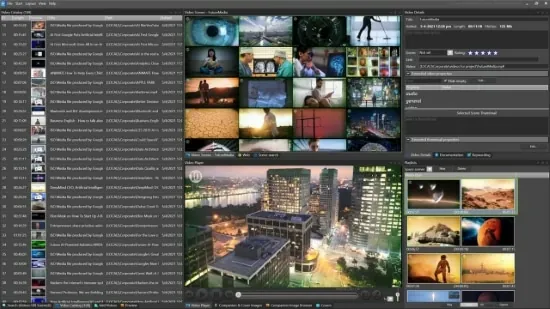
Fast Video Cataloger Portable is a video cataloging application designed to help users organize, browse, and find footage in large collections. Instead of opening clips one at a time and searching by watching them from beginning to end, users can build a visual index of their videos and navigate through representative frames. The catalog brings together thumbnails, searchable descriptions, metadata, and playback access, making it easier to locate a particular scene or clip when filenames alone are not enough.
The software is intended for people who work with substantial video libraries: editors, researchers, production teams, archivists, educators, and creators managing their own footage. It can also be useful to anyone who has accumulated recordings over time and wants a more practical way to explore them. Its focus is video rather than general-purpose file browsing, so the central task is not simply finding a file on disk. It is discovering what appears inside that file and connecting the material to useful information.
Fast Video Cataloger is listed for 64-bit Windows 10 or later. The software’s name here does not establish that it has an officially supported portable edition or that it can be run from removable storage without installation. Anyone who specifically needs a portable build should confirm that the distributor provides one before relying on that workflow.
Browse Videos Through Visual Thumbnails
A video’s filename and folder location do not always say much about its contents. A file named with a camera number, date, or project code may contain exactly the scene someone needs, but it can take time to find that scene by conventional browsing. Fast Video Cataloger addresses this problem by extracting thumbnail images from videos and arranging them into a visual overview.
Those thumbnails act as a visual map of each clip. Rather than repeatedly opening a player, seeking forward, and trying to remember where a moment appeared, users can scan the indexed images and identify frames that look relevant. Selecting a thumbnail can take the user to that point in the video, turning the catalog into a collection of scene-level bookmarks as well as a file directory.
This method is especially helpful when a library contains many clips with similar names or when footage was captured quickly without careful naming. A camera operator might have dozens of takes from one location; a documentary editor might have hours of interviews; a researcher might have recordings from repeated experiments. In those situations, visual browsing can make the difference between locating a useful moment quickly and spending much longer reviewing material manually.
The thumbnail overview also supports a more natural way to remember footage. People often recall a scene by its appearance—a person at a doorway, a vehicle on a wet street, or a wide shot of a landscape—rather than by the file’s name. A catalog organized around visual content makes that kind of recognition useful.
Build a Searchable Video Catalog
Fast Video Cataloger creates a catalog that links video files with indexed information. Users can add videos to a catalog, browse the resulting entries, and search across the collection. The catalog is useful as an organized layer on top of the original media: videos remain in their folders, while the catalog helps describe and navigate them.
Organization becomes more valuable as a collection grows. A small folder of clips may be manageable by memory, but a larger archive can quickly become difficult to maintain. Cataloging gives users a consistent place to attach details, review footage, and search for material without relying entirely on folder names or a spreadsheet maintained separately.
The program is designed for substantial libraries, and the product’s FAQ says there is no explicit catalog-size limit. The developers report regular testing with catalogs containing more than 20,000 videos and millions of companion images. Actual performance will depend on the computer, storage, media formats, and size of the catalog, but this emphasis makes the application relevant to users who have outgrown simple folder browsing.
For best performance, the catalog file itself is recommended to be stored on an SSD. The video files can remain on separate storage, including external drives, depending on the user’s setup. A catalog is most useful when its links to the source videos remain valid, so a thoughtful folder plan and reliable backups are important parts of a dependable workflow.
Add Keywords and Descriptive Metadata
Visual browsing is useful, but descriptive information makes a catalog more precise. Fast Video Cataloger allows users to add keywords to videos and to individual thumbnail frames. That means a user can describe a whole clip with broad terms while also tagging a particular scene with details that apply only to that moment.
For example, a clip might receive general keywords for its project, location, or subject. A thumbnail within it could be tagged with a specific action, object, or person. Combining file-level descriptions with scene-level annotations can make searches more targeted and reduce the need to open several candidate clips before finding the right moment.
Keywords can be used alongside the visual index rather than replacing it. A user who remembers a term can search for it; someone who remembers only what a scene looked like can browse images or use visual-search features. Different ways of finding footage complement one another, which matters when a collection has inconsistent naming or when a user is not sure what terminology was used during cataloging.
By default, metadata is stored in the catalog rather than written into the original video files. The application provides an option to write metadata to video files through its preferences, though support depends on the format and whether the file is accessible and writable. Keeping metadata in the catalog can help avoid modifying original media; writing it into files may suit workflows where metadata needs to travel with the footage. Users should choose deliberately and maintain backups before changing embedded metadata settings.
AI-Assisted Video Search and Tagging
Fast Video Cataloger includes AI-assisted tools intended to make footage easier to search and describe. These features can help users explore material even when they have not already created a complete keyword system. They include speech transcription, face recognition, object and scene tagging, trained tags, and visual search.
Speech-to-text transcription can turn spoken content into searchable text associated with timestamps. This can be valuable for interviews, lectures, meetings, documentaries, and other recordings where a useful moment may be identified by a phrase rather than by its appearance. Searching a transcript can help users jump to the relevant part of a recording without listening to the entire file. The application also supports selecting a spoken language for transcription, handling files with multiple audio tracks by using a track in the chosen language, and creating a transcript from a separate audio file.
Face recognition can help locate appearances of a person across a catalog. A user can provide a portrait and use the feature to find clips in which that person appears. This can be useful for production archives, recurring interview subjects, event footage, or other collections where identifying people is an important part of retrieval. As with any automated recognition tool, results should be checked by the user rather than treated as infallible.
Automatic scene and object tagging can add descriptive labels during indexing. These tags may offer a starting point for searching clips that have not been manually annotated. Trained Tags provide another approach: users can teach the system to recognize a category relevant to their own material and refine results by marking incorrect matches. These capabilities can help create a more useful catalog over time, but they work best as aids to human organization rather than replacements for careful review.
Visual search offers a different route into a library. Instead of searching only for words already attached to a clip, a user can describe the scene they want—for example, a city viewed from above at night—and ask the application to rank matching thumbnails. The search compares visual content, so it can be useful even when the footage has not been tagged with the exact words in the query. An optional model download is required for text-based visual search, and the relevant index is built during video indexing or through a separate pass over an existing catalog.
Users can also find scenes similar to a selected thumbnail. This provides a way to expand from one known example to other footage with a comparable appearance. Someone who has found one useful shot can use it as a starting point for discovering related material elsewhere in the collection.
Playback, Scene-Level Navigation, and Review
A catalog is most practical when it connects discovery directly to review. In Fast Video Cataloger, thumbnail frames can act as playback bookmarks, taking users to a scene within its original video. This makes the catalog useful not only for finding which file contains a moment but also for examining the moment in context.
Scene-level navigation can improve common editorial tasks. An editor might scan a long recording for the best take, compare similar shots, or revisit a short section without repeatedly seeking through the whole clip. A researcher might return to a specific event in a long observation. A teacher could quickly locate a segment to use in a lesson. In each case, the index shortens the distance between remembering a visual clue and reviewing the source footage.
Users can add, remove, or annotate thumbnails, helping shape the catalog around the scenes they consider important. This flexibility makes the visual index more than a fixed set of automatically generated images. It can become a practical working reference that reflects the user’s priorities and vocabulary.
Share Catalogs With Colleagues and Clients
Fast Video Cataloger supports sharing catalogs as files and offers a built-in server for broader access. A catalog file can be shared through ordinary file-transfer methods. Recipients can open the catalog even if the corresponding video files are not present, which can make it useful for reviewing a selection or communicating about an archive.
When sharing both the catalog and videos, the folder arrangement matters. The product’s FAQ recommends placing the catalog file in the root folder and video files in subfolders so relative paths can help keep links working when the whole folder is moved or copied. This kind of planned structure is helpful for portable handoffs, backups, and project transfers, though it should not be confused with an officially supported portable software edition.
For collaborative access, the built-in server can share a catalog over a local network or the internet. Users can connect through Fast Video Cataloger or use an HTML client in a web browser. The browser-based option can allow people to browse, search, and play videos without installing the desktop application on every computer. User roles—Viewer, Editor, or Admin—control what participants are permitted to change.
These sharing features can support review workflows in which one person manages the media while others search, comment through tags, or inspect footage. They can also help a client browse an organized catalog without needing to understand the storage system behind it. Teams should plan access, permissions, and file availability according to their own requirements.
Supported Media and Metadata Handling
Fast Video Cataloger is built for video collections and also supports associated images, such as cover images for videos or images connected with actors. This can help users maintain visual context around a catalog entry or organize supplementary material alongside clips.
The application supports native Blackmagic RAW (BRAW) handling, including access to camera metadata such as color science, white balance, and exposure information. It can store BRAW camera metadata as extended properties, and the catalog server can index BRAW clips. Support for a specialized format can be especially relevant to production teams whose footage relies on camera-specific information.
Metadata handling is configurable. By default, the application stores catalog information in the catalog file; writing metadata into media files is optional and depends on format support and file permissions. The software also includes a re-read metadata function, which can refresh embedded information such as XMP without re-indexing the entire video. That can save time when metadata changes but the video content itself has not.
Because format support and metadata behavior can vary between files, users should test their intended workflow with representative media. A cataloging program can help organize footage, but it does not remove the need to keep original files intact, ensure storage is available, and verify that a shared catalog points to the correct media.
System Requirements, Setup, and Everyday Use
Fast Video Cataloger runs on 64-bit Windows 10 or later. The current product information recommends storing the catalog file on an SSD, particularly when working with large catalogs. Video files may be kept on internal or external storage, but indexing and playback depend on the drive being available and responsive.
A sensible setup begins with a small test catalog. Add a representative group of clips, confirm that thumbnails and playback work as expected, try the search and metadata tools, and check how the catalog behaves if media is moved or temporarily disconnected. This lets users settle on a folder structure before committing a large archive to it.
For a growing collection, consistency matters. Use repeatable naming conventions where practical, assign keywords that make sense to everyone who searches the catalog, and decide whether descriptive information belongs only in the catalog or also in the media files. Make regular backups of the catalog as well as the videos; a catalog is most valuable when its descriptions and links survive a hardware failure or accidental change.
Fast Video Cataloger is available in English, Swedish, German, and Spanish. The documentation is in English. A 30-day trial is available, and the product offers subscription licenses as well as licenses to own. A perpetual license includes one year of maintenance from purchase, during which covered updates are available; users can continue using the version they obtained if maintenance is no longer active.
Who Can Benefit From Fast Video Cataloger?
The application is a strong fit for users whose main challenge is finding material inside a video library. Video editors can use it to locate takes and scenes; production teams can organize reusable footage; archivists can create a visual access layer for recorded collections; and researchers can find moments across long recordings. Creators with extensive personal libraries may also benefit from having thumbnails, searchable descriptions, and transcripts in one catalog.
It may be less necessary for someone with only a handful of well-named clips or for workflows that require a Mac-native application, since the software is listed for Windows and no Mac version is currently offered. It is also not a video editor: its central purpose is cataloging and retrieval rather than cutting, color grading, or finishing projects. Users who need those capabilities can use it alongside dedicated editing tools.
The main advantage is the combination of visual navigation and searchable information. Thumbnails support quick recognition; keywords provide familiar text-based organization; transcripts make spoken content searchable; AI features can assist with visual and semantic discovery; and sharing options can make a catalog accessible to collaborators. Together, these tools provide multiple paths to the same goal: finding the right footage with less manual searching.
Features at a Glance
- Visual thumbnail indexing for browsing scenes inside videos
- Thumbnail frames that can serve as playback bookmarks
- Search across catalog entries and user-added keywords
- Keywords and annotations for videos and individual scenes
- Speech-to-text transcription with timestamped, searchable text
- Face recognition for locating people across clips
- Automatic scene and object tagging
- Trained Tags that users can refine
- Visual search using descriptions of scenes
- Similar-scene discovery from a selected thumbnail
- Metadata storage in the catalog, with optional writing to supported video files
- Re-reading embedded metadata without re-indexing video
- Native Blackmagic RAW support and camera metadata access
- Catalog sharing by file and through a built-in server
- HTML client for browser-based catalog access
- Viewer, Editor, and Admin roles for shared catalogs
- 64-bit Windows 10 or later
- English, Swedish, German, and Spanish interface options
Latest Changelog
- Added visual search, which ranks scene thumbnails based on a written description.
- Added a find-similar-scenes command for discovering visually related footage from a selected thumbnail.
- Added correction of Trained Tags by marking an incorrect match as “Not this.”
- Added a re-read metadata command for refreshing embedded metadata without re-indexing the video.
- Expanded speech-to-text controls, including spoken-language selection, audio-track selection, and transcription from a separate audio file.
- Improved Blackmagic RAW support with camera metadata stored as extended properties and server indexing for BRAW clips.
- Added progress indicators and cancellation for Backup, Recover Catalog, and Optimize operations.