Portable StrongRecovery v5.2.6.0 Multilingual
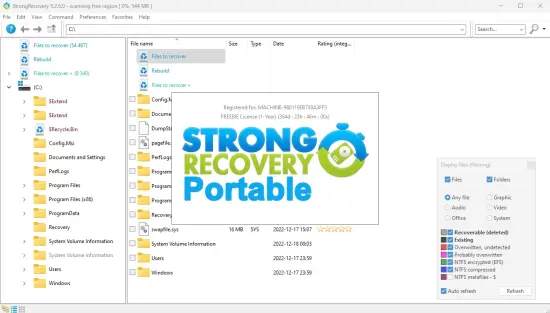
StrongRecovery Portable is a practical data recovery solution designed to help Windows users retrieve deleted, formatted, corrupted, or otherwise inaccessible files. Whether important documents disappeared after an accidental deletion, photographs were removed from a memory card, or a USB drive suddenly became unreadable, StrongRecovery Portable provides tools for scanning storage media and locating recoverable data.
Unlike a conventional file-management utility, StrongRecovery Portable works below the normal Windows browsing experience. It examines the structure of a storage device, searches for traces of deleted files, analyzes damaged partitions, and identifies data that may no longer appear in File Explorer. This makes it useful in situations where emptying the Recycle Bin, formatting a disk, losing a partition, or experiencing file-system damage has made ordinary recovery methods ineffective.
The software is intended to be approachable for beginners while still providing features that are useful to experienced Windows users and technicians. Its guided workflow helps users select a disk, choose a recovery method, review scan results, and save recovered data to another destination.
What Is StrongRecovery Portable?
StrongRecovery Portable is a Windows-based file and partition recovery program developed for recovering data from internal drives, external hard disks, USB flash drives, memory cards, SD cards, and other supported storage devices. The “Portable” designation describes a version that can be used without a traditional installation process, making it convenient for technicians, support specialists, and users who want to run a recovery tool from removable media.
A portable recovery application can be particularly helpful after a system problem. Installing new software on the affected drive may overwrite portions of deleted data, reducing the chances of successful recovery. Running StrongRecovery Portable from a separate USB drive or another healthy storage location can help minimize unnecessary activity on the source device.
The program can be used for many common data-loss scenarios, including accidentally deleted files, emptied Recycle Bin contents, formatted partitions, lost partitions, corrupted file systems, virus-related damage, unexpected shutdowns, and boot problems. It can also scan removable media used in cameras, phones, recorders, and other devices.
How StrongRecovery Portable Recovers Deleted Files
When a file is deleted in Windows, the operating system commonly removes the reference that tells the system where the file is located rather than immediately destroying every piece of its content. The storage space may then be marked as available for new data. Until that space is reused, portions of the original file may remain recoverable.
StrongRecovery Portable searches for these remaining structures and file signatures. Depending on the condition of the drive, it may locate original folders and filenames, identify deleted entries, reconstruct files from a damaged file system, or recover files by analyzing their internal formats.
The probability of recovery depends on several factors. The sooner the recovery attempt begins, the better. Continued use of the affected device can cause new files, temporary data, browser caches, updates, and system operations to overwrite deleted content. Solid-state drives may also use background maintenance processes that make deleted data more difficult to retrieve.
For this reason, users should stop saving files to the affected drive as soon as data loss is discovered. StrongRecovery Portable should preferably be started from another disk, and recovered files should be saved to a separate destination.
StrongRecovery Portable for Accidental File Deletion
Accidental deletion is one of the most common reasons to use StrongRecovery Portable. A user may delete a project folder, remove photographs while organizing a collection, or empty the Recycle Bin without noticing that an important file is included. In these cases, the software can scan the relevant drive and display files that may still be available.
The recovery interface is designed to help users browse scan results rather than blindly restore everything. Depending on the detected information, results may be organized by folders, file types, names, extensions, or other available attributes. This makes it easier to locate a particular document, image, video, archive, or audio recording.
Previewing files before recovery is an important part of the process. A preview can help determine whether a file is intact, partially damaged, or likely to be usable after saving. For photographs and other visual files, a thumbnail or preview may provide a quick way to identify the correct item without opening files one by one after recovery.
Recovering Data From Formatted Drives
Formatting a drive does not always mean that every file has been physically erased. In many cases, formatting replaces important file-system information while some of the underlying content remains on the storage medium. StrongRecovery Portable can analyze formatted partitions and search for files that are no longer visible through normal Windows tools.
Formatted-drive recovery is useful after accidental formatting, operating-system reinstallation, partition preparation, or a mistaken selection in a disk-management utility. The results may include documents, pictures, videos, music, compressed archives, and other files that existed before the formatting operation.
Recovery results vary according to the type of format, the age of the data, the file system, and whether new data has been written afterward. A quick format may leave more recoverable information than a secure erase or a full overwrite. Users should avoid formatting the device again while attempting to recover files.
StrongRecovery Portable for Lost or Damaged Partitions
A partition may disappear even when the physical drive is still functioning. Partition-table errors, failed resizing operations, software crashes, malware, power interruptions, and incorrect disk-management actions can make a volume inaccessible. Windows may show the disk as unallocated, RAW, or unformatted.
StrongRecovery Portable can scan storage devices at a lower level to identify partitions and file structures that are no longer properly registered with the operating system. If the necessary information can be reconstructed, the program may help users access files from a missing or damaged partition.
This capability is valuable because a missing partition does not automatically mean that the files inside it are gone. In some cases, only the information describing the partition has been damaged. A thorough scan may reveal the previous volume and provide access to its folders and files.
Partition recovery should be handled carefully. Users should not initialize, format, or recreate a missing partition before examining the drive. Those actions can make the original structure more difficult to recover.
Supported Storage Devices
StrongRecovery Portable can be used with a broad range of Windows-accessible storage media. Common examples include:
- Internal hard disk drives
- Solid-state drives
- External USB hard drives
- USB flash drives
- SD and microSD cards
- Memory cards used in digital cameras
- Portable media devices
- Other removable storage devices recognized by Windows
The storage device generally needs to be detected by the computer for software-based recovery to be possible. If a drive is completely absent from the system, does not spin, produces repeated clicking sounds, or shows signs of physical damage, repeated scanning may place additional stress on the hardware. In those circumstances, professional hardware recovery may be more appropriate.
File Systems and File Types
StrongRecovery Portable is designed to work with common Windows file systems, including FAT-family formats, exFAT, NTFS, and related structures encountered on Windows storage devices. File-system support may differ depending on the recovery mode and the condition of the device.
The software can search for numerous categories of files, such as:
- Office documents and text files
- PDF files and electronic publications
- JPEG, PNG, GIF, BMP, TIFF, and camera RAW images
- MP4, AVI, MOV, MKV, and other video files
- MP3, WAV, WMA, AAC, and other audio formats
- ZIP, RAR, 7Z, and other archive files
- Database files
- Email-related files
- Program files and configuration data
- Source-code and plain-text files
File recovery is not limited to files that have familiar names. When directory information is damaged, a recovery engine may identify files by their internal signatures. This type of recovery can locate data even when original folders or filenames cannot be restored. However, signature-based recovery may produce generic names and may not preserve the original directory structure.
Quick Scan and Deep Recovery Options
A quick scan is usually the best starting point for recently deleted files or simple file-system problems. It can examine the available directory information and return results more quickly than a complete sector-by-sector analysis. If the desired files appear in the initial results, users can preview and recover them without waiting for a longer scan.
A deep scan is more suitable when a quick scan does not locate the required data. It performs a more extensive examination of the storage device and can search for file signatures, damaged structures, older partitions, and files whose directory entries are missing. Deep scans can take considerably longer, especially on large drives, slow USB devices, or media with read errors.
Users should allow a deep scan to finish when possible. Some files may not appear until the software has examined the entire relevant area of the device. The scan duration depends on the capacity of the storage medium, connection speed, device health, and the number of damaged sectors.
Preview Recovered Files Before Saving
Preview functionality helps users evaluate scan results before committing to a recovery operation. It can be especially useful when many files have similar names or when the original folder structure is missing.
A preview can show whether an image has recognizable content, whether a document contains readable text, or whether a video appears to contain usable frames. Preview results are not a guarantee that the final file will open perfectly, but they provide a useful indication of the recovery quality.
StrongRecovery Portable can also help users identify files by category, extension, name, or visible content. Selecting only the files that matter reduces clutter and makes it easier to organize the recovered material.
Read-Only Recovery Workflow
A safe recovery workflow should protect the original source device from unnecessary changes. Scanning should be performed in a read-only manner whenever possible, with the software reading information from the source rather than modifying it.
Users should save recovered files to a different physical drive. Saving recovered content to the same partition from which it is being recovered can overwrite other deleted files and reduce the chance of recovering additional data. A separate internal drive, external hard disk, or sufficiently large USB device is a better destination.
The recommended process is straightforward:
- Stop using the affected storage device.
- Connect the device to a working Windows computer.
- Launch StrongRecovery Portable from a separate drive.
- Select the affected disk or partition.
- Run a quick scan first when appropriate.
- Use deep recovery if the required files are not found.
- Preview and select the files to be recovered.
- Save the recovered data to another storage device.
- Open and verify the recovered files.
Why the Portable Edition Is Useful
The portable format is convenient for emergency recovery. It can be kept on a technician’s toolkit, a maintenance USB drive, or a dedicated troubleshooting disk. Because it is not tied to a conventional installation routine, it can be launched when the primary Windows installation is unstable or when users want to avoid writing new data to the affected drive.
Portability also makes the software useful for handling multiple computers. A support technician can carry the utility between workstations, external drives, and customer systems without preparing a full installation each time. This makes StrongRecovery Portable suitable for home users, small offices, repair professionals, and IT departments.
Even with a portable application, users should make sure the software is launched from a healthy location. Running recovery software directly from the damaged drive may create unnecessary read and write activity, depending on the operating-system environment and how the application is stored.
StrongRecovery Portable for Photos and Memory Cards
Memory cards are frequently affected by accidental deletion, improper removal, camera errors, card corruption, and formatting. StrongRecovery Portable can scan SD and similar cards to search for photographs, videos, and other media files.
Photo recovery is often more successful when the card has not been reused after deletion. Users should remove the card from the camera or device and avoid taking additional pictures. New photographs can overwrite the space occupied by older files.
For camera cards, file names and folder structures may be damaged even when image data remains available. A deep scan can sometimes locate image files through their internal formats. Previewing the results allows users to identify the best versions before saving them to a computer or external drive.
Limitations to Consider
No data recovery application can guarantee the recovery of every deleted file. A file may be permanently lost if its storage area has been overwritten, securely erased, physically damaged, or affected by extensive corruption. Files fragmented across a damaged disk may also be incomplete if important sections cannot be read.
Recovery from failing hardware requires additional caution. Drives with clicking, grinding, scraping, overheating, or repeated disconnection problems may deteriorate during scanning. If the files are extremely valuable, creating a professional disk image before attempting recovery may be safer than repeatedly scanning the original device.
Users should also distinguish between logical and physical problems. Logical problems involve deleted files, formatting, partition errors, or file-system corruption. Physical problems involve damaged components, unreadable platters, broken connectors, controller failure, or severe electronic faults. StrongRecovery Portable is primarily intended for logical recovery situations.
Who Should Use StrongRecovery Portable?
StrongRecovery Portable is suitable for home users who need to retrieve accidentally deleted files without navigating a complicated professional interface. Its guided approach can help users identify a storage device, scan it, review results, and save selected files.
It is also useful for photographers recovering images from memory cards, students retrieving coursework, office users restoring deleted documents, and technicians handling basic file-system problems. The portable design makes it particularly practical for people who support multiple Windows computers.
For advanced users, the software provides a way to investigate disks that are formatted, damaged at the partition level, or no longer displaying their original folder structure. For serious physical drive failures, however, a specialized recovery service may be the better option.
Final Verdict on StrongRecovery Portable
StrongRecovery Portable is a versatile Windows data recovery utility for deleted files, formatted drives, lost partitions, damaged file systems, and removable storage media. Its combination of guided operation, scan-based recovery, file preview, broad storage support, and portable use makes it a practical tool to keep available before a data-loss emergency occurs.
The most important factor in successful recovery is acting quickly. Stop using the affected drive, avoid installing unnecessary software on it, and save recovered data to another location. StrongRecovery Portable can help with many logical data-loss situations, but recovery results depend on the condition of the device and whether the deleted content has been overwritten.
For everyday recovery needs on Windows, StrongRecovery Portable offers a useful balance between accessibility and technical capability. It is well suited to accidental deletion, formatted media, missing partitions, corrupted volumes, and recovery from USB drives or memory cards.
Features at a Glance
- Portable Windows data recovery software
- Recovers accidentally deleted files and folders
- Supports recovery after Recycle Bin emptying
- Scans formatted drives and partitions
- Helps locate lost or damaged partitions
- Designed for logical file-system recovery
- Works with internal and external hard drives
- Supports USB flash drives and removable media
- Useful for SD and microSD memory cards
- Supports common Windows file systems
- Searches for documents, photos, videos, audio, archives, and other files
- Offers quick scanning for recent or simple data loss
- Provides deep scanning for difficult recovery cases
- Uses file-signature analysis when directory information is unavailable
- Allows users to preview recoverable files
- Helps filter and select files before recovery
- Can preserve original names and folder paths when available
- Suitable for home users, offices, technicians, and IT support teams
- Can be run from removable storage in portable form
- Recommended for use with a separate recovery destination
- Useful for recovery after accidental formatting or partition errors
- Supports recovery from certain corrupted or RAW volumes
- Helps recover photographs and videos from camera cards
- Provides a practical first step before considering professional recovery services