Portable FolderMatch 5.2.3.0 Multilingual

FolderMatch Portable is a practical Windows utility built for users who need to compare folders, compare files, find duplicates, and synchronize data with confidence. It is designed to make file management clearer, faster, and safer by showing what is different, what matches, and what needs attention. For people who work with backups, project copies, external drives, archives, or evolving document sets, FolderMatch Portable offers a focused toolkit that helps keep everything organized.
Instead of forcing users to manually inspect file lists or guess which version is current, FolderMatch Portable presents differences in a structured way. That makes it easier to make informed decisions about copying, moving, deleting, renaming, and syncing files. The result is a utility that saves time while reducing the risk of accidental mistakes.
What FolderMatch Portable Does
FolderMatch Portable brings several related tasks into one application, which is one of the reasons it is so useful for everyday file maintenance. It compares folder trees, compares individual files, searches for duplicates, and helps synchronize content so two locations match the user’s chosen rules. This makes it suitable for both casual organization jobs and more careful verification work.
- Compare two folders side by side.
- Compare two files by content or properties.
- Find duplicate files even when filenames differ.
- Synchronize folders to match a source or target.
- Copy, move, rename, or delete selected items.
- Review differences before taking action.
Folder Comparison Made Clear
Folder comparison is one of the most important features in FolderMatch Portable. The software helps users see exactly how two directories differ, whether they are backup folders, mirrored drives, project locations, or archived copies. This is especially helpful when a folder has changed over time and the user needs to know what was added, removed, or modified.
The side-by-side layout makes file relationships easy to understand. Users can filter results by practical details such as name, type, size, and date so they can focus only on the files that matter. That kind of filtering is useful when dealing with large folder trees where a full manual review would take too long.
- Check whether a backup is complete.
- See which files are missing from one folder.
- Identify newer or older versions of the same content.
- Spot files that were changed after copying.
- Review folder contents before syncing or cleaning up.
File Comparison for Accurate Review
FolderMatch Portable is also able to compare individual files, which is valuable when users need to check whether two documents are truly the same. It can compare files based on text content as well as file properties, giving a more detailed view than simple filename checking. This is useful for work that depends on accuracy, such as document revision review, configuration inspection, or export verification.
The file comparison view is especially helpful when two files look similar at first glance but differ in meaningful ways. By showing the differences in a clear layout, FolderMatch Portable makes it easier to understand changes and decide what to keep.
- Compare text files and structured documents.
- Inspect line-level differences.
- Review changes before replacing a file.
- Confirm whether two versions are identical.
- Focus on only the differences that matter.
Duplicate File Finder
Duplicate files can quietly consume storage space and make folders harder to manage. FolderMatch Portable helps solve that problem by scanning for repeated files and presenting the results in a way that is easy to review. This is especially helpful for photo collections, downloaded documents, backup sets, and long-running data folders that have accumulated copies over time.
What makes the duplicate finder useful is its flexibility. Users can define what counts as a duplicate based on the criteria they want to use, such as name, size, date, or content. That makes it possible to search broadly or narrowly depending on the task.
- Find repeated files across folders or drives.
- Search by name, size, date, or content.
- Reduce storage waste from unnecessary copies.
- Review duplicate candidates before removal.
- Delete, move, or recycle files with control.
Synchronization Workflow
FolderMatch Portable includes synchronization tools for situations where two folders need to be kept aligned. This is a common need for backup routines, mirrored work folders, portable drives, and project directories that must stay in sync. The program helps users avoid blind copying by showing the differences first and then applying the chosen action.
Synchronization can be configured in a way that supports the user’s exact workflow. That means it can be used for straightforward one-way updates or for more selective copy and replace operations. The end result is a more controlled and dependable sync process.
- Keep backup folders updated.
- Mirror project files between locations.
- Transfer only the files that changed.
- Reduce manual file copying.
- Help prevent version confusion.
Comparison Methods and Detail Levels
One of FolderMatch Portable’s strengths is that it gives users multiple ways to compare files and folders. Some tasks only need a quick inspection, while others require deeper verification. The software supports both approaches, so users can choose the speed or precision that fits the situation.
This flexibility is especially important in real-world file management, where the same-looking file can contain different data and two differently named files can still be identical. FolderMatch Portable helps users move past surface-level assumptions and work from accurate results.
- Use fast checks for quick folder review.
- Use deeper content checks when accuracy matters.
- Compare by file properties or by contents.
- Inspect matches and differences with clarity.
- Adapt the comparison method to the job.
Practical Uses in Daily Work
FolderMatch Portable is not limited to technical users. It is useful for anyone who regularly handles multiple copies of files or folders. That includes home users, office users, archivists, and anyone maintaining backups or organizing a large digital library.
Its usefulness comes from solving everyday problems that otherwise require patience and manual checking. Whether the task is cleaning up duplicates, verifying a backup, or reviewing a document version, FolderMatch Portable provides a clear path forward.
- Verify that a backup matches the source folder.
- Clean up photo libraries with repeated images.
- Check version differences in important documents.
- Organize files copied from external drives.
- Keep project folders consistent across systems.
Interface and Usability
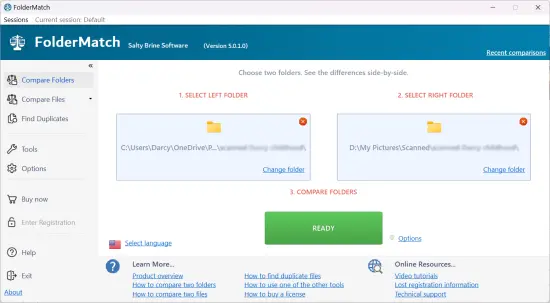
FolderMatch Portable is designed to be easy to navigate while still offering the control needed for serious file management. The workflow is straightforward: choose what to compare, review the results, and decide what action to take. That makes it approachable for beginners without limiting its usefulness for more experienced users.
The visual structure of the program helps users understand file relationships quickly. Instead of hiding important information, FolderMatch Portable presents it in a way that supports confident decision-making. This is especially valuable when dealing with large folders where even a small mistake can be costly.
- Simple workflow for everyday use.
- Clear comparison output.
- Easy review before file actions.
- Useful for both beginners and advanced users.
- Built for organized decision-making.
Why FolderMatch Portable Is Useful
FolderMatch Portable stands out because it focuses on the practical side of file comparison and synchronization. It helps users answer the questions that matter most: What changed? What is missing? What is duplicated? What should be updated? That makes the software valuable for both maintenance and verification.
It is also a strong choice for users who prefer to inspect and confirm results before making changes. The ability to compare, review, and then act gives people more control over their files and reduces the chance of accidental loss or confusion.
- Saves time during folder checks.
- Reduces manual file inspection.
- Helps avoid accidental deletions.
- Makes sync tasks more predictable.
- Improves organization and consistency.
Best Practices for Using FolderMatch Portable
To get the best results from FolderMatch Portable, it helps to use a careful workflow. Comparison tools work best when the user knows the goal before taking action. Reviewing results first and making changes second is the safest and most effective way to use the program.
- Compare folders before deleting anything.
- Use content-based checks for important files.
- Review synchronization results carefully.
- Keep backups of essential data.
- Use batch renaming to standardize file names.
- Confirm the final result after cleanup or sync.
Final Summary
FolderMatch Portable is a focused Windows utility that helps users compare folders, compare files, find duplicates, and synchronize data with greater confidence. It is built for real-world file management tasks where clarity and control matter more than speed alone. By showing differences in a structured way and offering flexible actions afterward, it gives users a dependable way to keep files organized and consistent.
For people who want a practical tool for backup verification, duplicate cleanup, and folder synchronization, FolderMatch Portable delivers a useful balance of simplicity and control. It is a straightforward solution for keeping digital files in order.
- Compare folders with confidence.
- Find duplicate files efficiently.
- Synchronize data with control.
- Review file differences clearly.
- Keep digital storage organized.
Changelog:
FIXED: Installation no longer prompts with a registry error when crash-dump settings cannot be created on some systems.
FIXED: Vietnamese (and other Unicode) text in the Compare Folders Results to Show filter message area displayed incorrectly (encoding issue).
FIXED: Shared list control - remove icon stays visible when a row has a very long path.
FIXED: Compare Folders View > Legend sometimes did not show the Legend window (restored off-screen).
FIXED: Loading a saved Include/Exclude filter list no longer shows blank exclude rows and junk characters in the Include list.
FIXED: In Subfolder Differences, when View File Differences finds identical text content and you mark the files as identical, the pair is removed from the list (and from the underlying differences).
ADDED: Added Vietnamese and Turkish to the list of supported languages.
ADDED: Detection and notification when an Include/Exclude filter list file is corrupt and cannot be recovered.
IMPROVED: Shared list control - themed hover/selection and full path tip when truncated.
IMPROVED: More UI hover and selection fills match Windows theme colors (lists, browse icons, File Diffs nav, Close/dismiss buttons, etc).
IMPROVED: Compare Folders and Subfolder Diffs / Orphan Contents - smarter right-click and double-click defaults.
IMPROVED: Remove/Delete images in lists are loaded from Windows stock images now.
IMPROVED: Start Page > Drop-folder/file controls now draw live Windows stock icons for folder, file, and tip states.
IMPROVED: Subfolder Differences keeps nested folders open after you copy, move, or delete files. View Orphan Contents does the same after a file delete.