Portable WinSnap 6.3.5 (x64) Multilingual
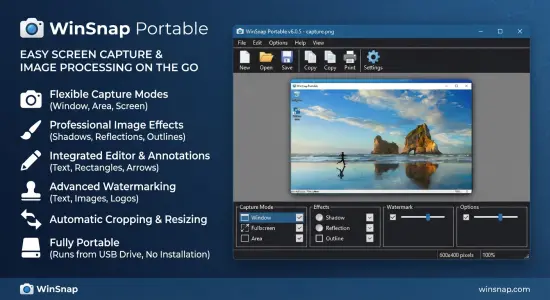
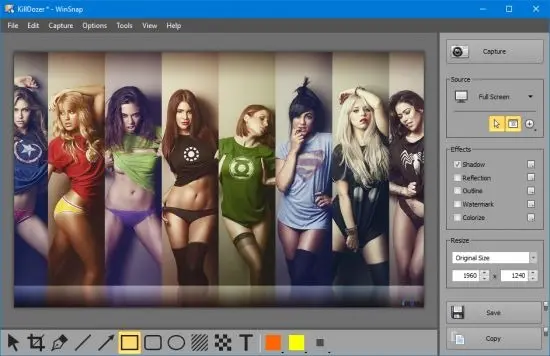
WinSnap Portable is a compact yet highly capable screen capture and image enhancement tool designed for Windows users who need more than a basic screenshot utility. It focuses on making captures cleaner, more polished, and more useful for documentation, tutorials, presentations, blog posts, and everyday visual communication. The portable format adds a strong layer of convenience, allowing the software to be carried and used across different systems without the usual installation process.
What makes WinSnap Portable especially appealing is the way it combines speed, simplicity, and visual refinement. A screenshot is often just the beginning of a larger task, and this software is built around that idea. It lets users capture the screen in a variety of ways and then immediately improve the image with effects, annotations, and formatting adjustments. The result is a utility that saves time while helping screenshots look more professional.
Core purpose
At its core, WinSnap Portable is meant to simplify the process of creating high-quality screenshots. Many users need screenshots that are not just accurate but also attractive and easy to understand. A plain capture may be enough for some situations, but documentation, training material, and online publishing often benefit from a more polished presentation. WinSnap Portable is designed to bridge that gap.
The software is also aimed at reducing friction. Instead of taking a screenshot and then moving it into a separate editor for cleanup, users can often handle capture and enhancement in the same workflow. That makes the process faster and more efficient, especially for people who create screenshots regularly and need to maintain a steady pace.
Portable convenience
The Portable aspect is one of the most practical advantages of the software. A portable capture utility can be stored on removable media, launched from a project folder, or used on multiple computers without a full installation. This is particularly useful for support staff, technical writers, trainers, and anyone who moves between workstations and wants a familiar screenshot tool always available.
Portability also fits nicely with temporary or shared environments. If a user is working on a client machine, a secondary PC, or a system where software changes should be minimized, WinSnap Portable offers a self-contained option. It keeps the workflow consistent and avoids unnecessary setup steps, which is a major convenience in practical day-to-day use.
Capture flexibility
One of the strongest qualities of WinSnap Portable is the range of capture options it provides. Screen capture is not always as simple as grabbing the whole display, and different tasks require different capture methods. Sometimes the goal is to capture a full desktop, sometimes an active window, and sometimes a smaller object or region. WinSnap Portable is built to handle that variety.
This flexibility matters because many real-world capture tasks are unpredictable. Menus may need to be captured before they disappear, dialogs may need to be framed precisely, and specific interface elements may need to be isolated from the rest of the screen. By offering several capture modes, the software makes it easier to deal with those practical situations without excessive effort.
Windows and interface handling
WinSnap Portable is especially useful for capturing modern Windows interfaces, including windows with rounded corners, transparency, and layered visual effects. That is important because today’s desktop environments often use visual styling that can be tricky for ordinary capture tools. A screenshot utility that understands these details produces better output and avoids awkward edges or incomplete framing.
Being able to handle different visual styles also makes the software more reliable across versions of Windows. Whether the interface is minimal, glossy, or more modern in appearance, the goal is to capture it cleanly and preserve the look of the original window. That gives users more confidence that their screenshots will reflect the actual screen accurately.
Immediate enhancement
One of the signature strengths of WinSnap Portable is its immediate enhancement workflow. After a screenshot is captured, the software can automatically improve its presentation with visual effects that make the image look more refined. That means the user does not need to perform a separate editing pass just to make the screenshot presentable.
This approach is useful because many screenshots benefit from a little visual polish. A clean shadow, a subtle outline, or a soft reflection can help the captured image stand out when placed in a document or webpage. The software turns a basic screen grab into something more finished, which is one of the reasons it is so practical for publishing and documentation.
Shadows and reflections
Shadow and reflection effects are among the most visible ways WinSnap Portable improves screenshots. These effects give a captured window a sense of depth and separation from the background, which makes the image easier to view and more attractive to present. This is particularly helpful when screenshots are placed into articles, guides, or slides where visual clarity matters.
The value of these effects is not purely decorative. A screenshot with a subtle shadow often reads more clearly because it is visually separated from the surrounding page. That improves the overall composition and helps the capture feel less flat. For users who regularly create polished documentation, those small visual touches can make a meaningful difference.
Watermarks and branding
WinSnap Portable also supports watermark-style presentation, which can be useful when users want to identify their screenshots or maintain a consistent visual style. Branding is often important in professional documentation, and the ability to add identifying visual elements can help maintain that consistency across a series of images.
Watermarks can also be useful when preparing images for public use or distribution. They help ensure that screenshots can be associated with a source, a project, or a published work. This feature adds another layer of usefulness for bloggers, technical writers, and content creators who want their visuals to feel cohesive.
Annotations and marks
Another important part of the software’s workflow is annotation. Screenshots are often more useful when the viewer can immediately see where to look and what matters. WinSnap Portable supports the addition of arrows, shapes, text, and other markups that help direct attention to important parts of the image.
This is especially valuable in tutorials and technical instructions. A screen image may show a lot of information, but an annotation can make the key step obvious in a second. That reduces confusion for the reader and makes the screenshot more effective as a communication tool. The annotation support helps transform a static image into a clear visual explanation.
Color and appearance adjustments
WinSnap Portable includes options for changing the appearance of captured images, which gives users more control over how their screenshots look. In practice, this can mean color variations, tonal changes, or other presentation-oriented adjustments that improve the overall feel of the image. These controls are especially useful when screenshots need to fit a specific aesthetic or publication style.
Appearance control is important because not every screenshot should look identical. Some projects benefit from a neutral presentation, while others benefit from a more stylized look. Having the option to adjust the image right after capture allows the user to choose the right tone for the final context without leaving the capture workflow.
Support for special windows
One reason users choose a more capable screenshot tool is the need to capture unusual window shapes or special interface elements. WinSnap Portable is designed to work with these kinds of captures, which makes it useful for applications that do not behave like standard rectangular desktop windows. That kind of support is important because many programs now use custom visual design and nontraditional layouts.
Special-window support helps the software remain useful in modern workflows. The user does not have to worry as much about odd window borders, transparency, or presentation quirks. Instead, the software adapts to the window and focuses on producing a clean, usable screenshot that preserves the original look.
Speed and convenience
Speed is one of the major reasons to use a dedicated screen capture tool, and WinSnap Portable is built with that in mind. The software is intended to make it easy to take a screenshot, refine it, and save it quickly. That matters because many screenshot tasks happen in the middle of something else, and the less interruption they cause, the better.
Convenience also comes from the fact that the user can keep working in the same environment. Instead of capturing, switching tools, editing elsewhere, and then saving, the workflow stays compact. That saves time and reduces the chances of losing momentum. For people who create large numbers of screenshots, those small gains in speed add up quickly.
Documentation use
WinSnap Portable is especially well suited to documentation work. Technical documentation often depends on screenshots that are both accurate and easy to read. A tool that can capture the right part of the screen, polish it, and add clear annotations is extremely valuable in that setting. It helps authors turn interface steps into visual guidance with less friction.
Documentation writers also benefit from consistency. If every screenshot has a similar shadow style, annotation style, or formatting approach, the final document looks more professional and easier to follow. WinSnap Portable supports that kind of consistency because it keeps the capture and presentation workflow in one place.
Blogging and publishing
People who publish tutorials, reviews, or product demonstrations also benefit from WinSnap Portable. Screenshots are often one of the main visual supports in those formats, and the software helps prepare them in a way that is ready for publication. That means fewer extra editing steps and faster turnaround from capture to post.
Publishing workflows often demand images that are visually clean and easy to insert into a page layout. WinSnap Portable helps by creating screenshots that already have the kind of presentation polish that online content usually needs. This can make it easier to keep a blog or content site visually consistent over time.
Everyday usefulness
Although WinSnap Portable has clear professional value, it is also useful in everyday tasks. Users often need screenshots for quick communication, problem reports, notes, or personal reference. In those cases, a tool that is easy to open and easy to use can be extremely helpful. The portable design makes it especially practical as a general utility.
Everyday use is where a tool like this proves its staying power. A user may only need a polished screenshot occasionally, but when the need comes up, it is useful to have something reliable and ready. WinSnap Portable fits that role well because it combines simplicity with enough visual control to produce better results than a basic screen capture method.
Why the visual style matters
The reason WinSnap Portable stands out is not just that it takes screenshots, but that it helps present them more effectively. Visual style matters because screenshots are often embedded in documents, web pages, slides, and support materials where appearance affects comprehension. A refined screenshot is easier to integrate into a finished project than a raw capture with no visual treatment.
That visual polish also contributes to credibility. Well-presented screenshots make documentation and tutorials feel more deliberate and professional. When images look organized and consistent, the surrounding content usually feels stronger as well. The software helps support that impression by making presentation part of the capture process itself.
Overall character
WinSnap Portable is best understood as a polished screen capture utility with a strong emphasis on presentation quality. It is not only about grabbing what is on the screen, but about turning that capture into something clean, readable, and ready to share. The portable form makes it even more practical because it can be used wherever the user happens to need it.
The software’s character is defined by convenience, flexibility, and visual refinement. It supports a range of capture types, enhances images automatically, and offers enough annotation and styling capability to fit documentation and publishing workflows. That combination makes it a valuable tool for users who need screenshots that do more than simply record the screen.
For anyone looking for a portable way to create better-looking screenshots on Windows, WinSnap Portable offers a strong and practical solution. It brings together capture, enhancement, and presentation in a compact workflow that is easy to use and well suited to both professional and everyday needs.
Here are some key features of WinSnap Portable:
• Flexible screen capture capabilities
• Smoothing shadow effect in Photoshop style
• Powerful image processing and basic canvas transformations
• Support of various image formats and advanced auto-save options
• Easy Web publishing and E-Mail sending
• Multilingual user interface (Unicode based)
• Easy makes screenshots of windows with rounded corners
• WinSnap saves info about window form and adds real smoothing shadows.
• Alpha-Channel and PNG/TIFF transparency are supported.
• Unique “Application” capture mode allows you to capture all visible windows of the foreground application with one click.
• Unique “Multi-Object” capture mode allows you to select multiple windows on the screen and easy combine them into one screenshot.
• Basic coloring effects and canvas transformations.
• Advanced auto-save and auto-copy options.
• Configurable External Tools menu to open image editors and optimizers.
• Usual keyboard and mouse control (Print Screen replacement).
• Make all this work with one 100-kb application – smaller than Paint!
WinSnap Portable Release Notes:
- Improved annotation drawing performance
- Fixed an issue with curved lines and arrows
- Some other minor improvements and bug fixes