
Portable Blender 5.2.3 (x64) Multilingual
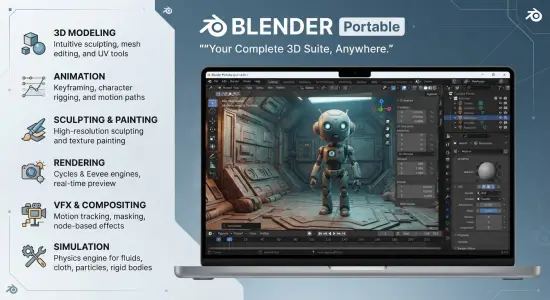
Blender Portable is a versatile 3D creation application for turning ideas into models, animation, visual effects, and finished images. Rather than concentrating on one narrow task, Blender brings many parts of a creative production process into one workspace. A user can shape a model, paint its surfaces, arrange lights and cameras, animate characters or objects, simulate effects, and render the result—all within the same application.
Blender is free and open-source, and it is used by beginners, independent artists, educators, and professional teams. Its breadth makes it useful for a wide range of projects, from a simple object study to a short film or a collection of game assets. The software supports modeling, sculpting, rigging, animation, rendering, compositing, video editing, motion tracking, and 2D drawing alongside 3D work. This integrated approach gives creators considerable flexibility, while also meaning there is a lot to learn.
What Is Blender Portable?
Blender Portable is a name for Blender used in a portable setup: the application can be kept in a folder and launched from that location, depending on the package and operating system. This can be convenient for people who want to carry the application and project resources between compatible computers, or keep a self-contained working environment. The particular behavior of settings, add-ons, and saved preferences depends on how Blender is installed and configured.
At its core, Blender is a general-purpose computer graphics suite. It includes tools for building 3D scenes and for producing images or video from them. A scene may contain objects, materials, lights, cameras, and animation. The user can control each component separately, then bring them together in a render or export selected assets for use elsewhere.
Blender’s native project format is designed to store scene data, including models, materials, animation, and other project elements. A project can be reopened and revised rather than treated as a finished, flattened image. That is important when a client requests a change, a model needs another level of detail, or an artist wants to try different lighting or camera angles.
The program is also extensible. Users can customize parts of the interface, install compatible add-ons, and write scripts in Python to automate repetitive actions or build tools for specific workflows. This combination of ready-made features and customizability helps Blender serve people with very different creative needs.
3D Modeling and Object Design
Modeling is one of Blender’s central capabilities. Artists can create objects from geometric primitives such as cubes, spheres, cylinders, and planes, then reshape them into more complex forms. A model may be built by moving, rotating, scaling, extruding, and refining its components. These basic operations provide a starting point for objects ranging from furniture and household products to props, buildings, and stylized characters.
Blender offers different modeling approaches to suit different kinds of work. Polygon modeling gives artists direct control over a mesh’s vertices, edges, and faces. Modifiers can apply repeatable changes—such as smoothing, mirroring, or adding thickness—without necessarily requiring the artist to permanently alter the original geometry at every step. This supports experimentation: values can be adjusted, operations can be reordered, and a model can be revised as the design develops.
The modeling workflow can be used for both artistic design and practical asset preparation. A creator may produce a high-detail model for a still image, a simplified object for a real-time scene, or a carefully shaped part intended for 3D printing. The requirements differ. A model for close-up rendering may need detailed forms and surface features, while an object for a game may need efficient geometry and a clear silhouette. A printable model needs to be checked for physical suitability, including whether its surfaces form a usable, closed shape.
Blender can also import and export a variety of 3D formats, making it possible to exchange assets with other applications and services. Supported formats include common options such as FBX, OBJ, STL, glTF, and USD, though the exact import and export options can depend on version, configuration, and available extensions.
Sculpting for Organic Forms
For organic subjects, sculpting tools offer a more tactile alternative to shaping every polygon individually. The artist works as if manipulating a digital surface with brushes. Depending on the tool and settings, a brush can add or remove volume, smooth rough areas, sharpen a crease, or create texture. Sculpting is well suited to creatures, faces, rocks, cloth-like forms, and other shapes that benefit from freehand control.
A sculpting workflow often begins with a rough mass and gradually adds structure. The artist first establishes the overall proportions and silhouette, then develops larger forms before concentrating on smaller details. This order helps keep a character or object readable instead of allowing fine surface marks to distract from its basic shape.
Sculpting can be paired with retopology, the process of creating a more organized mesh over a sculpted surface. This can be useful when an extremely detailed sculpt needs a cleaner structure for animation, export, or real-time use. The amount of detail and preparation required depends on the intended result: a still render, an animated character, and a 3D-printable model do not necessarily need the same topology.
Materials, Textures, and Surface Appearance
A 3D object’s shape is only part of its appearance. Materials define how surfaces respond to light, while textures can add color, patterns, or fine visual detail. A material can make a surface appear metallic, glossy, rough, transparent, soft, or matte. Artists can combine settings and textures to create distinctive finishes, from painted wood and brushed metal to skin, stone, glass, or imaginary materials.
Blender’s node-based material workflow lets users connect different components to describe how a surface should look. A simple material may use only a few controls; a complex one may combine several textures, masks, and effects. Nodes can be rearranged and reused, which makes them helpful for learning how a visual result is built and for adjusting a material later.
Textures may be created within a project or brought in from external files. Artists can map images onto a model’s surface, paint directly on objects, or use procedural patterns generated by settings rather than a single hand-painted image. Procedural materials can be especially useful for natural-looking variation, because they allow changes in scale, color, and pattern without requiring a separate texture for every object.
Good materials depend on context. A material that looks convincing under one lighting setup may appear different under another. For that reason, artists commonly test surfaces in the scene where they will be used, adjusting both the material and the lighting until the result is clear and intentional.
Lighting, Cameras, and Rendering
Lighting determines how viewers read the shapes, materials, and mood of a scene. Blender allows artists to place and adjust lights, control their color and intensity, and use environmental lighting to illuminate the scene more broadly. A carefully lit setup can make a product appear polished, create a dramatic film frame, or give a character a clear outline against a background.
Cameras define the view that will be rendered. In a still image, camera placement controls composition and perspective. In an animation, the camera can move through a scene or follow a subject. Choices such as framing, lens settings, and depth of field contribute to the visual style and help guide attention.
Blender includes rendering options that support different priorities. One approach emphasizes physically based light calculations and can produce detailed, realistic images, while real-time rendering workflows can make previews and iteration faster. The choice depends on the project, the hardware, and the desired balance between visual fidelity and speed. A creator making a short animation may need to consider render time across many frames, while a single product image may justify more detailed lighting and rendering.
Rendering transforms the scene into a finished image or sequence. Before committing to a final render, artists commonly use previews to check composition, materials, shadows, and animation timing. A successful workflow uses those previews to catch problems early, when changes are easier to make.
Animation, Rigging, and Character Work
Blender includes tools for animating objects, cameras, and characters. Animation is built by defining how elements change over time. An object can move across a scene, a camera can travel through an environment, or a character can gesture and perform. Keyframes mark important poses or values, while interpolation determines how the motion progresses between them.
Character animation generally involves rigging: creating a control structure that allows a model to move. A rig may include bones, joints, and controllers that help an animator pose the character without manually reshaping the entire mesh. Once the rig is prepared, animators can create poses, refine movement, and build a performance over a timeline.
Animation is not limited to characters. Blender can animate material properties, lights, camera settings, and other scene elements. These options are useful for motion graphics, product demonstrations, title sequences, and abstract visual work. An artist can animate a logo assembling itself, a camera orbiting an object, or a light changing the mood of a scene.
Good animation often depends on timing and clarity more than technical complexity. A small amount of well-planned movement can communicate weight, intention, or energy. Blender’s timeline and animation editors provide ways to inspect and adjust motion, though learning the controls and terminology takes practice.
Simulation, Visual Effects, and Compositing
Blender can create simulations and visual effects for scenes that need motion or environmental detail. Depending on the task and version, artists can work with effects such as cloth, particles, smoke, fire, fluids, and rigid-body motion. Simulations can make a scene feel more dynamic, but they often require careful setup and testing. Results may be affected by object scale, collision geometry, solver settings, and available computing resources.
Visual effects work may also involve motion tracking, which helps align computer-generated elements with footage from a real camera. This can support tasks such as placing a rendered object into a filmed environment or adding graphics that appear anchored to moving footage.
Compositing combines rendered layers, footage, masks, and image adjustments into a final result. Blender’s compositor uses a node-based workflow, allowing artists to connect operations and control how image elements interact. Compositing can be used to refine contrast, combine passes, adjust color, or integrate visual elements. It is not a substitute for thoughtful modeling and lighting, but it can provide an additional stage for shaping the final image.
Grease Pencil and 2D Animation
Blender also supports 2D drawing and animation through Grease Pencil. This tool allows artists to draw strokes in a 3D environment, making it possible to combine hand-drawn artwork with camera movement, depth, and 3D objects. It can support traditional-looking animation, storyboards, annotations, motion graphics, and hybrid 2D-and-3D scenes.
The ability to work across dimensions can be useful for artists who want a drawn style without giving up the spatial flexibility of a 3D scene. A character or illustration can be positioned in a scene, viewed from different angles, or combined with modeled elements. The result can remain visibly hand-drawn while benefiting from Blender’s cameras, lighting, and animation tools.
Video Editing and Production Workflow
Blender includes a video sequence editor for arranging clips, images, audio, and other elements on a timeline. Users can trim footage, organize sequences, add transitions, and combine visual material with rendered content. For some projects, this makes Blender a practical place to assemble a complete short video after creating its graphics or animation.
The editor’s usefulness depends on the project’s complexity and the user’s existing workflow. It can be convenient when a production already takes place in Blender, especially for combining rendered sequences and supporting media. For specialized editing tasks, some creators may prefer a dedicated video-editing application. Blender’s advantage is that it can keep many connected parts of a creative project together.
A typical production might begin with concept sketches, move into modeling and materials, continue through lighting and animation, and finish with compositing and editing. Blender allows these stages to coexist within a broad application, although artists may still use other tools for particular tasks, collaboration requirements, or specialized formats.
Extensions, Scripting, and Custom Workflows
Blender can be extended through add-ons and scripts. Add-ons may provide additional tools, import or export options, or workflow improvements. Python scripting allows users to automate repetitive actions, create custom interfaces, generate objects, or build procedures for a particular type of project. This is especially valuable in production settings where repeated tasks can be standardized.
Customization can make Blender more efficient, but it should be approached thoughtfully. Add-ons may have different compatibility requirements, and a tool made for one version might not work as expected in another. Projects that depend on special extensions benefit from documenting which tools and versions were used so that collaborators can reproduce the workflow.
Who Uses Blender Portable?
Blender Portable can suit people who want a flexible, multipurpose application and are comfortable learning a broad toolset. Beginners may use it to explore modeling, animation, or digital art without paying for a software license. Independent creators can build assets, visuals, or short films with a small budget. Educators can use it to teach concepts in 3D design and computer graphics.
Professionals may use Blender for selected stages of a larger pipeline or for complete projects, depending on their needs. It can be applied to animation, visual effects, game asset production, architectural visualization, product imagery, motion graphics, and 3D printing. The best fit depends on the required features, team workflow, delivery formats, and the time available to learn and configure the software.
The application’s wide scope is a major strength, but it can also feel demanding at first. The interface contains many editors, panels, modes, and controls. New users generally make faster progress by choosing one goal—such as modeling a simple object—and learning only the tools needed for that task. As familiarity grows, additional parts of the application become easier to understand.
Advantages and Considerations
Blender’s main advantages include its broad range of creative tools, its ability to support a project from early modeling through final output, and its open-source availability. It can be used for many kinds of work without requiring separate software for every stage. Its scripting and extension options also let users adapt workflows to particular tasks.
There are considerations to keep in mind. The breadth of features creates a learning curve, and some operations may require a capable computer, particularly when working with large scenes, complex simulations, or high-resolution renders. Users should also plan for project organization: keeping assets, textures, fonts, and other dependencies together can make a project easier to move and share.
The portable setup can be convenient, but it does not remove the need to check compatibility, hardware requirements, or project dependencies. A project may rely on external files or add-ons that are not included in the application folder. Before moving work to another computer, it is sensible to confirm that the necessary assets and compatible software components are available.
Getting Started with Blender Portable
A manageable first project is a simple object with a clear finish line. Model a cup, lamp, or small decorative item; add a basic material; place a camera and light; then render a still image. This introduces the core concepts—objects, transforms, materials, lighting, and cameras—without requiring a full production pipeline.
After completing a small scene, try a focused next step. Add a modifier, sculpt a simple shape, animate an object across the screen, or create a short Grease Pencil drawing. Each exercise builds confidence while revealing which parts of Blender are most useful for your interests.
It also helps to save versions as a project develops. Separate files or clearly named iterations make it easier to return to an earlier state if an experiment does not work. For portable projects, organize related textures and assets alongside the project file, and test the project on the intended machine before relying on it for a deadline.
A Flexible Creative Suite for 3D Projects
Blender Portable offers a broad environment for making 3D models, animated scenes, visual effects, illustrations, and edited videos. Its tools are connected in ways that can support a complete creative workflow, while its extensibility gives experienced users room to tailor the application. It can be approachable for newcomers who learn one task at a time, yet powerful enough to support complex work.
The software is not a shortcut around design decisions or practice. Strong results still depend on understanding shape, composition, materials, light, motion, and the purpose of the final asset. Blender provides the tools; the artist decides how to use them. For creators seeking a flexible 3D application with modeling, animation, rendering, and more in one place, Blender Portable is a capable foundation for exploring and producing digital work.
Features at a Glance
| Feature | What it supports |
|---|---|
| 3D modeling | Create and refine objects, environments, and assets |
| Digital sculpting | Shape organic forms with brush-based tools |
| Materials and textures | Define surface color, detail, and response to light |
| Rendering | Produce still images and animated sequences |
| Rigging and animation | Build controls and animate characters, objects, and cameras |
| Simulation and visual effects | Create dynamic effects such as cloth, particles, and fluids |
| Compositing | Combine and adjust rendered images and other visual elements |
| Grease Pencil | Draw and animate 2D artwork in a 3D environment |
| Video editing | Arrange clips, audio, and rendered content on a timeline |
| Extensions and scripting | Adapt workflows with add-ons and Python tools |