Portable FTPie Pro v2026.10.2 (x64)
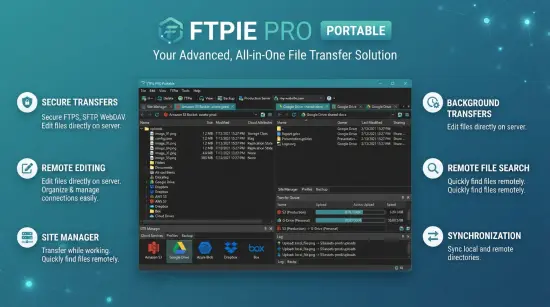
FTPie Pro Portable is a Windows file-management application designed to bring remote servers, cloud accounts, network storage, and local files into one workspace. Rather than switching between a traditional FTP client, a cloud-storage website, a separate backup utility, and a file manager, users can work with supported storage locations through a single interface. The application supports FTP, FTPS, SFTP, WebDAV, NAS connections, cloud platforms, and object storage services.
The software is intended for people who regularly move, organize, edit, share, or protect files across different locations. That may include web developers publishing website files, administrators maintaining server directories, creative professionals moving large media libraries, or small teams that exchange documents between cloud drives and remote systems. Its broad purpose is not limited to connecting to an FTP server: FTPie Pro Portable combines storage browsing with transfer management, backups, scheduling, encryption, sharing, and built-in viewing and editing tools.
What Is FTPie Pro Portable?
FTPie Pro Portable is the paid edition of FTPie for Windows. It expands on the free plan with premium storage connections and workflow tools, including scheduled transfers, automatic backups, file encryption, command-line operations, and commercial-use rights. The current product information lists Windows 10 and Windows 11 as supported operating systems.
The Pro plan is intended for users whose work involves more than occasional personal file transfers. A free plan is available for personal use, with a limited number of server connections and a smaller feature set. Pro adds unlimited connections, additional storage integrations, commercial use, and advanced automation and protection features. The publisher lists monthly, annual, and one-time purchase options, along with a 30-day Pro trial. Pricing and license terms can change, so readers should check the current plan details before purchasing.
The central idea is consolidation. With FTPie Pro Portable, a user can connect to different storage accounts, browse their contents, and transfer items between locations without treating every service as a separate application. Depending on the services being used, a transfer might run between a computer and an SFTP server, between two cloud locations, or between local storage and a network share.
Connect to FTP, SFTP, Cloud, and Network Storage
A file-transfer tool is only useful when it supports the systems a person needs to reach. FTPie Pro Portable supports common transfer protocols such as FTP, FTPS, and SFTP, as well as WebDAV and NAS connections. It also connects to cloud-storage services and object-storage platforms. The product’s listed integrations include Google Drive, OneDrive, Dropbox, MEGA, pCloud, Box, Koofr, OpenDrive, ownCloud, Nextcloud, and Seafile. Object-storage support includes Amazon S3, Azure Blob Storage, Google Cloud Storage, and compatible providers such as Cloudflare R2, Backblaze B2, Wasabi, and DigitalOcean Spaces.
That range can be useful when a work process spans several storage systems. A developer might keep a project locally, publish files to an FTP server, and archive a copy in cloud storage. A small business might maintain documents in a cloud drive while exchanging specific folders with a supplier through SFTP. A media worker might store active files on a NAS and send finished exports to an object-storage bucket. Connecting these locations in one application can make those workflows easier to oversee.
Protocol choice matters. FTP is widely recognized, but it does not encrypt data in transit. FTPS and SFTP provide secure alternatives when supported by the remote service. Users should select the protocol specified by their server administrator or hosting provider and confirm the server address, port, authentication method, and account permissions before connecting. A client can make a connection easier to manage, but it cannot make an insecure server configuration secure by itself.
Manage Files in a Unified Workspace
FTPie Pro Portable uses a dual-pane file-management approach, allowing users to view two locations side by side. This familiar layout can make copying or moving files more direct: one pane can show a local folder, while the other displays a remote server or cloud directory. The same general idea applies when working between two connected storage locations.
A unified workspace can reduce the friction of routine file operations. Instead of downloading a file from one service, locating it on the computer, and uploading it to another service manually, users can initiate transfers between supported locations within the application. The software advertises server-to-server transfers that avoid a local download-and-upload round trip when the connected services allow that transfer method.
Transfer controls are important for larger jobs and unstable connections. FTPie’s product information describes a parallel transfer queue, configurable chunk size and retry settings, and the ability to pause and resume transfers after restarting the application. These tools can help users manage batches of files, monitor work in progress, and recover more conveniently when a transfer is interrupted. Actual speed and available transfer behavior depend on the network, the destination service, and its own limits.
A file manager also needs to make routine organization understandable. Users typically need to inspect folder contents, create or rename items, and move files without losing track of which storage they are viewing. Keeping connected services together may make it easier to see where a file currently lives and where it is being sent. As with any remote file operation, users should check the destination and review overwrite choices carefully, especially when handling production files or shared folders.
Automate Repeated Transfers
Repeated file movement can become tedious when it must be performed on a schedule. FTPie Pro Portable includes Scheduled Transfers, which can move files or folders between supported locations at chosen intervals. The product describes daily, weekly, custom-interval, and one-time schedules, with options for handling existing destination files and missed runs.
This feature is aimed at recurring workflows such as sending a folder to a server each evening, copying a set of documents to another storage service each week, or moving files between a computer and a remote location on a timetable. A visual scheduling interface can be more approachable than writing a script and configuring a separate system task, particularly for users who need a straightforward recurring job rather than a highly customized automation pipeline.
Scheduled Transfers and backups serve related but different purposes. A scheduled transfer moves files between locations according to a timetable. A backup is intended to preserve a recoverable copy, often with retention rules or a restore process. Choosing the right tool depends on the outcome: use a transfer when the goal is to keep files moving or maintain a routine copy elsewhere; use a backup when the priority is recovery after accidental deletion, corruption, or another loss event.
Create Backups and Restore Files
FTPie Pro Portable includes automatic backup capabilities for supported storage locations. The product describes scheduled backups, retention rules, notifications, compression, and restore functionality. A backup workflow can help reduce dependence on manually copying important files, while retention settings can manage how older copies are kept or cleared.
A useful backup routine starts with a clear scope. Users should decide which folders matter, where backup copies should be stored, how frequently the copies should be made, and how long older versions should remain available. They should also test restoration rather than assuming that a completed backup is usable. A backup is most valuable when the recovery process is understood before an emergency occurs.
FTPie Pro Portable also offers password-protected backup archives and file-encryption features. The product describes AES-256 encryption for files before upload, as well as encryption options in its backup workflow. Encryption can add protection when files are stored remotely, but it also makes password handling critical: a lost password may prevent access to encrypted data. Users should store recovery credentials securely and verify that their chosen backup process can restore the files they need.
Encrypt Files Before Uploading
FTPie Pro Portable’s file-encryption feature is designed to protect files before they are sent to a connected storage location. The product describes client-side AES-256 encryption, meaning the file is encrypted on the user’s machine before upload. This can be useful when users want an additional layer of protection for sensitive documents or archives stored remotely.
Encryption is not a substitute for secure account practices or careful sharing controls. Users should consider who has access to the destination, whether the storage provider retains versions or shared links, and how encryption keys or passwords are managed. A secure workflow combines suitable transport protocols, strong account authentication, limited sharing permissions, and appropriate encryption for the files themselves.
Use the Command-Line Interface
For users who want to include file operations in scripts or automated routines, FTPie Pro Portable provides a command-line interface. The product describes command-line operations for uploads, downloads, and transfers, with support for workflows involving PowerShell, batch files, or continuous-integration environments. A visual command builder is also available to help users construct commands through selectable options rather than memorizing the syntax.
A command-line interface can be helpful when a transfer needs to run as one step in a larger process. For example, a user might want to upload a build artifact after a software build completes or run a file operation as part of a scheduled job. The visual builder can serve as a bridge between the application’s graphical interface and repeatable command-based workflows.
Automation should be tested carefully before it is relied on. Users should confirm the source and destination paths, authentication setup, overwrite behavior, and error handling. A command that works for a test folder may have different consequences when aimed at a production directory. Keeping logs and validating results can make automated file operations easier to troubleshoot.
Preview and Edit Files Within the Application
FTPie Pro Portable includes tools for opening certain files without first switching to a separate application. The product lists a PDF viewer, an image editor, a text editor based on the Monaco editor engine, and media playback tools. Its product information also describes streaming supported media from storage without downloading an entire file first.
For code and text files, an integrated editor can be convenient when a small change is needed on a remote system. A user may be able to inspect a configuration file, update a text document, or review code without manually downloading and re-uploading it. For PDFs and images, built-in viewing tools can speed up basic inspection. More complex editing tasks may still be better suited to dedicated applications.
The application also supports document workflows involving Google Docs and Microsoft 365. When using cloud-based editing, it is worth understanding how the document is opened and shared, particularly if the file contains confidential information. Users should review the account and sharing settings associated with the relevant cloud provider and choose the access method that fits their requirements.
Share Files and Manage Access
FTPie Pro Portable includes Quick Share features that can upload a file and generate a shareable link, including through Windows Explorer integration. Sharing can be useful when someone needs a straightforward way to deliver a file without setting up a separate transfer workflow. However, a share link may grant access to anyone who possesses it, depending on the provider and the link’s permissions. Users should check whether a link is public or restricted, set an expiration if available, and revoke access when it is no longer needed.
Managing access is as important as creating it. A file can remain stored in its original location after a share link is disabled, so users should distinguish between deleting a file and stopping its distribution. Before sharing business or personal documents, confirm that the destination service’s permissions match the intended audience.
Security and Account Considerations
FTPie’s product information states that passwords are encrypted locally and not stored on its servers, and that cloud connections use OAuth2 authentication. It also describes FTPS and SFTP for encrypted transfers in transit. These details are relevant when assessing how the application fits into a particular workflow, but users should still review their organization’s security requirements and the documentation for the services they connect.
A practical setup includes using SFTP or FTPS when supported, enabling strong authentication on cloud accounts, limiting permissions to what the workflow requires, and avoiding the reuse of passwords. Users handling sensitive files should test encryption and restoration procedures before relying on them. In managed environments, administrators may also need to confirm that the application and its integrations meet internal policies.
Who Can Benefit from FTPie Pro Portable?
FTPie Pro Portable may suit users who manage files across several storage types and want one application for transfers and related tasks. Web developers can use it to access hosting accounts and publish site files. IT professionals may value its support for remote servers, backups, and automation. Small businesses can use it to coordinate files across cloud services and network storage. Individual power users may appreciate being able to schedule transfers, create backups, and inspect files without maintaining a separate utility for every task.
The strongest fit is likely for someone whose workflow regularly crosses between local folders, servers, cloud drives, and shared storage. Someone who only needs to make an occasional basic FTP connection may not need all the Pro features. The free plan offers a way to assess the basic application, while the Pro trial provides an opportunity to evaluate premium workflows before committing to a paid plan.
Installation and Licensing
The current download information describes FTPie as a Windows application distributed through an installer, with options that include a direct download, package-manager installation, and the Microsoft Store. It does not establish that FTPie Pro Portable is a standalone portable edition that runs without installation. Users looking specifically for software that runs from removable storage without installing it should confirm that requirement with the publisher before relying on FTPie for that use case.
The product lists a free tier for personal, non-commercial use and a Pro tier that permits commercial use. Pro licensing options and included benefits vary by plan, so users should review the current terms before buying. The publisher’s information lists a one-time license option as well as subscription plans and describes a 30-day refund period.
Overall Assessment
FTPie Pro Portable brings together a broad collection of file-management functions: connecting to remote servers and cloud services, transferring files between locations, scheduling recurring jobs, creating backups, encrypting files, and using built-in tools to view or edit certain content. Its value depends on whether those features match a user’s actual workflow. The more frequently someone works across different storage systems, the more useful it may be to have those connections and tasks organized in one Windows application.
Before adopting it for important work, users should test the connections they depend on, verify transfer and restore behavior, and confirm that the licensing and security options meet their needs. For people who want a multi-service file manager with automation and backup capabilities, FTPie Pro Portable offers a more expansive toolkit than a basic FTP client. For those seeking an officially documented portable build, the available product information instead describes an installer, so that distinction should be checked rather than assumed.
Features at a Glance
- Windows application for managing local and remote files
- FTP, FTPS, SFTP, WebDAV, and NAS connectivity
- Connections to major cloud-storage and object-storage services
- Dual-pane file browsing
- Transfers between supported storage locations
- Transfer queue with pause and resume support
- Scheduled transfers between storage locations
- Automatic backups with retention and restore features
- Client-side AES-256 file encryption
- Command-line tools and a visual command builder
- Quick Share and Windows Explorer integration
- Built-in PDF, image, text, and media tools
- Free plan and paid Pro licensing options
Release Notes
New: the main menu
- The menu drops down from the arrow at the top left, right under the tabs, instead of sliding in over the whole window
- Find an open tab. Every open tab is listed with its icon, and the one you are on is marked. Type to narrow the list, then pick a tab with the arrow keys and Enter. Handy when so many tabs are open that their names no longer fit
- Recently closed. The last ten tabs you closed are one click away and come back where they were: a storage folder on that folder, Home, Settings and Notes. Ctrl+Shift+T reopens the last one
- Home in one click. The Home button at the top of the menu takes you to your storages, to the Home tab you already have open if there is one
- The rest sits in two columns: Add storage, Backup, Scheduled Transfers, Extras (Notes, Screenshot and Screen Recording), CLI and Connect an assistant, then Settings, About and Quit. Your trial or plan shows at the bottom, with Upgrade next to it
New: jump to any folder from the address bar
- Click the arrow after any folder in the address bar to list the folders inside it, and open one with a click. The folder your path runs through is highlighted, so you can see where you came from
- Instant on every storage. The list shows the folders FTPie already knows from your browsing – the same ones the folder tree shows – so it opens without waiting for a server. A folder FTPie has not opened yet offers to open it instead
- Switch storage from anywhere. The arrow next to the icon at the start of the bar lists your storages and the pages pinned to Home, such as Backup and Favorites
- Long paths keep their start. When a path does not fit, « at the start of the bar lists the folders it had no room for, and a long folder name is shortened instead of cut off
- Arrow keys, Enter and Esc work in the list, and typing the start of a name jumps to it. Each folder name and arrow lights up on its own, and the folder you are in stands out from the path above it
A toolbar that follows what you select
- Nothing selected, the toolbar offers what the folder takes: New, Upload on a cloud or server storage, and Paste once there is something to paste – instead of a row of greyed-out file actions
- Select files and it is about them, in words: Copy, Cut, Transfer, Share (when one item is selected and its storage can share it by link), Compress and Delete. How many files you selected and their total size sit on the right, with an × to clear the selection. In a narrow split-view pane the words drop to icons
- The view mode is a switch – Icons, Details and Preview stay in sight instead of hiding in a dropdown – and the sort button says what it sorts by and in which direction
- Type or paste a path. Press Ctrl+L or Alt+D, or click the empty part of the address bar. A Windows path works from any tab, and on a storage you type the storage’s own path. As you type, FTPie lists the folders it already knows and finishes the name for you: keep typing to change it, press Tab to go on into that folder, or Enter to open it
- Right-click a folder in the address bar to open it in a new tab or in split view, copy its path, add it to Favorites, or show it in File Explorer. Middle-click or Ctrl+click opens it in a new tab, and you can drop files on it
- Right-click or hold Back and Forward to jump straight to any of the last 20 places in that tab
- Downloads, Documents and the other Windows folders show their names in your language in the address bar. The navigation buttons and the search box have matching outline icons, and the header is evenly spaced
New: Shared links
- Every link you share is kept. Main menu > Shared links lists the links you made with Share and Quick Share, newest first and grouped by day. Closed the share dialog before copying the link? It is still there
- Copy a link again with one click, open it in your browser, or go to the folder the file is in, with the file selected. Search by file name or link
- Removing a link from the list, or clearing the list, only tidies it up: the link itself keeps working
A cleaner tab strip
- Tabs, the + button, the menu button and the settings, transfers and notifications buttons share one rounded shape, and light up the same way when you point at them
- Thin separators between tabs, as in a browser, and more contrast between the tab strip and the page, so the tab you are on stands out in every theme
- A tab on Downloads, Desktop or a drive shows its icon in the same grey as the folder tree, instead of folder yellow – in the address bar and in Recently closed too
- While files transfer, the transfers button keeps its arrows, in your theme’s colour, with the number of running transfers in a small badge on its corner, instead of turning into a filled blue square
- Remove one notification. Point at a notification and the time in its corner becomes an × that removes it
A softer loading screen
- While FTPie starts, its logo sits in a soft glow: the logo’s own teal on a light theme, a gentle light on a dark one. The windows that open from File Explorer (upload, share, download) have it too
The file browser
- Upload files and folders in one go. Upload opens straight on My Computer, where you can select any mix of files and folders. It used to ask first whether you wanted files or folders, and then took only one kind
- The delete dialog shows what is about to go. A file shows its size and when it was last changed, a folder when it was last changed, and several files their total size, where the storage reports them. The Delete button is now red
- When FTPie asks you to choose files and folders – to upload, to transfer, or for a backup or scheduled transfer – double-clicking a file picks it, as it does in Windows
- Drag a folder to the right edge of the window to open it in split view. A preview shows where it will open
- Search results show where you searched. In the address bar they sit under the folder you searched, Up goes back to that folder, and the arrow after Search results lists the folders found
- Folders light up more clearly under the pointer, and the rectangle you drag to select files is drawn in your theme’s colour
- Refresh free space. A storage’s details pane has a button that reads its free and used space again, and updates its tile on Home too
- A tidier Advanced search. Any, Files or Folders is a switch you can see at a glance, the file types light up in your theme’s colour when picked, and the storages you search in are ticked. In several languages two of its filters had the same name; they no longer do
- Recent files has a search field that is easier to spot and a menu with icons and Show in folder. “Remove item” is now “Remove from list”: it only ever took the file off the list
- JavaScript files have a proper icon. In split view, the button that closes the second pane is lighter, and the preview that shows where a dragged folder will open is calmer
- Upload has the same cloud icon on the toolbar, in the right-click menu and on the screenshot and recording pages. On Home, the + tile shows a hand pointer, and Credentials in a storage’s right-click menu has a padlock icon
- In a folder with thousands of files, the scrollbar’s handle keeps a size you can grab instead of shrinking to a dot, in the file list and on Home
The image viewer and the video player
- Clearer buttons in the image viewer. Zoom, fit to window, rotate, fullscreen, copy and save sit together in one floating bar that stays readable over any picture, with outline icons like the rest of FTPie. Previous and Next are round buttons at the sides, shown only when the folder holds more pictures, and the top bar says where you are, such as 3 / 12
- The video player has the same look. Outline icons, a larger play button, the speed as plain text and a darker band under the controls, so they read over bright video. When you pause, the controls stay on screen instead of fading away
- Pointing at the video’s progress bar no longer shows 0:00 before the video’s length is known
The text editor
- Saving keeps your file as it was. Every save used to add an empty line at the end, with a Windows line ending even in a Linux file – enough to break a shell script on a server. A file in another encoding than UTF-8, such as Windows-1251 or Latin-1, could lose its accented letters. Now the editor writes exactly what you see, in the file’s own encoding and line endings, and a file you empty is saved empty
- A status bar under the editor shows where the cursor is and lets you switch Word wrap, pick the language for highlighting (type to find it among more than 90), switch the line endings between LF and CRLF, and see the encoding the file will be saved in. Word wrap is remembered
- Ctrl+S saves, in the text, image and Markdown editors, and Ctrl+mouse wheel zooms the text. Save Changes lights up when you point at it, also while there are changes to save
- Files without an extension, such as README, LICENSE or a server’s config files, can be opened in the text editor from Open with
Notes
- A cleaner Notes page. The toolbar is now the top of the note itself, with outline icons and roomier buttons
- Export as text, next to Export as PDF: the Export button opens a menu with both, and the text is exactly what the editor shows
- Search in a note is one field with the match count and arrows inside it. Shift+Enter goes to the previous match
- When the formatting bar wraps onto two rows, the end of the note no longer slips out of view
Screenshot and Screen Recording
- Cleaner toolbars. The screenshot and recording tabs have new outline icons, the drawing tools sit together in one group, and the tool you are using is shown in your theme’s colour
- Notes, Screenshot and Screen Recording have the same icons in the settings popup and the tray menu as in the main menu, and come in the same order
- The “Copied to clipboard” note has a clearer outline
- A tidier recording settings page. The settings sit in evenly spaced rows, grouped into what is recorded, how a recording runs, the hotkeys and what happens when it is done, with every choice lined up on the right. The back button is easier to see and lights up when you point at it
Safer backups, and new backup options
- If you back up to S3, Azure Blob, Google Cloud Storage, Cloudflare R2, Backblaze B2, Wasabi or DigitalOcean Spaces, this release fixes something important. A backup larger than about a gigabyte could finish uploading correctly and still be reported as failed, left in a folder ending in “_part” where restore never looked, and where your storage provider kept charging for it. Backups to these storages are now written straight into place and marked complete when they finish. If you have “_part” folders on a bucket, point a new backup at that folder and FTPie offers to recover the complete backups among them. Compressed or encrypted backups over 5 GB, which these storages refused in one upload, now go up in parts
- Hidden files and folders are backed up. Plain backups used to leave them out, including every Git repository’s .git folder, while compressed backups kept them. Both now include them, so a backup can grow. Shortcuts to other folders (junctions) are not followed, so nothing is backed up twice
- One file in use no longer fails a backup. A compressed or encrypted backup now backs up everything else, names the file or folder it could not read, and finishes as “completed with errors”. Before, the whole backup failed. A selected folder that has been moved or deleted is named the same way, instead of the backup reporting success
- Leave files and folders out of a backup. The backup wizard has a new Filters step: patterns such as *.tmp, node_modules or *.iso, a size limit, and presets for temporary files and caches, node_modules and .git folders, and files over 1 GB. An excluded folder is never even listed, so the backup is faster as well as smaller. Filters work the same for compressed and encrypted backups
- Skip a backup when nothing has changed. FTPie compares the source with the last backup first, and if nothing differs it records “No changes” instead of storing another identical copy. It is on by default for new backups of folders on this PC, and a full copy is still made at least once a week
- Every backup records what it holds. A small .manifest.json file next to each backup folder lists every file with its size and date, whether the backup finished, and anything it could not include. A HOW-TO-RESTORE.txt file in the backup folder explains how to get your files back with nothing but 7-Zip and your password, or with FTPie on a new PC
- Keep your backup history on a new PC. Point a new backup at a folder that already holds backups, and FTPie offers to adopt them: the earlier runs appear in its history and can be restored straight away. Retention never deletes backups found this way
- Restoring is safer. Restoring over the original folder no longer deletes an original before its replacement is in place. A backup made with filters is restored by merging, so the files it left out stay where they are. Restore warns you when the backup you picked did not finish
- Retention keeps your newest complete backup, even after several runs in a row that completed with errors
- A backup too large for your free disk space is refused up front, naming the space it needs and the drive it would use, instead of failing part-way through compressing. The wizard now explains that compressed and encrypted backups are built on this PC first
- The encryption password is typed twice, or shown while you type it, so a typo cannot lock you out of your own backup
- Webhook alerts report their own failures in the job’s activity, instead of failing silently while everything looked fine. They also take custom headers and a body template, so they can sign in to a service and match its format
Backup and Scheduled Transfers: a tidier list
- Create New stands out as the one coloured button in the header. The other buttons are quieter, and search opens as one field with its × inside
- The sort button says its order (“Date added ↓”) instead of showing a bare icon
- You can see which job is selected – it gets a blue outline – and which one you are pointing at. Before, both outlines were almost the same colour as the page
- Next run is shown in grey, so colour on a job always means its state: green, amber or red. A job’s buttons sit together in one quiet group, with Run in blue
- Runs missed while FTPie was closed are announced by a calm notice with their count, Run all and a button to show every job again, instead of a red button next to a blue one
Safer transfers and connections
- Replacing a file never loses the one you had. When you choose Replace, the new file arrives under a temporary name, and the old one is removed only once the new one is in its place. If anything fails on the way, the old file is put back and the transfer says why. Before, the old file was deleted first, and a failed rename could leave nothing under the name while the transfer reported success. On S3-compatible storage, Azure Blob and Google Cloud Storage the new file goes straight over the old one, which stays as it was if the upload fails
- A storage that stops answering fails the file instead of skipping it quietly. When a storage did not answer in time, the file went back in the queue unsent, and the transfer could finish without counting it. A folder whose contents could not be listed in time was created empty, and a Move then deleted the original folder. Now the file or folder fails with “The storage did not answer in time”, the transfer counts it, a Move keeps its source, and you can retry it
- Downloads to your PC or a network share arrive whole. When a server sent a download in several pieces, as some cloud storages do when they are busy, FTPie kept only the last piece and still reported the download as complete, so a file you downloaded or restored from a backup could be cut short. FTPie now joins the pieces and finishes the file only once all of it has arrived. If a server stops sending part-way, FTPie tries again from where it stopped, and a file it still cannot get whole fails with a message saying so. A download from MEGA or ownCloud that is tried again after a dropped connection now starts the file afresh, instead of adding to what the first try left
- Renaming and moving on S3 keeps the original if the copy fails. A rename or move on S3-compatible storage is a copy and then a delete, and S3 can report a failed copy as a success, after which FTPie deleted the original. The original is now kept, and FTPie says the copy was not confirmed. A copy that takes longer than 30 seconds no longer leaves the file under both names, Azure Blob finishes its copy before the original goes, and an object over 5 GB, which S3 cannot copy, is refused up front with a message saying so
- Big uploads to S3-compatible storage and Azure Blob. Files over 1 GB now go up in parts, so files larger than about 5 GB, which these storages refuse in a single upload, can be uploaded, and an interrupted upload continues from the last part sent
- A folder cannot go into itself. Dropping a folder onto itself or into one of its own folders – from the folder tree onto the address bar or into the folder open next to it, say – or pasting it there now does nothing, instead of starting a move that ended in an error. Cutting files and pasting them into the folder they are already in is refused with a message, and so is a Scheduled Transfer or backup whose target is inside one of its own source folders
- HTTPS certificates are checked. FTPie now checks the certificate of every server it connects to over HTTPS, as Windows does. It used to accept any certificate, so a connection could be intercepted without you knowing. If you use your own server with a certificate it made itself, such as a NAS or a WebDAV server at home, FTPie refuses the connection until you trust that certificate once: edit the storage, press Test connection, check the certificate it shows you, and trust it. The dialog shows who the certificate was issued to and by – or that it signed itself – when it expires, and its fingerprint, which you can copy to compare with the one your NAS shows. FTPie remembers it for that server
- SFTP warns when a server’s key changes. A key you accept is remembered for that server and port only, and when a server you know presents a different key, FTPie warns that someone may be intercepting the connection, with Reject as the default. Keys you accepted before still count, so you are not asked again. A key you reject is no longer asked about again by the very next connection. The key dialog is clearer too: the key type and fingerprint sit in rows that fit in every language, where a grey box cut the fingerprint off
- Errors you can act on. When a cloud storage’s sign-in has expired or was revoked, FTPie says so and tells you to sign in again, instead of “Bad Request”. A transfer that fails on a full destination says the destination is full, and a dropped connection or a timeout says so, instead of showing the server’s raw reply
Fixes
- FTPie starts on PCs where Windows refuses to protect its data. FTPie asks Windows to protect the key your saved logins are encrypted with, and on some PCs Windows answers “Access denied”. FTPie then closed at startup, every time, before its window appeared. It now starts, and on such a PC protects the key with this PC’s own key instead of your Windows account’s. The same goes for backup passwords you save
- Music opened from File Explorer plays. Opening an MP3 with Open with > FTPie showed the music player with no title and nothing playing. A picture or video opened from File Explorer while a tab is already open on its folder now steps through that folder with Next and Previous, as it does when you open it in FTPie. The music player also has an even outline all round
- FTPie no longer offers itself in its own Open with list. Since FTPie added itself to File Explorer’s Open with menu, it showed up among the programs in its own Open with dialog, where picking it only opened the file in FTPie again
- FTPie comes to the front after a capture. With FTPie hidden in the tray, a screenshot or recording taken with a hotkey opened behind the window you were in, or only flashed in the taskbar
- My Computer in the address bar always shows your drives. In a tab opened straight onto a folder – with Open in FTPie in File Explorer, say – clicking My Computer in the address bar, or going up from a drive, showed a wrong folder or an error instead of your drives
- MEGA signs in again. MEGA now asks apps for an extra security check when they sign in, and FTPie could not answer it: even with the right password, the sign-in failed with a message about an account out of quota, until you signed in on the MEGA website. FTPie now answers the check itself. A wrong password now says the password is wrong, and an account with two-factor authentication turned on says so, instead of blaming the quota
- Opening MEGA no longer freezes the window. MEGA hands over the whole account in one go, and FTPie read it on the window’s own thread, so the window stopped responding for a second or two each time you opened or refreshed MEGA. It now loads in the background while the folder shows its spinner
- OneDrive signs in even if you switch tabs on the way. When you added OneDrive and switched between Personal and Work or school while the sign-in page was open in your browser, the sign-in could fail with “The grant was obtained for a different tenant”. FTPie now finishes the sign-in for the kind of account you started it with. The two sign-in buttons also say which kind of account each one is for, with a line under each to help you pick (Outlook.com, Hotmail and Microsoft 365 Personal or Family accounts are personal; an account your company or school gave you is work or school). Signing in again to a Work or school account opens on its own tab, instead of on Personal
- FTPie tidies up its temporary folder. The ~FTPie-Temp folder at the root of a drive, where FTPie keeps files you open from a storage and archives it builds for a transfer, is emptied and removed when FTPie closes, instead of staying behind. Each file’s copy goes when you close it, and no longer ends up in your Recycle Bin
- SFTP connects on PCs that allow only FIPS-approved encryption. On a PC where Windows is set to FIPS mode, as many company and government PCs are, every SFTP connection failed with an error about FIPS validated cryptographic algorithms
- A busy FTP server no longer fails a file on the first try. When an FTP server answered “try again later” – “425 Unable to build data connection” while its data ports were busy, for example – the file failed at once. FTPie now tries again, as it already did after a dropped connection
- The transfer speed no longer sinks at the end. After the last byte was sent, while the transfer finished up, its speed kept falling toward zero. It now disappears once everything is across
- The crash window is readable on a dark theme. If FTPie ever has to close after an error, the window that offers to send us a report showed its details faintly and its Send report button only when you pointed at it. It now always looks the same, whatever the theme
- The address bar and search speak your language. Backup and Scheduled Transfers showed their names in English in the address bar, and the search results tab and its Close search button were in English in every language
- A backup that finished is not deleted after a crash. If FTPie closed unexpectedly during a backup, the next start deleted that backup’s folder when “Automatically delete data from interrupted backups” was on, even if the backup had finished uploading. FTPie now checks what the run left: a finished backup is recorded as finished, and a folder is deleted only when it is shown to be unfinished
- Backups show their real size. A backup to a second drive or a USB disk, or to another folder on the same cloud, reported “0 B”. The files were always copied
- The ZIP viewer opens big archives. Archives over 4 GB, and archives holding tens of thousands of files, now open
- The ZIP viewer asks for the password first. A password-protected archive says so in the viewer’s toolbar, and Unzip & Open asks for the password before anything else. With an archive on a cloud storage, it used to download the whole archive first and only then ask, so it looked as if it went straight to unzipping