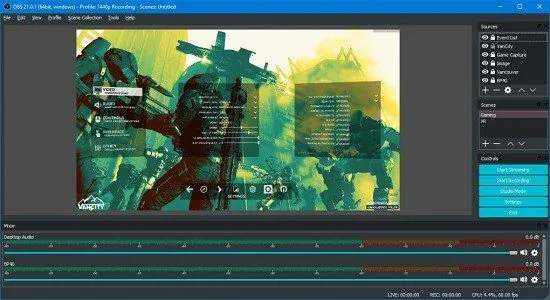
Portable OBS Studio 32.2.2 (x64)
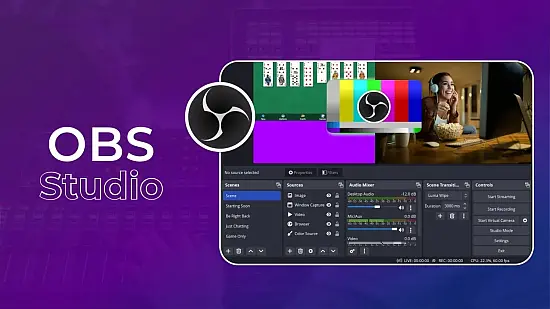
OBS Studio Portable is a powerful, free-to-use piece of software designed for capturing, composing, and broadcasting video in real time. It gives creators and professionals a single control center where they can bring together multiple sources—such as game footage, webcam video, screen capture, audio inputs, and text overlays—then preview everything as it will appear before going live or recording. What makes OBS Studio Portable especially appealing is how flexible it is: it can serve as a simple recording tool for a single screen, yet it can also scale into a full production workflow with scenes, transitions, nested audio routing, and advanced encoding options.
At its core, OBS Studio Portable revolves around a concept called “scenes.” A scene is a named layout that defines which sources are currently visible and how they are arranged. For instance, a scene might contain your webcam centered on the left, a game capture filling the right side, and a small label showing the current chapter or match status. Another scene might switch to a full-screen browser capture for stream overlays, while a third scene might be used when you are away from your microphone and only want a static “starting soon” graphic visible. Switching between scenes can be done manually or triggered by hotkeys, allowing your presentation to adapt smoothly during recording or streaming.
Complementing scenes are “sources,” which are the building blocks of your visual and audio composition. A source can be a display capture (capturing an entire monitor), a window capture (capturing a specific application window), a game capture (for compatible games), or media inputs like video files and image assets. You can also add more interactive elements such as browser-based overlays, microphone and desktop audio sources, and custom graphics. Each source can be positioned, scaled, and transformed to match the look you want. OBS Studio Portable also supports layering, meaning you can place sources above or below others to create complex layouts.
One of the most practical features of OBS Studio Portable is its real-time preview. Before you record or stream, you can open the preview view and see your current scene exactly as the output will look. This reduces mistakes because you can check alignment, ensure the correct window is being captured, confirm that your webcam framing is appropriate, and verify that your audio levels are not clipping. For creators, this preview is more than a convenience—it is a quality-control step that turns “I think it’s working” into “I know it’s working.”
OBS Studio Portable offers a studio-style workflow with both “preview” and “program” output concepts. When configured, you can switch scenes in a controlled manner so that you always know what viewers will see. This approach is particularly valuable for live streams where timing matters. If you need to transition from one layout to another—such as moving from gameplay to a facecam emphasis—you can prepare the change and then make it active at the appropriate moment.
Audio is a central pillar of streaming and recording quality, and OBS Studio Portable treats it with the attention it deserves. It allows you to capture and manage multiple audio sources, including microphones, additional audio inputs, and system audio. Instead of treating audio as a single undifferentiated channel, the software provides a structured way to balance different sounds. You can set gain, monitor levels, and apply filters to improve clarity. Whether you are recording voice commentary, live streaming gameplay, or presenting a tutorial with background music, OBS Studio Portable helps you keep your mix clean and consistent.
Filters are an important part of why OBS Studio Portable is so adaptable. For audio, you can apply noise suppression, noise gates, equalization, compression, limiting, and other processing options to refine your sound. These filters help reduce distracting background noise, prevent sudden spikes in volume, and make voices clearer to hear. For video sources, you can also use filters to enhance readability and framing. Examples include scaling, color correction, sharpening, or making adjustments that improve the visual quality of specific sources.
Another distinguishing feature of OBS Studio Portable is its scene transitions and visual workflow. You can define how your scenes change from one layout to another, whether you prefer an instantaneous switch or a smoother fade or slide style transition. While transitions are sometimes overlooked, they can contribute to a more professional presentation. They also help you communicate changes to viewers in a way that feels intentional, such as shifting to a “starting soon” scene with a subtle fade rather than a sudden cut.
OBS Studio Portable supports a wide range of outputs and is commonly used for both recording and live streaming. For recording, the software can capture your scenes to a video file in a format and quality level you specify. This makes it suitable for tutorials, gameplay recordings, interviews, lessons, and any scenario where you want to create an edit-friendly source. For streaming, OBS Studio Portable can send your output to a streaming platform using configurable settings, including bitrate control and encoder selection. With the right configuration, it helps produce a stable stream that looks sharp while respecting your connection’s constraints.
Encoding settings are one of the key technical areas where OBS Studio Portable shines. Video encoding determines how your image data is compressed and prepared for output, affecting both visual quality and resource usage. OBS Studio Portable provides control over encoder choices, bitrate targets, and other parameters so you can tune performance based on your computer’s hardware and your internet upload capacity. This means the same software can be used on a lower-powered machine for simple recording, or on a stronger workstation for higher-quality streaming with more complex scenes and overlays.
Another reason OBS Studio Portable is widely adopted is its support for overlays and dynamic content. Many streamers and creators use overlay graphics to show chat activity, follower alerts, subscriber notifications, stream titles, or progress meters. OBS Studio Portable can incorporate these overlay sources in ways that keep them synchronized with the rest of your scene. When overlays update in real time, your layout remains informative and engaging without forcing you to manually edit graphics during a broadcast.
When you incorporate browser-based sources, you can also integrate web technologies into your stream layout. This can include interactive dashboards, custom HTML/CSS visual components, or animated elements. The practical benefit is that your stream design can evolve over time. Instead of being locked to static graphics, you can build or adopt modern overlays that respond to events, display real-time information, and create a cohesive brand look.
Scenes and sources also make it easier to manage different content styles. For example, a “gaming” scene might include a game capture source, a webcam frame, and a small “scoreboard” overlay. A “talking head” scene might hide the game capture and replace it with a full-screen webcam view and a background image. An “editing” scene might switch to a screen capture of your editor while a larger microphone meter appears. OBS Studio Portable is well-suited to these multi-format workflows because your organization stays consistent. You can reuse sources across scenes or reconfigure layouts without reinventing everything from scratch.
OBS Studio Portable is not limited to mainstream use cases like gaming streams. It works equally well for screen recording, presentations, online courses, remote meetings with visual overlays, and live demonstrations. For tutorials, you can create a scene that captures your screen and places a small webcam in a corner. For presentations, you might capture your slides from a browser or a window capture and add a clear label showing the current section. For demos, you might capture multiple windows and switch between them while keeping audio consistent. The software’s flexibility makes it capable of supporting many content production approaches.
One of the most beneficial workflow features in OBS Studio Portable is hotkey control. Hotkeys let you switch scenes, start and stop recording, and trigger other actions without reaching for your mouse. This is crucial during live sessions when you may need both hands free for gameplay, writing, interacting with the audience, or operating instruments. With a well-thought-out hotkey layout, your production becomes smoother and more reliable, minimizing the risk of missing transitions or forgetting to begin recording.
OBS Studio Portable also supports audio monitoring and level control. Monitoring means you can listen to what your stream output is hearing, helping you verify the mix. This is especially helpful when you have multiple audio sources like desktop audio plus a microphone plus background music. You can check whether voices are intelligible above music, whether game audio overwhelms narration, and whether any source is too loud or too quiet. Monitoring combined with level meters makes audio management less guesswork-driven and more performance-driven.
For creators who care about clean visuals, OBS Studio Portable provides tools to adjust positioning, scaling, cropping, and transforms for each source. This means you can fine-tune how your webcam fits your layout, how your screen capture frames align with your overlay elements, and how text is placed. The ability to adjust per-source transforms reduces the need for external video editing just to correct basic layout issues. You can get the layout right before recording, then focus on content rather than technical cleanup.
OBS Studio Portable also allows you to control how sources interact through ordering. If you want an overlay to remain visible over gameplay, you ensure it is layered above the game source. If you want a shadow or background panel behind a text element, you place it beneath. This layering strategy is intuitive once you think of it like arranging objects on a canvas. As your stream design becomes more complex, this layering approach becomes essential for maintaining readability and visual clarity.
Another practical capability is the use of profiles and configuration management. OBS Studio Portable can store different setups for different scenarios, such as streaming versus recording, or different streaming platforms requiring different settings. This can help you avoid repeatedly changing the same parameters. For instance, you might have one profile tuned for lower upload speeds and another tuned for higher quality. Profiles reduce friction and make it easier to start a new session quickly with the correct configuration.
When it comes to stability during live operations, OBS Studio Portable includes a workflow that encourages careful preparation. By setting up your scenes, verifying sources, and confirming audio levels before going live, you reduce the chances of interruptions. While real-time streaming always involves variability—from internet conditions to source changes—OBS Studio Portable’s preview and configuration control give you the tools to mitigate common problems.
OBS Studio Portable is also valuable for iterative improvement. Many creators start with a basic setup: one screen capture, one microphone, and perhaps a simple webcam frame. Over time, they add more scenes, adjust audio filters, refine layouts, and incorporate better overlays. Because OBS Studio Portable supports this growth path, you are not forced to become highly technical immediately. You can begin with what you need and then expand functionality step by step until the system matches your production goals.
In addition to the core workflow of scenes and sources, OBS Studio Portable supports customization of how the application behaves. You can adjust performance-related settings, choose how preview behaves, and manage how the application interacts with your system. This matters because different computers have different hardware capabilities. OBS Studio Portable’s configurable design is a key reason it can be used across a wide range of systems—from modest setups to high-end rigs.
For users who want to distribute recordings or repurpose content, OBS Studio Portable plays a role beyond the live session. Capturing high-quality recordings ensures that later editing—such as trimming, adding captions, and exporting—has a strong foundation. If your recording captures clean audio and stable visuals, post-production becomes less labor-intensive. Even if you don’t plan to edit extensively, reliable capture provides consistent output quality across sessions, making your content library easier to manage.
Creators also value the ability to build consistent branding. OBS Studio Portable helps you maintain consistent colors, positioning, and typography by keeping your overlays and sources organized. When your “starting soon,” “live,” and “offline” scenes share the same graphical language, viewers feel like they are entering a recognizable channel experience. Consistency contributes to professionalism, and OBS Studio Portable makes it practical to keep that consistency across many sessions.
For streams that require quick changes during events—like live gaming tournaments, hackathons, or interactive Q&A sessions—OBS Studio Portable’s scene-switching workflow provides a structured way to respond. You can create specialized scenes for specific segments: one for announcements, one for gameplay, one for demonstration, and one for after-event recap. With hotkeys and a prepared scene set, switching becomes fast and reliable, helping your audience stay engaged.
OBS Studio Portable is also suitable for creators who want to experiment with different content formats. If you want to alternate between voiceover commentary and live interaction, you can change scenes and adjust audio routing accordingly. If you want to include different camera views—such as wide shot versus close-up—you can add multiple webcam sources (or switch between capture options) and create separate scenes for each camera framing. This lets you tailor the presentation to the moment, rather than forcing one static layout.
Even when you focus on simplicity, OBS Studio Portable tends to reward good setup habits. Starting with a clean scene layout, calibrating audio levels, verifying capture sources, and using filters appropriately often leads to output that requires little correction later. This reduces friction and builds confidence. Once you are comfortable with the workflow, you can replicate your setup quickly for future sessions and concentrate on the creative work itself.
Finally, OBS Studio Portable is attractive because it encourages ownership of your production environment. You are not limited to a single template. You can shape the software to match your style, goals, and hardware. Whether you want a minimal setup that records a single screen or a full production system with multiple cameras, overlays, and advanced audio processing, OBS Studio Portable provides the tools to build that workflow. The result is a dependable, creator-friendly platform that supports both beginners and experienced producers, letting you focus on making content that looks and sounds the way you intend.