Portable AMS PhotoGlory 8.0

PhotoGlory Portable is a desktop application designed specifically to restore, repair, and enhance old or damaged photographs using a combination of automated algorithms and manual retouching controls. The software focuses on preserving photographic details while simplifying complex restoration tasks into a workflow accessible to hobbyists, family historians, and small photographic studios. PhotoGlory Portable brings together recovery tools for physical damage (scratches, creases, tears), tonal reconstruction for faded images, and colorization options for black-and-white originals, all within a clear, step-driven interface.
Key capabilities
-
Automatic photo repair tools that quickly detect and remove common defects such as scratches, dust, spots, and small tears.
-
Manual retouching brushes for targeted fixes, cloning, and content-aware healing to rebuild missing or damaged areas.
-
One-click and guided colorization workflows that transform black-and-white photos into convincing color images while letting users refine hues and accents.
-
Color correction and tonal restoration utilities to bring back contrast, balance, and saturation in faded or washed-out prints.
-
Batch processing for applying consistent restoration steps to multiple images at once, saving time when working through archival collections.
-
Creative filters and finishing effects to stylize restored images for printing, framing, or digital sharing.
Why people choose PhotoGlory Portable
-
Purpose-built for old photos: every tool is tuned to problems commonly found in analog photographs, such as film grain, chemical stains, and paper fold lines.
-
Fast results with control: automated features accelerate the initial cleanup while manual tools let users preserve or refine sentimental details.
-
Low learning curve: an intuitive interface and guided steps let new users complete professional-looking restorations without a steep learning period.
-
Flexible licensing: one-time license options make the software accessible for personal use and small business needs.
User interface and workflow
PhotoGlory Portable organizes its workspace into clear, task-oriented areas that help users move from scanning and import through repair, color, and export. The main layout typically includes:
-
Import panel where scanned files or photos can be added and sorted.
-
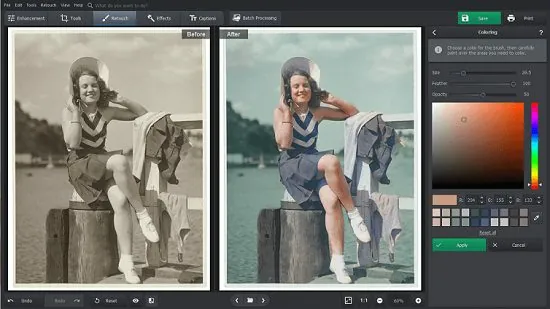
Preview window that provides a side-by-side comparison of original and restored states.
-
Tool palette presenting automated fixes, manual retouch brushes, colorization options, and creative effects.
-
Adjustment sliders for brightness, contrast, saturation, and sharpness that provide immediate visual feedback.
-
History/undo panel that tracks actions and enables non-destructive experimentation.
This structure supports both linear step-by-step restoration and non-linear exploration: users can apply an automatic fix, then refine specific zones manually, then add a creative finishing effect without losing prior adjustments.
Automated restoration tools
PhotoGlory Portable includes several automated utilities that dramatically reduce the time required to repair common artifacts from aging and storage damage.
-
One-click repair: a single action scans for visible defects and applies appropriate fixes to scratches, dust specks, and small tears.
-
Auto color correction: analyses color casts and faded tones, restoring a neutral balance while retaining original atmosphere.
-
Automatic colorization (where available): intelligently maps plausible color information to grayscale photographs with an adjustable strength slider to control realism.
-
Batch automatic processing: apply the same automated corrections across dozens or hundreds of files, ideal for family archives or collections.
Manual retouching and precision controls
For images that need more delicate attention, PhotoGlory Portable supplies a set of manual tools that are straightforward yet powerful.
-
Healing brush: removes small defects by sampling surrounding pixels and blending corrections naturally.
-
Clone stamp: copies pixels from undamaged areas to reconstruct missing parts, useful for seal tears, missing corners, and large holes.
-
Patch tool: replaces larger damaged areas by blending textures from similar regions.
-
Edge-aware selection: helps isolate subjects or backgrounds for separate treatment without creating halo artifacts.
-
Manual color accents: paint color onto selected areas after automatic colorization to correct inaccuracies or emphasize details.
Colorization and color management
Colorization is a signature capability of PhotoGlory Portable; the software balances automation with manual artistry so users can produce credible color versions of monochrome images.
-
One-click colorize: applies an initial plausible palette to grayscale images to create a quick color preview.
-
Fine-tune color channels: separate controls for skin tones, vegetation, sky, clothing, and neutral objects let users nudge hue and saturation where necessary.
-
Layered color accents: multiple passes of painted color can be blended using opacity and blending modes to achieve subtle realism.
-
Color palette swatches: save and reuse custom palettes across images for consistent family album results.
-
Color history and snapshots: record staged variants so users can compare different color approaches and revert if needed.
Tone recovery and film-grain handling
Older photographs often suffer faded contrast, washed-out highlights, and uneven tonality; PhotoGlory Portable’s tonal tools focus on restoring depth while respecting original textures.
-
Curves and levels: precise tonal mapping to recover midtones, lift shadows, and rein in blown highlights.
-
Selective contrast enhancement: local contrast controls to recover micro-detail without increasing overall noise.
-
Grain reduction: adaptive algorithms reduce noise and film grain while preserving edge sharpness and fine detail.
-
Grain preservation option: for users who want to keep a period-authentic film grain, the tool can preserve or simulate grain to match original aesthetics.
Repairing physical damage
PhotoGlory Portable’s repair suite is designed to reconstruct areas where paper is torn, creased, or stained.
-
Tear and crease repair: tools reconstruct linear creases and fold lines to produce seamless joins.
-
Corner restoration: recreate missing corners or edges by sampling adjacent areas and reconstructing plausible borders.
-
Stain and mold removal: localized filters reduce discoloration and blotches left by water or chemical damage.
-
Texture-aware reconstruction: algorithms attempt to match local paper or image texture so repairs blend naturally into the surrounding area.
Batch processing and workflow efficiency
Working with archives or multiple family albums is where PhotoGlory Portable’s batch tools become essential.
-
Batch apply corrections: choose a preset or custom sequence (auto-repair, color correction, resize) and run it on a folder of images.
-
Rename and export templates: export multiple files with consistent naming schemes, formats (JPEG, TIFF, PNG), and color profiles for print or web.
-
Preset management: create, save, and reapply custom restoration presets tailored to your scanner, paper type, or typical defect pattern.
-
Queue and background processing: continue working on other images while batches process in the background, maximizing productivity.
Export, printing, and archival output
PhotoGlory Portable supports the formats and export options needed for printing, archiving, and digital sharing.
-
High-quality export: save restored images in lossless formats for archival preservation.
-
Print-ready sizing: built-in resizing and sharpening options tuned for print DPI reduce the need for separate prepress software.
-
Metadata preservation and editing: keep or edit IPTC and EXIF fields to document provenance, dates, and restoration notes.
-
Social and web presets: optimized export profiles for popular web and social platforms to balance quality and file size.
Creative effects and finishing touches
Beyond repair, PhotoGlory Portable includes creative tools to give restored images a polished, finished look suitable for display.
-
Vintage and film-mimic filters: a library of presets that replicate period looks, toning, and film stocks.
-
LUT and 3D LUT support in advanced versions: apply cinematic color gradings to restored images for stylized presentations.
-
Text and caption overlays: add dates, captions, and decorative frames for albums and prints.
-
Vignette and border tools: subtle framing options to focus attention and enhance the reproduction quality of prints.
Performance and system compatibility
PhotoGlory Portable is built as a Windows desktop application with a focus on responsiveness and stable handling of large scans typical of restoration work. It supports multi-core processing and optimizes memory use for large images, allowing users to work on high-resolution scans without excessive slowdown. The application is suitable for a range of hardware—from modest home PCs to more powerful workstations—while offering settings to balance speed and quality depending on the user’s machine.
Licensing and editions
PhotoGlory Portable ships in several editions to match different user needs, typically including a Standard edition for basic repair and colorization, a Deluxe edition with enhanced manual tools, and a Pro edition that adds batch automation, advanced filters, and professional export options. Licenses are usually offered as one-time purchases with lifetime activation for a single user, along with trial versions that allow prospective buyers to evaluate features before purchasing.
Target users and use cases
-
Family historians and casual users: restore treasured family photos and bring generational memories to life with minimal technical overhead.
-
Hobbyist photographers and archivists: apply consistent restoration methods across collections and prepare prints for framing or albums.
-
Small photography studios: offer photo restoration services without a steep software learning curve or subscription-based costs.
-
Museums and local heritage projects: digitize and clean community archives with batch tools and export options suitable for cataloging.
-
Graphic designers and artists: use colorization and stylization tools to repurpose archival images into creative projects.
Practical examples of use
-
Restoring a sun-bleached family portrait: use auto-correction to recover tonal balance, remove dust and scratches with the healing brush, and perform a one-click colorize pass followed by manual tweaks to skin tones.
-
Repairing a torn wedding photo: employ clone and patch tools to reconstruct missing dress details, remove fold lines with crease repair, then finalize with subtle grain reduction and sharpening.
-
Batch digitizing an album: scan a stack of negatives, run a batch preset that auto-crops, removes dust, corrects color, and exports archival TIFFs with consistent filenames.
Strengths and limitations
-
Strengths:
-
Task-focused toolset for photographic restoration, reducing the need for multiple disparate applications.
-
Balanced automation plus manual control, letting users achieve fast results and precise corrections.
-
Straightforward workflow and presets suitable for non-experts.
-
Batch processing and export options tailored for archiving large collections.
-
-
Limitations:
-
Platform support is centered on Windows desktop; users on other operating systems require virtualization or alternate platforms.
-
Very severe physical damage requiring artistic reconstruction may still demand skilled manual retouching and patience.
-
Highly specialized forensic restoration tasks may benefit from more advanced, professional-only toolsets.
-
Tips for getting the best results
-
Start with high-quality scans: use a flatbed scanner set to an appropriate DPI (usually 300–600 DPI for prints, higher for small details) to preserve original detail before restoration.
-
Work non-destructively: use the history panel and save incremental copies so you can revert to earlier stages if creative choices change.
-
Combine automation and manual work: run automated repair to remove bulk defects, then inspect and refine problem areas with manual brushes for highest realism.
-
Use presets for consistency: save a batch preset for a common photo type (e.g., faded polaroids) and apply it across similar images to maintain visual continuity across an album.
-
Preserve originals: always archive originals and export restorations as separate files to maintain historical integrity.
SEO-friendly headings for web publishing
-
PhotoGlory Portable Overview: Restore Old Photos with Confidence
-
Key Features of PhotoGlory Portable for Photo Restoration
-
How PhotoGlory Portable’s Automatic Tools Save Time
-
Manual Retouching Tools for Precision Repairs
-
Colorization Workflow: From B&W to Lifelike Color
-
Tone Recovery, Grain Control, and Texture Preservation
-
Repairing Tears, Creases, and Stains with Ease
-
Batch Processing and Archival Workflows
-
Exporting Restored Images for Print and Web
-
Creative Filters, Captions, and Finishing Touches
-
Who Should Use PhotoGlory Portable: Use Cases and Audiences
-
Tips to Get the Best Results from PhotoGlory Portable
Suggested call-to-action copy for marketing
-
Revive your family album today — try the free trial of PhotoGlory Portable and see your photos come back to life.
-
Preserve memories for the next generation: restore, colorize, and archive your vintage photos in minutes.
-
Want consistent, print-ready results? Use PhotoGlory Portable batch tools to process entire albums in one go.
What PhotoGlory Portable can do:
-
Restore scratches, dust, and spots
-
Repair tears, creases, and missing corners
-
Colorize black-and-white photos in one click
-
Correct faded colors and tonal imbalances
-
Remove film grain or preserve authentic texture
-
Batch-process multiple images with presets
-
Manual tools included:
-
Healing brush for small defects
-
Clone stamp for rebuilding areas
-
Patch tool for larger reconstructions
-
Edge-aware selection for precise masks
-
Manual color painting and accents
-
Export options:
-
Save as high-quality TIFF for archiving
-
Export optimized JPEG for web sharing
-
Print-ready resizing and sharpening
-
Preserve or edit metadata (EXIF/IPTC)
-
Best practices:
-
Scan at 300–600 DPI for prints
-
Use automated fixes first, then refine manually
-
Save presets for consistent results
-
Keep an untouched copy of the original scan
Accessibility and learning resources
PhotoGlory Portable is designed with approachable controls and step-by-step tasks, making it suitable for users who are not professional retouchers. The software typically includes built-in help prompts, guided workflows, and tutorials to shorten the learning curve. Users who want to deepen their skills can experiment with manual brushes and color balancing features, while beginners can rely on one-click options to produce satisfying outcomes quickly.
Brand and product maturity
PhotoGlory Portable is developed by a vendor that focuses on consumer and prosumer image-editing utilities and has refined the toolset over multiple releases to better address the specific needs of photo restoration. The product’s evolution reflects incremental improvements in automation, colorization, and user experience, making it a practical choice for anyone who needs to revive photographic collections without investing in steep learning curves or expensive professional suites.
Final practical checklist before restoring a photo
-
Scan the original at appropriate resolution and save a copy before editing.
-
Inspect the image for the types of damage (scratches, creases, stains) and choose corresponding tools.
-
Run automatic repair and color correction as a baseline.
-
Use manual brushes to carefully fix persistent or large defects.
-
Fine-tune colorization and skin tones with manual accents if needed.
-
Export final images using archival or print-optimized settings depending on your use.
PhotoGlory Portable stands as a focused, user-friendly solution for anyone looking to restore, preserve, and reimagine old photographs. It is built to remove technical barriers while offering enough manual control for creative or professional results. Whether revitalizing a single treasured portrait or digitizing whole family archives, PhotoGlory Portable combines automated power and hands-on tools to make vintage photographs look their best again.