
Portable Pixumbra Studio 1.0.0
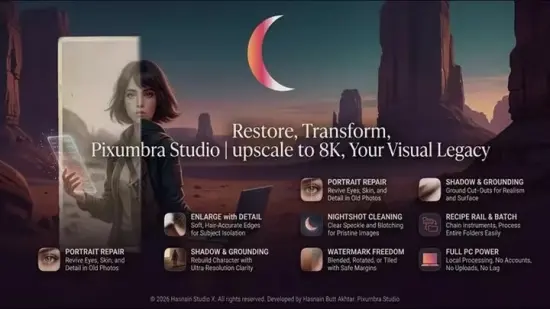
Batch photo workroom with cutout, repair and recipes. A picture workroom for anyone with a folder of images and a deadline. Fourteen instruments sit on one page – cutout, enlarge, portrait repair, clean, shadow, watermark, compress and convert – and any of them can be chained into a recipe and run across ten thousand files unattended. Every picture is read, worked on and written on your own device.
What Pixumbra Studio does
– Cutout with a soft, hair-accurate edge, single file or whole folder
– Portrait repair that brings eyes, skin and hair back in old photographs
– Enlarge that rebuilds detail, in a photograph character and a crisp character
– Recipe rail: chain any instruments and run them across an entire folder
– Compress to a file size you name, with the quality cost shown
– Camera raw reading, plus WebP, HEIC and AVIF where the system codec is installed
Who it is for
Pixumbra Studio is built for photographers, sellers and anyone finishing a folder of pictures who would rather not upload them to a subscription service.
It sits in the photo & imaging part of the Hasnain Studio X catalogue, and it follows the same rule as every other title in the range: the work happens on your own hardware. Nothing is uploaded for processing, because there is no server to upload it to.
Local-first, by design
Most software in this category sends your files somewhere to be handled. Pixumbra Studio does not. Processing runs on your CPU or GPU, and your files stay in the folders you put them in. The application keeps working with the network switched off.
That is not a setting you enable. It is how the application is built, and it is why there is no account to create, no profile to build and no subscription to lapse. Full detail is in the Pixumbra Studio privacy policy.
Pixumbra Studio Portable is a practical image-processing workspace designed for photographers, creators, online sellers, small businesses, marketers, and anyone who needs to prepare large numbers of pictures efficiently. Instead of treating every image as a separate project, Pixumbra Studio Portable brings essential photo tools together in a single, streamlined environment where images can be edited, enhanced, converted, compressed, and organized with minimal effort.
The software is especially useful when a folder contains dozens, hundreds, or even thousands of images that require similar adjustments. A single photo can be improved manually, or a complete workflow can be saved as a recipe and applied repeatedly across an entire collection. This makes Pixumbra Studio Portable suitable for product photography, website content, social media preparation, archival restoration, property images, marketing campaigns, and routine image-management tasks.
The portable design makes the application convenient for users who prefer flexible software that can be launched without a conventional installation process. It can be kept on a removable drive or stored in a dedicated folder, allowing users to take their image-processing workspace with them and use it on compatible Windows computers.
What Is Pixumbra Studio Portable?
Pixumbra Studio Portable is a batch photo-processing application focused on practical results and efficient workflows. It combines a collection of image tools into one accessible workroom, helping users complete common editing tasks without switching between multiple applications.
The program is built around a straightforward idea: image preparation should be repeatable, organized, and easy to manage. A user can open one image for careful editing, select an entire folder for batch work, or create a multi-step recipe that performs several operations in sequence.
Typical tasks include:
- Removing or isolating backgrounds
- Improving portraits and older photographs
- Enlarging images while rebuilding visible detail
- Cleaning unwanted elements from a picture
- Adding or adjusting shadows
- Applying watermarks
- Compressing images for websites or sharing
- Converting files between supported formats
- Processing camera photographs and modern image formats
Pixumbra Studio Portable is designed for people who need more than a basic one-click editor but do not want a complicated production environment. Its collection of focused tools provides control over important image operations while keeping the overall workflow accessible.
A Complete Portable Photo Editing Workspace
Pixumbra Studio Portable brings multiple image utilities into one central interface. This approach reduces the time spent searching for separate programs and makes it easier to maintain consistent results across a project.
For example, an online shop owner may need to remove the background from product photos, enlarge selected images, add a brand watermark, convert the results to WebP, and compress them for faster page loading. With Pixumbra Studio Portable, these steps can be arranged into a repeatable workflow rather than completed manually for every file.
A photographer preparing a large archive may use the program to repair portraits, clean distracting elements, resize images, and export copies in a consistent format. A marketing team can prepare campaign images in bulk while maintaining the same dimensions, branding, and compression settings.
The portable format also supports a more flexible working style. Users can store the software alongside project files, carry it between workstations, or keep it available on a removable storage device. This makes Pixumbra Studio Portable a useful choice for mobile workflows, shared workspaces, field photography, and temporary editing environments.
Batch Image Processing Made Simple
One of the main strengths of Pixumbra Studio Portable is its ability to process images in batches. Instead of opening and editing every file individually, users can select a group of images and apply a consistent operation to all of them.
Batch processing is useful for tasks such as:
- Resizing a complete image library
- Converting photographs into a web-friendly format
- Compressing a folder before uploading it
- Applying a watermark to branded content
- Running a repair or enhancement workflow
- Preparing images for catalogs or listings
- Standardizing files from different cameras
- Creating copies for backup or distribution
The software is designed to make large-scale image work more manageable. A batch operation can reduce repetitive clicking and help ensure that each file receives the same treatment. This is particularly valuable when visual consistency matters, such as in an online store, property listing collection, portfolio, or editorial archive.
Pixumbra Studio Portable can also be useful when a deadline is approaching. A recipe can be prepared once, tested on a small group of images, and then applied to the full folder. This approach lets users focus on reviewing the results instead of repeating the same adjustments manually.
Create Reusable Image Processing Recipes
Pixumbra Studio Portable includes a recipe-based approach to image editing. A recipe is a sequence of selected operations that can be reused whenever the same type of work needs to be completed.
A recipe might contain steps such as:
- Remove the background.
- Improve image detail.
- Add a subtle shadow.
- Place a watermark.
- Convert the file format.
- Compress the finished image.
- Save the result to a selected folder.
This type of workflow can be adapted to many creative and professional needs. For product images, a recipe can create a consistent presentation across an entire catalog. For social media content, it can prepare images with a standard size and export format. For personal archives, it can create smaller copies that are easier to share while preserving the original files.
Reusable recipes also help reduce mistakes. When a process is completed manually, it is easy to forget a step or use a slightly different setting on each image. A saved recipe provides a repeatable structure, making it easier to achieve uniform results from one project to the next.
Background Removal and Image Cutout Tools
Pixumbra Studio Portable provides a cutout workflow for separating a subject from its background. This can be useful for product photography, profile images, promotional designs, thumbnails, online listings, and creative compositions.
A clean cutout can help a product stand out against a plain background, make a portrait suitable for a profile design, or prepare an object for use in a presentation. The software is intended to help preserve important edges while producing a more natural-looking result around detailed areas such as hair, fur, fabric, and fine contours.
Background removal is also valuable for batch work. Businesses that photograph multiple products can process a complete set of images using a consistent cutout workflow. Designers can prepare a group of subjects for later use in layouts, advertisements, banners, or social media graphics.
The cutout process can be part of a larger recipe. After isolating the subject, users may add a new shadow, enlarge the image, apply a watermark, or convert the final result into a format suitable for a website.
Portrait Repair for Older and Damaged Photographs
Older photographs often contain faded detail, soft facial features, scratches, uneven contrast, or other visible imperfections. Pixumbra Studio Portable includes portrait repair functionality intended to improve the appearance of faces in aging or low-quality images.
Portrait repair can be helpful for:
- Family photo collections
- Historical portraits
- Scanned prints
- Event photographs
- Low-resolution profile pictures
- Damaged personal archives
- Images affected by softness or age-related deterioration
The purpose of portrait repair is not simply to make an image sharper. A face contains several important visual details, including eyes, skin, hair, and facial contours. Improving these areas can make a photograph easier to view and more suitable for printing, sharing, or inclusion in a digital archive.
Users can work with individual photographs when careful control is needed, or include portrait repair in a larger batch workflow when processing an extensive collection. As with any enhancement process, the best results usually come from starting with the highest-quality original available and reviewing a sample before applying the operation to an entire folder.
Enlarge Images with Rebuilt Detail
Pixumbra Studio Portable includes an image enlargement tool designed to produce larger pictures while rebuilding detail rather than merely stretching existing pixels. This can be useful when a photograph is too small for a particular purpose or when an image needs to be prepared for a larger display.
Image enlargement may help with:
- Product presentation
- Printed photographs
- Website banners
- Online marketplace listings
- Social media graphics
- Presentation materials
- Old digital images
- Cropped photographs
The software provides enlargement options suited to different image types and visual goals. A photograph may require a natural, detailed appearance, while a graphic or character-based image may benefit from a crisper treatment.
Enlargement is often most effective when combined with other tools. A user might first clean an image, enlarge it, apply portrait repair where necessary, and then export a compressed copy for sharing. By adding the enlargement step to a recipe, the same preparation process can be repeated consistently across an entire folder.
Clean Unwanted Objects and Distractions
Pixumbra Studio Portable includes tools for cleaning images and reducing unwanted visual distractions. This can be useful when an otherwise successful photograph contains a sign, bin, cable, stranger, blemish, or other object that draws attention away from the main subject.
Object cleanup can improve photographs used for:
- Real estate listings
- Travel albums
- Product pages
- Professional portfolios
- Social media posts
- Event coverage
- Marketing materials
- Personal photo collections
Removing an unwanted element can help restore visual balance and make the subject more prominent. The tool is intended for practical image correction, allowing users to prepare cleaner images without rebuilding an entire composition from scratch.
For a small number of images, users can review each result carefully and make adjustments as needed. For routine work involving similar image conditions, a cleanup operation may be incorporated into a recipe, followed by resizing, conversion, or compression.
Add Shadows for More Natural Presentations
A cutout or isolated object can sometimes appear flat when placed on a plain background. Pixumbra Studio Portable includes shadow functionality that can help create a more grounded and natural-looking presentation.
A suitable shadow may improve:
- Product cutouts
- Catalog images
- E-commerce graphics
- Promotional compositions
- Isolated objects
- Simple advertising layouts
Shadows can add depth and help viewers understand the position of an object within an image. When used carefully, they make a subject appear more naturally placed instead of simply pasted onto a background.
The feature can be used as part of a repeatable product-image recipe. This allows a business to apply a similar visual treatment across multiple products while maintaining a recognizable presentation style.
Watermark Images for Branding and Protection
Pixumbra Studio Portable can apply watermarks to images during individual editing or batch processing. Watermarks are useful for identifying the creator, promoting a business, or adding basic branding to visual content.
Watermarks may be applied to:
- Product photographs
- Portfolio images
- Preview files
- Social media graphics
- Property pictures
- Event galleries
- Marketing materials
- Client proofing images
A watermark workflow can save time when the same logo, name, or mark needs to appear across many files. Instead of opening each image separately, users can include the watermark as one stage in a recipe.
Watermarking can also be combined with resizing and compression. For example, a photographer can create smaller preview copies, add a brand mark, compress the files, and save them to a separate output folder while keeping the original photographs untouched.
Compress Images for Websites and Sharing
Large image files can consume storage space and take longer to upload or download. Pixumbra Studio Portable includes compression functionality that helps users reduce file sizes while managing the quality trade-off.
Compression is useful when preparing images for:
- Websites
- Online stores
- Email attachments
- Client previews
- Cloud folders
- Messaging platforms
- Digital brochures
- Social media publishing
The ability to target a desired file size can make image preparation more predictable. Users can choose a practical size for their purpose and review how the selected quality affects the result.
For website owners, smaller images may contribute to faster page loading and more efficient media management. For photographers, compressed previews can be shared with clients without sending full-resolution originals. For businesses, batch compression can reduce the time required to prepare a large collection for upload.
A good workflow keeps original files separate from compressed exports. Pixumbra Studio Portable can be used to create a dedicated output folder so that the source images remain available for future editing.
Convert Modern and Traditional Image Formats
Pixumbra Studio Portable supports image conversion for a variety of common workflows. Conversion allows users to create copies that are better suited to specific software, websites, devices, or publishing requirements.
The program can work with camera raw images and may support formats such as WebP, HEIC, and AVIF when the appropriate system codec is available. This makes it useful for photographers working with modern cameras and users managing images from newer mobile devices.
Format conversion can help with:
- Preparing files for web publishing
- Creating compatible copies
- Reducing storage requirements
- Standardizing a mixed image library
- Sharing files with other users
- Preparing images for design projects
- Creating archival or distribution versions
A batch conversion workflow can process an entire folder without requiring each image to be handled individually. Users can select the desired output location and create organized copies while preserving the originals.
Work with Camera and Mobile Photography
Modern image libraries often contain files from several sources, including digital cameras, smartphones, screenshots, downloaded graphics, and scanned photographs. Pixumbra Studio Portable is designed to accommodate this variety through its image-processing tools and format support.
Photographers can use the software to prepare camera images for editing, sharing, printing, or publication. Mobile users can convert newer image formats into more widely supported files when needed. Businesses can standardize images collected from different devices before placing them into a catalog or website.
The program is also useful for maintaining a consistent output style. Regardless of where the original image came from, users can apply the same resize, watermark, compression, and format-conversion steps to produce a uniform collection.
A Practical Tool for Online Sellers
Online sellers often need to prepare many product images under time pressure. Each listing may require a clear subject, a clean background, appropriate dimensions, a consistent watermark, and a manageable file size.
Pixumbra Studio Portable can help simplify this process by bringing these tasks together. A seller can create a recipe that removes the background, adds a shadow, applies branding, converts the image, and compresses the final file. The workflow can then be reused for future product batches.
Consistent images can make an online catalog look more organized and professional. They also reduce the amount of repetitive work required when new products are added.
Useful for Photographers and Creative Professionals
Photographers can use Pixumbra Studio Portable for both everyday preparation and archive management. Its tools are suited to creating client previews, processing event folders, preparing portfolio images, repairing older portraits, and exporting images for different destinations.
A photographer may create separate recipes for different purposes. One recipe could produce high-quality portfolio images, another could create smaller client previews, and a third could prepare watermarked social media copies.
This separation helps maintain a clear distinction between original files and exported versions. It also allows a photographer to adapt output settings without rebuilding the workflow each time.
Designed for Efficient Everyday Use
Pixumbra Studio Portable focuses on reducing unnecessary complexity. Its tools are organized around common image tasks, making it easier to move from importing files to reviewing results and exporting finished copies.
A simple workflow may look like this:
- Select an image or folder.
- Choose an individual tool or saved recipe.
- Adjust the available settings.
- Preview or test the result.
- Select an output location.
- Process the files.
- Review the finished images.
This approach makes the software suitable for occasional users as well as people who process images every day. Beginners can start with individual tools, while experienced users can build more advanced recipes as their needs grow.
Portable Convenience for Flexible Workflows
The portable version of Pixumbra Studio is intended for users who value mobility and convenience. Pixumbra Studio Portable can be stored in a folder and launched when needed, making it suitable for use on multiple compatible Windows computers.
Portable software can be convenient for:
- Freelancers working from different locations
- Photographers using more than one workstation
- Students working in shared environments
- Technicians handling image collections on-site
- Businesses maintaining a dedicated toolkit
- Users who prefer not to install every utility permanently
A portable workspace can also make project organization easier. Users may keep the application near a collection of source images, output folders, presets, and related materials.
Local Image Processing Workflow
Pixumbra Studio Portable is built around processing images on the user’s own device. This makes it suitable for workflows where users want direct control over their files and output folders.
Local processing can be practical when working with large images, extensive photo collections, or projects that need to remain available without depending on an online connection. It also makes it easier to work directly with existing folders and storage devices.
Users should still maintain sensible backup practices, especially when handling valuable personal photographs or important business assets. Keeping original files in a separate location and saving processed copies to a dedicated output folder provides a safer and more organized workflow.
Who Should Use Pixumbra Studio Portable?
Pixumbra Studio Portable can serve a wide range of users, including:
- Photographers processing large shoots
- Online sellers preparing product listings
- Bloggers optimizing images for articles
- Designers creating cutouts and branded assets
- Marketers preparing campaign materials
- Families restoring and organizing old photographs
- Businesses standardizing image libraries
- Professionals who need repeatable batch workflows
Its strongest use case is any situation where many images need similar improvements or exports. The recipe system is particularly helpful for people who regularly repeat the same sequence of tasks.
Getting Started with Pixumbra Studio Portable
New users can begin with a small group of duplicate images rather than processing an entire archive immediately. This makes it easier to understand how each tool affects the final result.
A practical starting workflow is:
- Create a working folder for test images.
- Copy several original files into that folder.
- Try one tool at a time.
- Compare the processed copies with the originals.
- Adjust the settings to match the intended result.
- Save the successful sequence as a recipe.
- Apply the recipe to a larger folder.
- Review the output before deleting or replacing anything.
This method helps users develop reliable presets for different types of images. Over time, separate recipes can be created for web images, product photographs, social media graphics, portraits, and archival copies.
Conclusion
Pixumbra Studio Portable is a versatile batch photo-processing workspace for users who need practical tools in one convenient application. It brings together cutout creation, portrait repair, image enlargement, object cleanup, shadow generation, watermarking, compression, and format conversion.
Its recipe-based workflow makes repeated image preparation faster and more consistent, while batch processing helps reduce the effort involved in managing large folders. Support for camera raw images and newer formats such as WebP, HEIC, and AVIF can make the software useful across modern photography and digital publishing workflows when the necessary system codec is available.
Whether the goal is to prepare product images, improve an archive, create branded previews, convert a photo collection, or process thousands of files with minimal supervision, Pixumbra Studio Portable offers a focused and efficient way to work with images. Its portable format adds flexibility for users who need an image-processing toolkit that can move with them between compatible Windows computers.
Features at a Glance
- Portable image-processing workspace for Windows
- Batch processing for large image collections
- Reusable recipe workflows
- Background removal and subject cutout tools
- Soft, detailed edges for complex subjects
- Portrait repair for older and damaged photographs
- Image enlargement with rebuilt detail
- Multiple enlargement styles for different image types
- Object cleanup and distraction removal
- Shadow creation for isolated subjects
- Watermark application for branding
- File-size-targeted image compression
- Image conversion for common publishing workflows
- Camera raw image support
- WebP support when the required system codec is installed
- HEIC support when the required system codec is installed
- AVIF support when the required system codec is installed
- Individual image editing
- Folder-based batch operations
- Dedicated output-folder workflows
- Suitable for product photography
- Useful for online stores and catalogs
- Helpful for social media preparation
- Practical for website image optimization
- Useful for portrait and family photo restoration
- Designed for repeatable professional workflows
- Local image processing on the user’s device
- Convenient for mobile and multi-computer use
- Efficient organization of source and processed files