
Portable Smart File Renamer 1.7.0
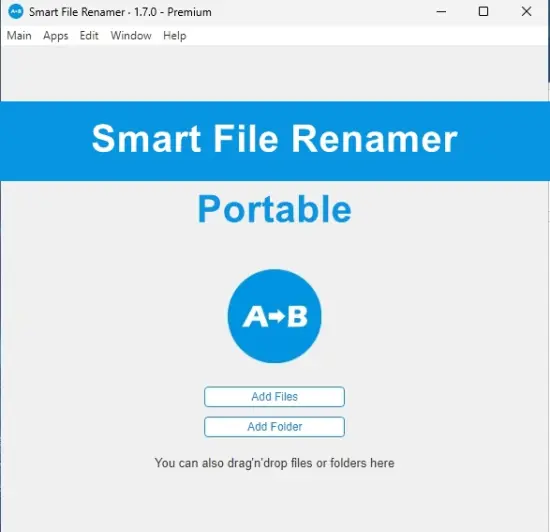
Smart File Renamer Portable is a flexible desktop utility designed to make file renaming faster, clearer, and more consistent. It provides a convenient way to rename individual files or process large groups of files at once, helping users maintain an organized digital workspace without relying on complicated manual procedures.
Whether you are managing photographs, documents, music, videos, downloaded files, project resources, or archived folders, Smart File Renamer Portable offers a straightforward approach to creating meaningful and uniform file names. Instead of editing each file separately, users can define a renaming pattern, preview the expected results, and apply changes to an entire selection in a controlled workflow.
The portable design makes the software especially convenient for users who work across multiple computers or prefer tools that do not require a traditional installation. Smart File Renamer Portable can be kept on a removable storage device or placed in a dedicated folder, allowing it to be launched when needed. This makes it suitable for home users, office workers, photographers, students, researchers, administrators, and anyone who regularly handles groups of files.
Simplify Everyday File Management
Renaming files manually can quickly become repetitive. A folder containing hundreds of images may have generic camera-generated names. A project directory may contain documents with inconsistent titles. Downloaded files may include unnecessary characters, unclear abbreviations, or duplicate names. Over time, these small problems make searching, sorting, and identifying files more difficult.
Smart File Renamer Portable helps solve these issues by allowing users to rename multiple files according to a clear naming plan. A group of files can be given a common prefix, numbered sequentially, converted to a consistent format, or adjusted with selected text replacements. The result is a cleaner and more understandable file collection.
The software is designed around efficiency. Users can select the files they need, choose a renaming action, review the proposed names, and confirm the operation. This approach reduces the amount of repetitive typing involved in routine file maintenance while giving users visibility into the changes before they are made.
A well-organized file name can communicate important information at a glance. For example, a name can identify a date, location, project, category, version, or sequence number. Smart File Renamer Portable makes it easier to apply these details consistently, even when working with large collections.
Rename Files in Batches
One of the main strengths of Smart File Renamer Portable is its batch renaming capability. Instead of opening each file and changing its name separately, users can work with a selected group in a single session.
Batch renaming is helpful in many common situations:
- Renaming a collection of vacation photographs
- Adding project codes to office documents
- Numbering scanned pages in the correct order
- Preparing media files for a presentation
- Organizing research materials
- Standardizing filenames in an archive
- Cleaning up files copied from different devices
- Adding descriptive labels to downloaded resources
The process can be adapted to the type of files being managed. Users may apply the same change to every selected item or create a pattern that produces a unique name for each file. Sequential numbering is particularly useful when files need to remain in a predictable order.
For example, a set of files can be renamed using a structure such as:
A date-based pattern can also make files easier to locate:
By replacing vague or automatically generated names with descriptive patterns, users can create a file library that is easier to navigate and maintain.
Create Consistent Naming Patterns
Consistency is an important part of effective file organization. When files follow a predictable naming system, they are easier to sort alphabetically, group by category, identify in search results, and share with other people.
Smart File Renamer Portable allows users to apply naming patterns that reflect the purpose of their files. A pattern may include fixed text, numbering, existing filename content, or other available elements supported by the renaming workflow.
A consistent naming strategy may include:
- A project or client name
- A date or year
- A document category
- A location
- A version number
- A sequence number
- A short descriptive title
- A status label such as Draft, Final, or Revised
For example, business documents could follow this format:
Photographs could use a structure such as:
Students may organize assignments with names such as:
The exact structure depends on the user’s needs, but the objective remains the same: transform unclear file names into a logical and useful system.
Preview Changes Before Applying Them
Renaming files is an important operation, so it helps to understand the result before confirming the changes. Smart File Renamer Portable is intended to support a preview-oriented workflow, allowing users to inspect the proposed filenames before applying them.
A preview can help identify common issues, such as:
- Missing text in a naming pattern
- Incorrect numbering
- Unwanted spaces
- Duplicate names
- Unexpected capitalization
- Files that were selected accidentally
- A sequence that begins with the wrong number
- A pattern that does not match the intended folder
This review step makes batch renaming more controlled. Rather than applying a change immediately and discovering a problem later, users can examine the proposed results and adjust the pattern when necessary.
The preview is especially valuable when working with hundreds or thousands of files. A brief review can prevent a small mistake from affecting an entire collection. It also makes the software easier to use for people who are new to batch file operations.
Replace Text Quickly
Smart File Renamer Portable can be useful when filenames contain words, symbols, or abbreviations that need to be changed throughout a folder. Text replacement makes it possible to update repeated content without manually editing every file.
For example, users may want to:
- Replace an old project name with a new one
- Change an abbreviation into a full word
- Correct a repeated spelling error
- Remove a phrase from filenames
- Replace spaces with underscores
- Update a year in a collection of files
- Change a status label from Draft to Review
- Remove unwanted characters from downloaded files
A text replacement action can save considerable time when the same correction appears in many filenames. It can also help maintain naming standards when a project changes direction or when an organization adopts a new filing convention.
Users should still review the preview carefully before applying a broad replacement. A short word or character sequence may appear in more filenames than expected, especially in folders containing unrelated materials.
Add Prefixes and Suffixes
Adding a prefix or suffix is another useful way to update a group of files. A prefix places new text at the beginning of a filename, while a suffix adds text at the end.
Prefixes can be used for:
- Project identifiers
- Department names
- Customer codes
- Dates
- Categories
- Priority labels
- Archive markers
Suffixes can be used for:
- Version numbers
- Review stages
- Language labels
- Source descriptions
- Production stages
- Backup indicators
For example, adding the prefix Invoice_ can turn generic files into a clearly identified collection:
A suffix can provide additional context:
These operations are simple, but they can make a substantial difference in folders where the original filenames do not contain enough information.
Number Files in the Correct Order
Sequential numbering helps users maintain order in collections where filenames do not already contain a useful sequence. Smart File Renamer Portable can be used to give files organized numbers according to a chosen starting point and naming pattern.
Numbering is helpful for:
- Scanned documents
- Instruction manuals
- Audio recordings
- Image sequences
- Lesson materials
- Product photographs
- Design drafts
- Chapters and sections
- Archived correspondence
A numbered filename should generally use leading zeros when the collection contains many files. For example, using 001 instead of 1 helps keep files in the expected order when they are sorted alphabetically.
A collection using two-digit numbering may look like this:
For larger collections, three-digit numbering may be more appropriate:
Smart File Renamer Portable makes this type of organization more manageable by applying numbering as part of a broader pattern rather than requiring users to type each number manually.
Improve Photo Organization
Digital photographs often arrive with filenames that are difficult to remember or interpret. A camera or mobile device may create names based on an internal numbering system, but those names usually do not describe the event, location, or subject.
Smart File Renamer Portable can help transform a folder of generic images into a more useful collection. A user might add an event name, location, date, or sequence number to each image.
Examples include:
or:
Descriptive filenames make it easier to search for images later. They can also be helpful when photographs are copied to another device, included in a presentation, uploaded to a website, or shared with family members and colleagues.
The software can be used for personal photo collections, professional image libraries, event photography, product images, screenshots, and visual assets for ongoing projects.
Organize Documents and Work Files
Documents become easier to manage when filenames provide clear information about their content and status. A folder containing names such as document1, newfile, or final2 can be confusing, especially after several revisions.
Smart File Renamer Portable can help users apply clearer naming conventions to reports, spreadsheets, presentations, PDFs, text files, and other work-related documents. Adding a date, department, subject, or version indicator can improve visibility and reduce confusion.
A structured document collection might use names such as:
For meeting records, users may choose a format such as:
Clear filenames reduce the need to open files merely to determine what they contain. They also help teams follow a shared filing method.
Clean Up Downloads and Archives
Download folders can become cluttered with files that have long, inconsistent, or automatically generated names. Some files include unnecessary numbers, extra punctuation, website-generated phrases, or unclear abbreviations.
Smart File Renamer Portable can help users clean up these folders by removing unwanted text, replacing symbols, adding categories, or applying a consistent naming pattern. This is useful for users who regularly download documents, software packages, images, educational materials, reports, or media files.
Archives can also benefit from systematic renaming. When files are collected from several locations, they may follow different naming styles. Standardizing them makes the archive easier to search and browse.
A cleanup process may include:
- Selecting the relevant files.
- Removing unnecessary text.
- Replacing inconsistent separators.
- Adding a descriptive prefix.
- Applying sequential numbering where needed.
- Reviewing the preview.
- Confirming the final names.
This approach helps turn an unstructured folder into a more useful digital library.
Portable Convenience
The portable format is a central part of Smart File Renamer Portable. A portable application can be kept in a convenient folder and launched when required, making it practical for users who prefer a lightweight workflow.
Portable software can be useful when:
- Working on more than one computer
- Using a shared workstation
- Maintaining a toolkit on removable storage
- Avoiding unnecessary installation steps
- Keeping utilities in a dedicated folder
- Working in temporary or project-based environments
Because the application is intended to be portable, users can keep it alongside other file-management tools or store it in a personal utilities directory. This makes it easy to access without adding another permanent application to every computer.
The portable approach also suits technicians, administrators, students, and professionals who frequently move between workspaces. A familiar renaming utility can remain available wherever the user needs to organize files.
A Straightforward Workflow
Smart File Renamer Portable is designed to support a practical sequence of actions rather than an unnecessarily complicated process. A typical workflow can be completed in a few stages.
Select the Files
Begin by choosing the files that need to be renamed. Selection may focus on one folder, a group of files, or a specific collection prepared for processing.
Choose a Renaming Action
Decide whether the filenames should be replaced, edited, numbered, cleaned, or expanded with additional text. The right action depends on the current state of the files and the desired result.
Build the Pattern
Enter the text or structure that should be used for the new names. This may include a shared title, numbering, a date, or another descriptive element.
Review the Preview
Inspect the proposed names carefully. Look for incorrect text, duplicate results, unexpected numbering, or files that should not be included.
Apply the Changes
Once the preview matches the intended result, confirm the operation. The selected files will receive their new names according to the chosen pattern.
This workflow keeps the process understandable and gives users an opportunity to correct mistakes before changes are applied.
Designed for Different Experience Levels
File renaming can be a simple task for a small group of files, but it becomes more demanding when patterns and large batches are involved. Smart File Renamer Portable is suitable for users with different levels of technical experience because the core concept is easy to understand: choose files, define the desired naming approach, preview the result, and confirm.
Beginners can use the software for basic actions such as adding a prefix, replacing text, or numbering a selection. More experienced users can develop detailed naming systems for recurring projects, archives, media collections, and administrative workflows.
The software can also support users who do not want to learn scripting or complex command-line procedures. A visual renaming workflow makes batch operations more approachable while still providing useful control over the final results.
Safer and More Organized File Operations
A predictable naming process can reduce mistakes in daily file management. When files are named clearly, users are less likely to overwrite the wrong item, confuse different versions, or lose track of important documents.
Before starting a batch operation, it is good practice to:
- Confirm that the correct folder is selected
- Review the files included in the operation
- Choose a naming pattern that is easy to understand
- Check for possible duplicate names
- Inspect the preview before applying changes
- Keep an original copy of important files when appropriate
These habits complement the software’s workflow and help users make controlled changes. Smart File Renamer Portable is most effective when used as part of a deliberate file organization routine.
Useful for Home, Education, and Business
Smart File Renamer Portable can adapt to many environments. At home, it can organize family photos, recipes, scanned records, tax documents, and personal archives. In education, it can help students arrange assignments, lecture notes, research files, and project resources.
For business users, consistent names can improve shared folders, document archives, client materials, invoices, reports, and marketing assets. Small teams can use naming patterns to make files easier to identify without creating a complicated document-management system.
Creative professionals may use the software to organize drafts, image assets, audio files, video clips, exported designs, or project deliverables. Technical users may apply it to logs, configuration files, backups, datasets, and test materials.
The wide range of possible applications makes Smart File Renamer Portable a practical utility for everyday digital organization.
Better Search and Faster Identification
A descriptive filename provides useful information before a file is opened. This can make search results easier to understand and help users identify the correct file more quickly.
For example, a folder containing names such as:
offers little context. A renamed collection might use:
The second format gives the user immediate information about the subject and date. Similar improvements can be made to documents, recordings, downloads, and archived materials.
Consistent filenames also help when files are viewed outside their original folders. If an attachment is copied to a desktop, uploaded to a website, or sent to another person, its name can still communicate what it contains.
A Practical Utility for Long-Term Organization
File organization is easier when it becomes a repeatable habit. Smart File Renamer Portable can support long-term organization by helping users apply the same naming principles across multiple folders and projects.
A reliable naming system should be:
- Descriptive without being excessively long
- Consistent across related files
- Easy to sort alphabetically
- Simple to understand later
- Suitable for sharing
- Flexible enough for future additions
Users can establish a preferred format and apply it whenever new files are added. Over time, this reduces clutter and makes digital collections easier to maintain.
Smart File Renamer Portable is not limited to one type of file or one particular workflow. Its value comes from giving users a convenient method for making filenames more meaningful, consistent, and useful.
Conclusion
Smart File Renamer Portable provides a practical way to manage groups of files with less manual effort. Its batch-oriented approach helps users apply prefixes, suffixes, replacements, numbering systems, and naming patterns to multiple files in a controlled workflow.
The portable format adds convenience for people who work across different computers or prefer to keep useful utilities in a dedicated folder. A preview-focused process helps users inspect proposed names before confirming changes, while the straightforward interface makes common renaming tasks accessible to beginners and experienced users alike.
From organizing family photographs and cleaning up download folders to managing business documents and preparing project archives, Smart File Renamer Portable can improve the clarity of a digital workspace. By turning generic or inconsistent filenames into organized, descriptive labels, the software helps users find files faster, maintain better records, and spend less time on repetitive file maintenance.
Features at a Glance
- Portable file-renaming utility
- Batch renaming for multiple files
- Support for individual file operations
- Custom filename patterns
- Sequential file numbering
- Configurable starting numbers
- Leading-zero numbering for orderly sorting
- Prefix addition
- Suffix addition
- Text replacement in filenames
- Removal of unwanted text
- Filename cleanup workflows
- Consistent naming for documents and media
- Useful for photographs, videos, music, and archives
- Suitable for office, home, education, and creative projects
- Preview of proposed filename changes
- Helps identify possible naming errors before confirmation
- Reduces repetitive manual editing
- Supports clearer digital organization
- Makes files easier to search and identify
- Useful for downloads and shared folders
- Practical for project-based file management
- Convenient for users working across multiple computers
- Simple workflow for selecting, editing, previewing, and applying changes
- Helpful for creating long-term naming conventions