Portable ZD Soft Screen Marker 1.0.4
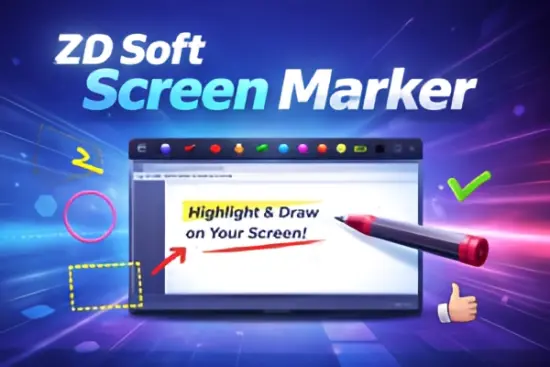
Screen Marker Portable is a dedicated Windows tool designed to let users draw, annotate, and highlight directly on their computer screen in real time, turning the desktop into a digital whiteboard or teaching canvas. Rather than being a full‑on video editor or general drawing application, it focuses on lightweight, high‑performance on‑screen markup that integrates smoothly into screen recording, live demos, online teaching, and software presentations. The software is especially useful for trainers, educators, developers, and support staff who need to point out UI elements, explain workflows, or emphasize key areas of a running application without switching to a separate diagram or annotation program.
Core idea and main purpose
Screen Marker Portable positions itself as an “all‑in‑one” on‑screen annotation layer that sits on top of whatever you are doing on your PC. Its central idea is simple: you activate a transparent, floating drawing canvas that overlays your desktop, then you mark up the screen with pens, shapes, text, and highlights just as if you were writing on a glass‑like surface. This approach is fundamentally different from editing a static screenshot, because the annotations live on the live screen and can be updated or erased instantly as the underlying application changes.
For practical use, the software is optimized for:
-
E‑learning and online teaching, where instructors want to circle buttons, underline steps, or draw arrows over running software.
-
Technical support and knowledge‑sharing, allowing team members to visually guide others through complex UIs or troubleshooting paths.
-
Software demos, webinars, and product walkthroughs, where clear visual cues help the audience follow the presenter’s actions more easily.
-
Live coding or design reviews, where developers or designers can sketch layouts, point out bugs, or explain architectural decisions directly on the screen.
Because the tool is lightweight and runs in the background, it can be used alongside screen recording, video conferencing, or remote‑desktop sessions without significantly slowing down the system.
How the annotation layer works
The core mechanism of Screen Marker Portable is a transparent overlay that follows your display and mouse movements. When you enable the tool (often via a global hotkey), an overlay canvas appears on top of all open windows, and the cursor changes into a drawing or whiteboard pointer. The overlay is designed to:
-
Stay always on top so that annotations are visible no matter which window you switch to.
-
Be largely transparent, so that the underlying content remains clearly readable while still showing pen strokes, highlights, and shapes.
-
Support multiple monitors, letting you draw independently on each screen or extend the canvas across several displays.
Because the drawing is composited on‑screen rather than modifying the underlying application, the software does not interfere with the original programs you are running. You can continue interacting with menus, buttons, and dialogs while the annotations float above them, and you can clear or modify the markup at any time without affecting the source application.
Drawing tools and pen styles
A major strength of Screen Marker Portable is the variety of drawing tools it provides, each tailored to a different annotation style and use case. Typical pen and drawing modes include:
-
Pen: a standard line tool for precise markings, arrows, underlines, and UI‑element circles. It is ideal for step‑by‑step guides where you want clean, controlled strokes.
-
Highlighter: a semi‑transparent, broad brush used to “illuminate” text blocks, fields, or regions without fully obscuring them, similar to a fluorescent marker on paper.
-
Chalk: a soft‑edge brush that mimics the look of chalk on a blackboard, useful for classroom‑style explanations or when you want a less formal, hand‑drawn appearance.
-
Pencil: a fine‑tip tool for sketching, quick diagrams, or rough layout ideas that may be erased or revised later.
-
Ink Pen: a high‑contrast, solid‑line pen optimized for clear, legible text and labels over busy backgrounds.
-
Calligraphy Pen: a stylized brush that produces variable‑width strokes, giving your annotations a more artistic or decorative feel for presentations.
Beyond freehand drawing, the software usually includes shape tools such as lines, arrows, rectangles, ellipses, and freeform curves, which can be stretched, rotated, and resized to align with specific UI elements. Some versions also support Bezier curves or smooth curves, allowing you to draw smooth, guided paths that emphasize motion or flow on the screen.
Erasers and correction tools
Recognizing that on‑the‑fly annotation is inherently messy, Screen Marker Portable includes several eraser types to help refine your markup:
-
Object eraser: removes entire drawn objects such as shapes, arrows, or text boxes that you touch with the eraser tip, leaving other elements untouched.
-
Pixel eraser: erases individual pixels along the path of a small circular eraser, useful for fine‑tuning edges or correcting small mistakes without deleting the whole stroke.
-
Area eraser: lets you draw a freehand region and then erase everything inside that area, which is handy for clearing large sections of a canvas or starting fresh in one corner of the screen.
These erasers are especially important when you are teaching or presenting live, because they allow you to clean up stray marks, correct errors, or remove temporary annotations without disrupting the overall flow of the session.
Text and label features
In addition to drawing, Screen Marker Portable typically offers rich text annotation tools that let you add labels, callouts, and notes directly on the screen. These tools usually provide:
-
Support for multiple custom fonts, letting you choose typefaces that match your presentation style or brand.
-
A wide range of colors for both fill and outline, often with an adjustable color picker and palette of frequently used swatches.
-
Options for text size, alignment (left, center, right), and outline effects such as borders or shadows to improve readability over busy backgrounds.
-
The ability to customize attributes on the fly, such as changing the color, opacity, or style of a text box after it has been placed.
You can place text labels over buttons, menus, file paths, or code snippets, turning visual pointers into explicit textual instructions. This combination of drawing and text makes it easy to create clear, self‑explanatory annotations that both show and tell the viewer what to do.
Shapes, arrows, and guides
To move beyond simple underlining and circles, Screen Marker Portable usually includes a set of geometric and schematic tools that help structure your annotations:
-
Lines and arrows: used to connect different UI elements, indicate direction, or show a sequence of steps (for example, “click here → then here → here”).
-
Rectangles and ellipses: useful for highlighting areas, framing important sections, or drawing rough bounding boxes around toolbars, menus, or panels.
-
Curved and Bezier curves: for drawing smooth, flowing paths that can encircle complex layouts or mimic the natural flow of a workflow diagram.
-
Freehand shapes: for creating custom symbols, diagrams, or layout sketches that are not constrained by standard geometric shapes.
Many of these elements can be resized, rotated, and moved after creation, and some versions allow you to group multiple objects so they can be manipulated as a single unit. This flexibility makes the software suitable not only for simple highlighting but also for creating small diagrams or flowcharts directly on the screen.
Whiteboard‑style canvas and object management
Screen Marker Portable often behaves like a virtual whiteboard, with the ability to create and manage multiple “boards” or canvases that can be reused or saved. Typical whiteboard features include:
-
Unlimited whiteboards: you can create as many separate canvases as needed, each corresponding to a different topic, application, or lesson.
-
Whiteboard management: tools to organize, rename, switch between, or close whiteboards, so you can keep your workspace tidy when working on multiple sessions.
-
Dynamic object editing: anytime after placing a shape, text, or image, you can tweak its color, size, opacity, blur, outline, or rotation, allowing you to refine the visual hierarchy of your annotations.
The software also tends to support image insertion, letting you bring in logos, diagrams, or screenshots as part of the annotation layer. These images can be scaled, rotated, and positioned over relevant windows, turning the screen into a rich composite of live software and static reference material.
Color palette, customization, and accessibility
Color plays a crucial role in on‑screen annotation, and Screen Marker Portable usually includes an extensive color‑management system:
-
Customizable palettes with up to several dozen frequently used colors, often organized into swatches for fills and outlines.
-
A visual color picker that lets you drag through a gradient or rainbow strip to choose hues, as well as an instant screen color picker (eyedropper) that samples colors directly from what is on your desktop.
-
Numeric color input (such as RGB values) for users who need pixel‑perfect color matching or brand‑consistent highlights.
These color tools not only make the software visually appealing but also more accessible, as they allow you to choose high‑contrast combinations that are easier to read for viewers with different visual needs.
The interface itself is typically designed for quick access: many tools can be summoned with keyboard shortcuts, and you can customize which tools appear on the toolbar. This lets you hide rarely used items and keep only the essential tools visible, reducing clutter while still retaining full functionality through hotkeys.
Performance, responsiveness, and integration
One of the main selling points of Screen Marker Portable is its focus on low‑latency drawing and minimal performance impact. The software is engineered to:
-
Respond almost instantly to mouse movements, so your pen strokes feel fluid and natural rather than laggy or jittery.
-
Run in the background without slowing down screen recording or video‑conferencing applications that you may be using simultaneously.
-
Support multiple monitors and high‑resolution displays, ensuring that annotations remain crisp and aligned even on 4K or multi‑screen setups.
Because the annotations are drawn on top of the live screen, Screen Marker Portable can integrate seamlessly with other tools that capture or broadcast the desktop. For example, if you are using a screen recorder or live‑streaming software, the on‑screen drawings from Screen Marker Portable will automatically appear in the recorded video or stream, making it effectively a real‑time annotation channel for live content.
Use cases and practical workflows
Screen Marker Portable is particularly effective in a range of day‑to‑day workflows:
-
Online teaching and tutorials: instructors can circle menus, underline key sentences, and sketch diagrams while running a live demo, helping students follow along more clearly.
-
Technical support and remote assistance: support agents can point to specific fields, highlight error messages, or draw arrows showing what the user should click, without needing to rely solely on verbal instructions.
-
Code reviews and development walkthroughs: developers can outline sections of code, draw arrows between functions, or highlight parts of an interface that need refactoring, directly in the IDE or browser window.
-
Design and UI reviews: designers can mark up layouts, suggest spacing changes, or illustrate interaction flows over live prototypes or mockups.
-
Live demos and webinars: presenters can guide the audience’s attention, emphasize key features, and create visual cues that reinforce spoken explanations.
In all these scenarios, the software reduces the cognitive load on the audience by turning abstract instructions into concrete visual cues, while giving the presenter a flexible, low‑friction way to annotate whatever is currently on screen.
Integration with recording and live sessions
While Screen Marker Portable is primarily an annotation tool, its design naturally complements screen recording and live‑streaming workflows. In many setups, users combine it with:
-
Screen recording software to capture the marked‑up desktop as a video, preserving the presenter’s annotations along with the actions performed on the screen.
-
Video‑conferencing tools such as Zoom, Teams, or WebEx, where the on‑screen drawings are visible to remote participants, effectively turning the host’s screen into a shared whiteboard.
-
Live demos shown to small groups, where the presenter can draw, highlight, and erase in real time to respond to questions or focus attention on specific areas.
Because the software does not require complex export or conversion steps, this integration is straightforward: the annotations are simply part of the screen content that other tools already capture.
Ease of use and learning curve
Screen Marker Portable is generally built around a low learning curve and immediate usability. Typical users can expect:
-
A small toolbar with large, clearly labeled icons for pens, erasers, shapes, and text.
-
Global hotkeys that let you quickly toggle the overlay, switch tools, or clear the canvas without reaching for the mouse.
-
Intuitive drag‑and‑draw interaction similar to basic drawing apps, so most people can start annotating meaningfully within minutes.
More advanced users can then dive into the customizable palettes, keyboard shortcuts, and object‑editing features to refine their workflow, while casual users can stick to a small set of essential tools and still get excellent results.
Benefits over alternative approaches
Compared with other ways to annotate screens—such as editing screenshots in an image editor, using built‑in whiteboard tools in video‑conferencing apps, or relying purely on verbal descriptions—Screen Marker Portable offers several distinct advantages:
-
Real‑time, live annotation: you can draw directly on top of running applications, not on static images, which keeps the context accurate and dynamic.
-
Persistent canvas: marks can be kept, edited, or removed at any time, without having to redraw them from scratch in each session.
-
High‑performance overlay: the software is typically lightweight and focused, so it does not introduce significant lag or resource usage.
-
Flexible toolset: the combination of multiple pen types, shapes, text, and erasers gives you more expressive options than simple pointer tools or basic highlighters.
For users who regularly explain software, lead training sessions, or give technical presentations, this combination of immediacy, flexibility, and performance makes Screen Marker Portable a valuable addition to their toolkit.
Overall user experience and strengths
In practical terms, Screen Marker Portable transforms the Windows desktop into a responsive, interactive whiteboard for live annotations. Its emphasis on speed, simplicity, and real‑time drawing lets users focus on communicating rather than on wrestling with the software. With a rich set of pens, shapes, erasers, and text tools, along with customizable colors and palettes, it provides enough power to handle complex visual explanations while remaining accessible to beginners.
The software’s strongest qualities lie in its tight integration with the live screen, its responsiveness, and its ability to coexist with screen recording and conferencing tools. For anyone who regularly explains UIs, walks through software, or presents live demos, Screen Marker Portable offers a clean, intuitive way to make those explanations visually clearer and more engaging.