
Portable Bitsum ParkControl Pro 6.0.0.36 Multilingual
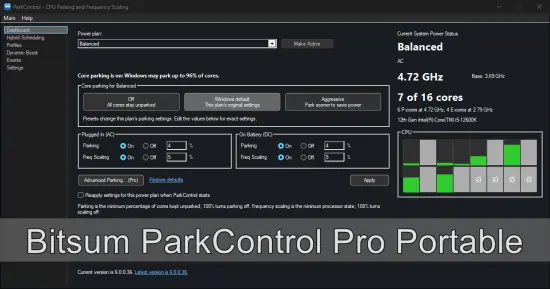
Bitsum ParkControl Pro Portable is a Windows utility for managing processor behavior through power-plan settings. Its main purpose is to make CPU core parking and related processor controls easier to understand and adjust. Rather than requiring users to hunt through hidden Windows settings or edit system configuration by hand, it presents relevant controls in a dedicated interface.
The tool is intended for people who want more say in how their computer balances responsiveness, performance, and power consumption. That can include desktop users tuning a system for demanding applications, laptop owners trying to balance plugged-in performance with battery life, and enthusiasts who want to explore processor settings in more detail.
What Bitsum ParkControl Pro Portable Does
Modern processors can adjust how they use their cores and how quickly they change operating frequency. Windows power plans influence those decisions. One such behavior is core parking, in which the operating system temporarily makes some processor cores unavailable for scheduling work when it judges that fewer cores are needed. This can help reduce power use, but it may also affect how quickly a system responds to workloads that suddenly need more processing capacity.
Bitsum ParkControl Pro Portable provides controls for processor-related power settings, including core parking and frequency behavior. It lets users inspect and alter settings associated with Windows power plans. Instead of applying one universal configuration to every situation, users can tune plans individually—such as using a more conservative setup for battery operation and a less restrictive setup for demanding workloads.
The software’s role is best understood as power-plan configuration and monitoring. It does not make a processor more powerful, add CPU cores, or guarantee smoother performance in every application. Results depend on the processor, Windows configuration, firmware, workload, cooling, and other software running on the machine. Adjusting power settings can change how the processor responds to load, but it cannot remove hardware limits.
Understanding CPU Core Parking
Core parking is one part of a computer’s power-management strategy. When demand is low, Windows may park some cores so that the system can reduce energy use. When activity increases, it can bring cores back into use. This behavior is often useful for everyday tasks, where keeping every core ready at full performance may consume more power than necessary.
The trade-off is that a system has to respond to changing workloads. A user might notice the effects of power management during brief bursts of activity, sustained CPU-heavy work, or applications that are sensitive to latency. The experience varies considerably: many users will not notice a meaningful difference, while others may want to test alternative settings for a specific workload.
ParkControl Pro makes core-parking controls more accessible than the standard Windows interface generally does. Its presets provide a simpler starting point, while its advanced controls let experienced users examine individual processor settings. This helps users experiment in a more deliberate way than changing undocumented registry entries or copying settings from another computer.
Core Parking Presets and Manual Tuning
Presets are useful for people who want to make a broad adjustment without immediately configuring every individual parameter. ParkControl offers one-click parking presets, allowing a user to select a general behavior and apply it to a power plan. A preset can be a practical first step when the goal is to compare a more energy-conscious setup with one that keeps processor cores more readily available.
For more specific tuning, ParkControl Pro includes advanced core-parking controls for processor settings exposed by Windows. These options are designed for granular adjustment, with descriptive tooltips to explain settings. The application can also display available settings and presets without requiring a Pro license, while saving advanced changes requires Pro.
Manual tuning is most useful when the user has a clear reason to change a setting and a way to evaluate the result. For example, a user might compare application responsiveness or power consumption under a repeatable workload. Changing several settings at once makes it harder to identify which adjustment caused a difference, so a gradual approach is easier to assess and reverse.
Power Plans for Different Situations
Windows power plans are collections of settings that shape how a PC behaves under different circumstances. ParkControl’s controls apply to plans, which means users can choose different processor behavior for separate usage scenarios instead of relying on one configuration for everything.
A desktop user might prefer a performance-oriented plan while gaming or rendering and a more moderate plan for routine browsing. A laptop user may want separate behavior when plugged in and when running on battery. ParkControl supports separate plugged-in and battery settings, allowing users to account for the fact that maximum responsiveness and maximum battery endurance are not always compatible goals.
The appropriate choice depends on what matters most in a particular situation. A setting that favors keeping cores active may increase power use or heat under some workloads. A setting that emphasizes energy efficiency may be preferable when battery life, quiet operation, or lower consumption matters more than immediate peak responsiveness. There is no single configuration that is automatically best for every PC.
Hybrid Processor Support
Some modern processors use different types of cores, such as performance cores and efficiency cores. This hybrid design can make processor scheduling and power management more complicated than on a CPU where every core has the same role. A setting that appears straightforward on one processor may have different implications on another.
ParkControl’s newer capabilities include support for hybrid CPU configurations, including P-core and E-core scheduling views. A live core map can help users see processor-core information, with visual indicators distinguishing core types. This offers a more informative view of the processor than a simple total core count, especially for users investigating how a particular power plan interacts with a hybrid CPU.
Monitoring is not the same as controlling every scheduling decision. Windows, processor firmware, and application behavior all influence where work runs. The live view is most useful as context when examining settings or comparing system behavior, rather than as proof that a particular core assignment will remain fixed.
Dynamic Boost and Automatic Plan Switching
ParkControl Pro includes Dynamic Boost functionality intended to change power-plan behavior in response to system activity. The feature can be configured around activity and idle conditions, with options relevant to battery behavior. Its dashboard can show a live status, and event information can help explain why a plan changed.
Automatic switching can be convenient for people who want performance behavior to adapt without manually selecting a plan each time. It may also require careful configuration if other utilities are managing power plans or processor behavior. Conflicting rules can make a system’s behavior confusing; ParkControl’s notices about potential conflicts are therefore useful when several performance tools are installed.
A user who prefers a predictable setup can choose a plan manually. The software notes that manually choosing a plan turns Dynamic Boost off. This makes the feature a choice rather than an unavoidable background mechanism: users can use automatic behavior when it suits their workflow and return to manual selection when they want direct control.
Profiles, Importing, and Exporting Settings
Profiles provide a way to save a power plan’s processor settings and apply them elsewhere. This is useful when a user wants to reproduce a known configuration across plans without repeating every adjustment manually. Import and export options can also help preserve or transfer profiles, depending on the user’s setup.
A profile can serve as a convenient record of a tested configuration. For example, someone might keep one profile for everyday use and another for a particular performance-sensitive task. This makes experimentation more manageable, since users can return to a saved arrangement instead of relying on memory.
Profiles should still be treated as settings to review, not universal recipes. A configuration that works well on one PC may not suit another processor, laptop, or cooling system. When applying a profile to a different power plan or computer, it is sensible to check its effects and confirm that the resulting behavior matches the intended use.
Monitoring and the Dashboard
ParkControl includes a dashboard for viewing power-plan and processor information. Depending on the version and hardware, this can include the active plan, parking presets, plugged-in and battery settings, and a visual representation of processor cores. The CPU frequency display can show effective frequency alongside base frequency, with separate P-core and E-core frequencies on hybrid systems.
A dashboard is valuable because settings are easier to reason about when users can see the current context. If a PC seems unresponsive or consumes more power than expected, a visible plan and core status can help narrow down what configuration is active. It does not replace detailed performance testing, but it can make basic inspection quicker.
The live system information should be interpreted carefully. Processor frequency changes dynamically, and readings can vary as workloads start and stop. A brief snapshot is not enough to determine the overall performance or efficiency of a system. Comparing behavior over consistent workloads is more informative than relying on a single momentary reading.
Applying Changes and Restoring Defaults
ParkControl changes processor settings in Windows power plans. Those changes can persist even when the application is not running, so users should remember that closing the interface does not necessarily undo their configuration. This persistence is helpful when a user wants a chosen setup to remain active, but it also makes it important to know which plan has been changed.
The software provides a way to restore processor settings to defaults. Its current description indicates that restoring defaults resets the processor settings ParkControl manages, using defaults Windows has tuned for the CPU. This offers a practical fallback if experimentation produces unexpected behavior or if a user simply wants to return to the system’s standard configuration.
Before making extensive changes, it is sensible to note the active plan and the adjustments being tested. ParkControl’s release information also describes power-plan backups associated with installation. Keeping backups or recording settings can make it easier to recover from configuration changes and compare alternatives.
Ease of Use and Intended Users
ParkControl’s interface is designed to make specialized Windows power settings more approachable. Presets give less technical users a starting point, while advanced controls and tooltips offer additional detail for users who want more precision. This layered approach means users can begin with a simple adjustment and explore further only if they need to.
The software may appeal to:
- PC enthusiasts who want direct access to processor power settings.
- Gamers and creators testing responsiveness during CPU-intensive work.
- Laptop users balancing battery operation with plugged-in performance.
- IT-oriented users who prefer profiles and repeatable configurations.
- People troubleshooting whether power-plan behavior contributes to a performance issue.
It is less compelling for someone whose computer already behaves well and who has no particular reason to adjust processor settings. Changing power options merely because more controls are available may bring no visible benefit, and in some cases may increase energy use without improving the user’s actual workload.
Performance, Efficiency, and Realistic Expectations
The potential benefit of ParkControl Pro is control—not guaranteed acceleration. Disabling or reducing core parking can influence how quickly processor cores are available, while changes to frequency-related settings can affect how the CPU responds to demand. These changes may be relevant in some cases, but performance is determined by many factors beyond power plans.
A system can be limited by memory, storage, graphics, thermal throttling, background tasks, application design, or network conditions. If a game is limited by the graphics card, altering CPU parking may have little or no effect. If a laptop is already thermally constrained, a more aggressive power configuration may not sustain higher performance for long. Users should match the setting to a clearly defined goal and observe the outcome rather than assume a preset is a universal optimization.
Power use also deserves attention. Keeping more cores available or favoring responsiveness can increase energy consumption in some circumstances. On a desktop, that may be an acceptable trade-off for a particular task. On a laptop, it may shorten battery runtime. Testing both performance and energy impact helps ensure that a change is genuinely useful.
Compatibility and Considerations
ParkControl is a Windows utility, and the settings available to it depend on Windows, the processor, and the system’s power configuration. Some systems may not expose all controls or may have processor behavior managed partly by firmware or device manufacturers. Hybrid processors add further complexity, and OEM configurations can differ substantially across computers.
The latest ParkControl release information describes support for Intel and AMD processors, including hybrid CPUs, and includes a native ARM64 build. Specific capabilities can still depend on the installed version and Windows environment. Users should use a compatible release and consult its built-in descriptions when changing specialized options.
ParkControl can also run alongside Process Lasso, according to the product’s documentation, though users should pay attention to overlapping rules or automatic power-plan behavior. If another utility changes power settings, it may affect what ParkControl displays or what the system ultimately applies. When troubleshooting, simplifying the configuration temporarily can make it easier to identify which tool is responsible for a change.
Is Bitsum ParkControl Pro Portable Worth Using?
Bitsum ParkControl Pro Portable is most useful for people who want to inspect and manage CPU parking and processor power behavior in Windows. Its combination of presets, advanced options, plan-specific settings, monitoring, profiles, and Dynamic Boost makes it more capable than a single-purpose on/off switch. Hybrid CPU visibility and support also make it relevant to current processor designs.
The Pro edition is particularly suited to users who need to save advanced settings, use richer configuration options, or build reusable profiles. Someone who only wants to view settings or try available presets may find the free capabilities sufficient. The right choice depends on whether granular control solves a real need, rather than simply on how many options the interface offers.
For everyday users, a cautious workflow is straightforward: inspect the existing plan, choose a small adjustment that matches a specific goal, test it under familiar conditions, and restore defaults if the result is not worthwhile. That keeps the tool practical and reduces the chance of confusing a power-plan change with an unrelated hardware or software issue.
Features at a Glance
- Manages CPU core parking settings through Windows power plans.
- Offers one-click parking presets for quick configuration.
- Provides advanced processor and core-parking controls in Pro.
- Supports separate settings for plugged-in and battery operation.
- Includes Dynamic Boost options for activity-based power-plan changes.
- Displays dashboard information and live processor status.
- Shows frequency information, including P-core and E-core frequencies on hybrid CPUs.
- Provides a live core map for supported processor configurations.
- Supports saving, applying, importing, and exporting settings profiles.
- Includes a restore-defaults option for processor settings it manages.
- Applies changes without requiring a reboot, where supported by Windows.
- Designed for Windows systems with Intel and AMD processors, including hybrid CPUs.